

What is the Upload Component?
The Upload Component lets customers bring their own photo to your product page, see it framed live, and order with full confidence — before they buy.The Upload Component follows the same configuration structure as the Artwork Component. Options, sections, pricing, and conditional rules all work identically. The only difference is a single toggle covered below.
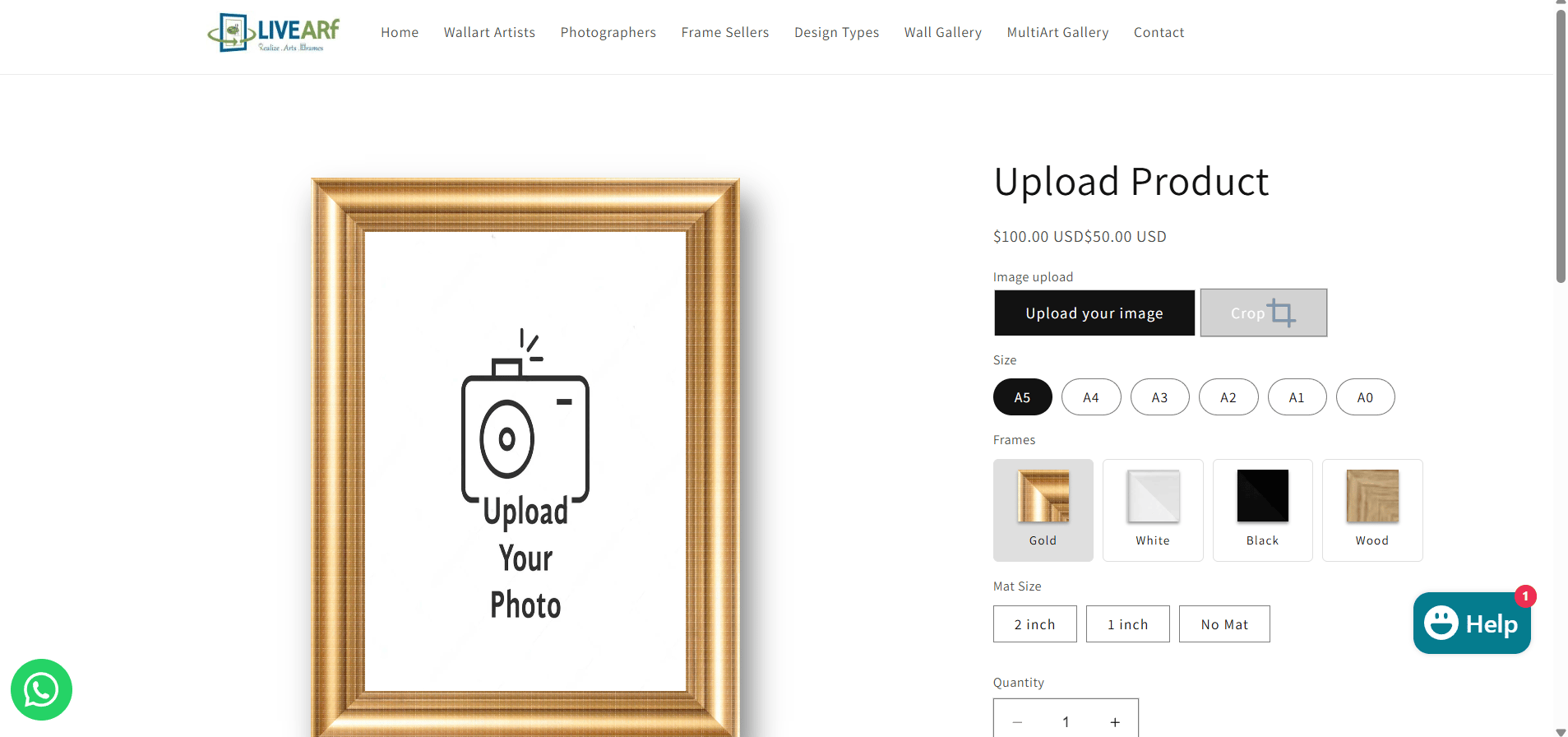
Artwork Component vs Upload Component
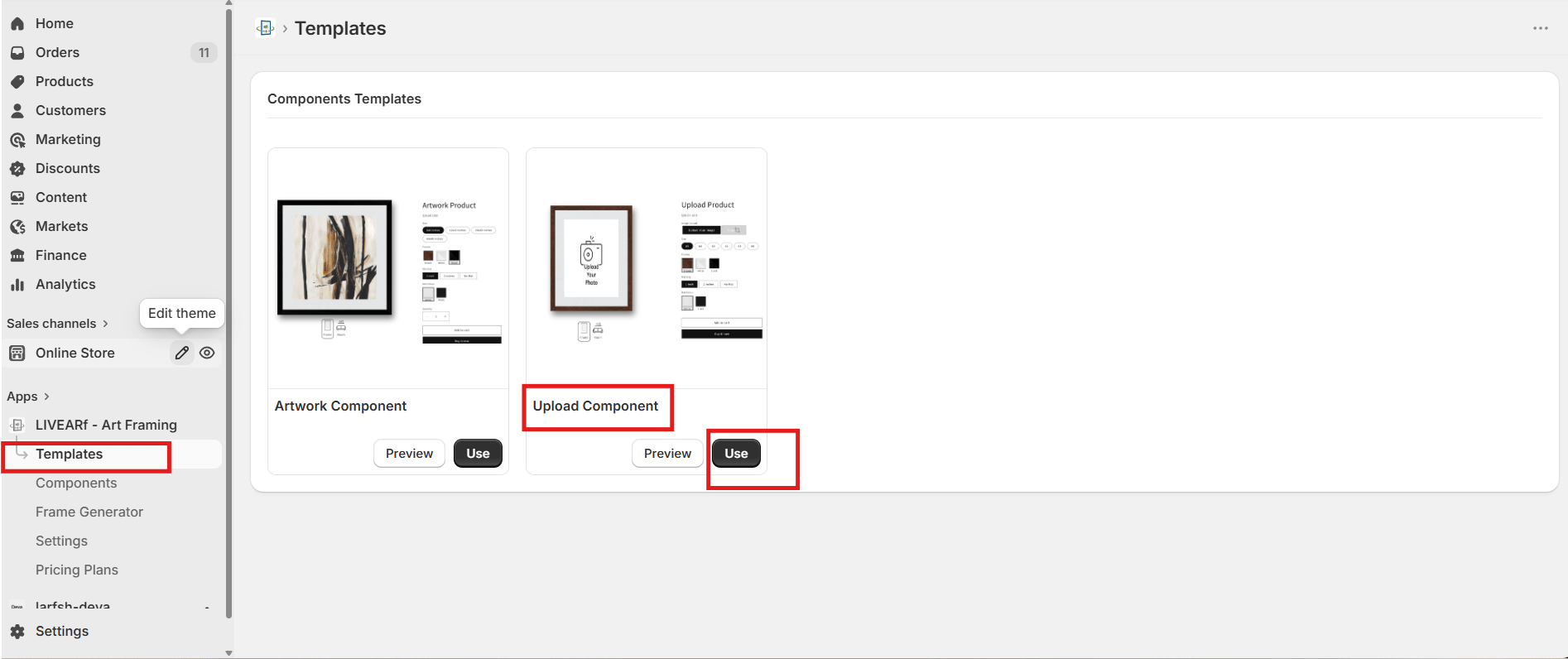
Accessing the Upload Component
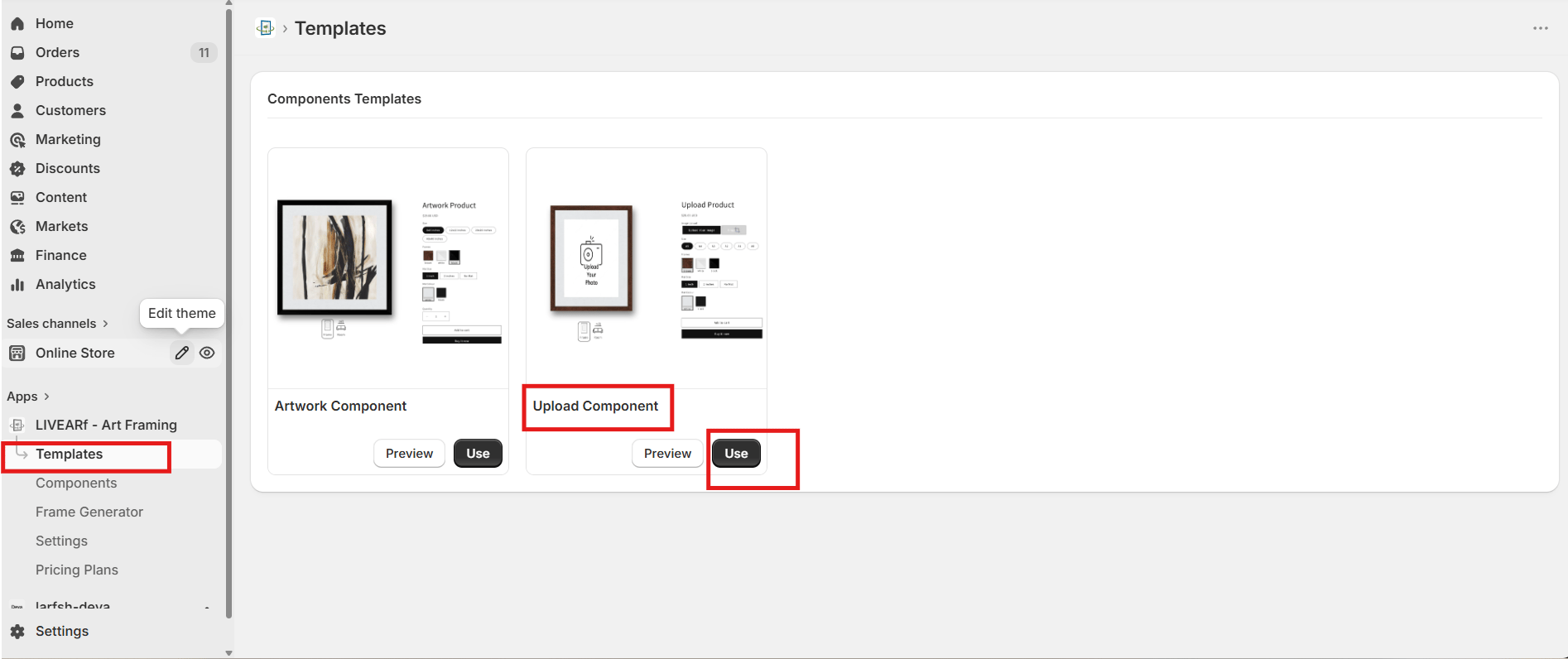
- Open the LIVEARf app from your Shopify admin
- In the left sidebar, click Templates
- Find the Upload Component card and click Use
- Open the Basic Configuration tab
The Key Difference — Image Upload Toggle
This is the only thing that separates the Upload Component from the Artwork Component.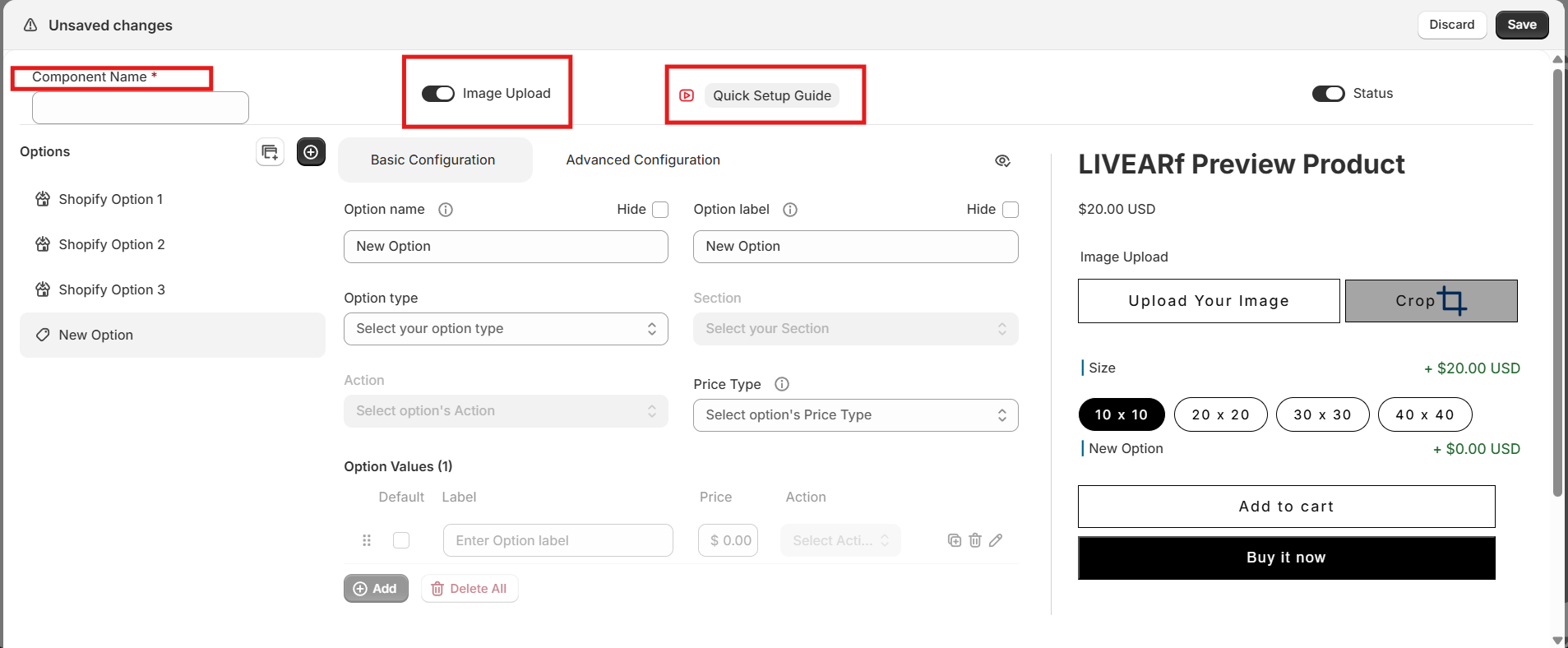
How Customers Experience It
When a customer lands on a product page using the Upload Component, they follow one of two paths:- Path 1 — Upload First (Primary)
- Path 2 — Browse First (Optional)
This is the main intended flow:
- Customer arrives on the product page
- They click Upload Your Image and select a photo from their device
- Their photo appears immediately inside the frame preview
- They adjust size, frame style, and mat options
- The preview updates in real time with their photo inside the chosen frame
-
They add to cart and place their order
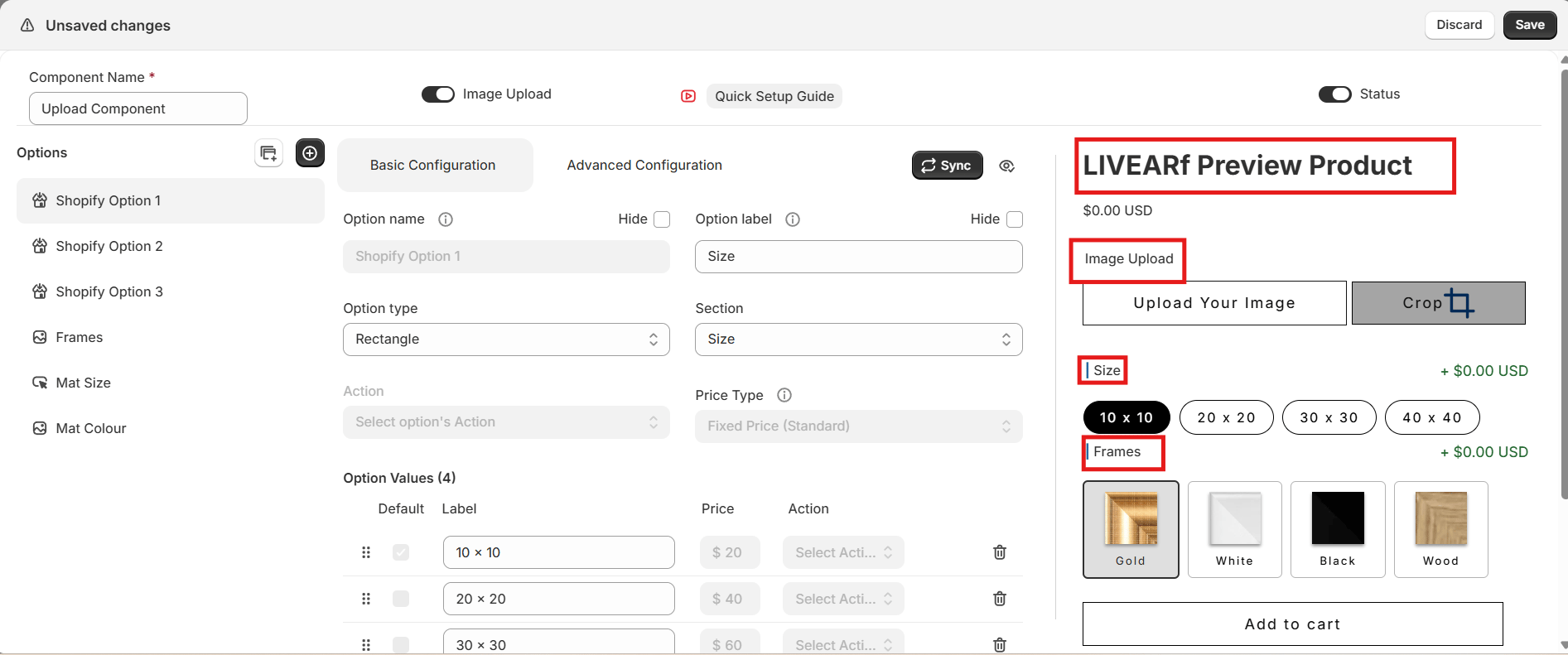
This path gives customers full confidence in what they are ordering before they buy.
Configuration
The Upload Component is configured exactly the same way as the Artwork Component. Refer to the sections below for full instructions on each part.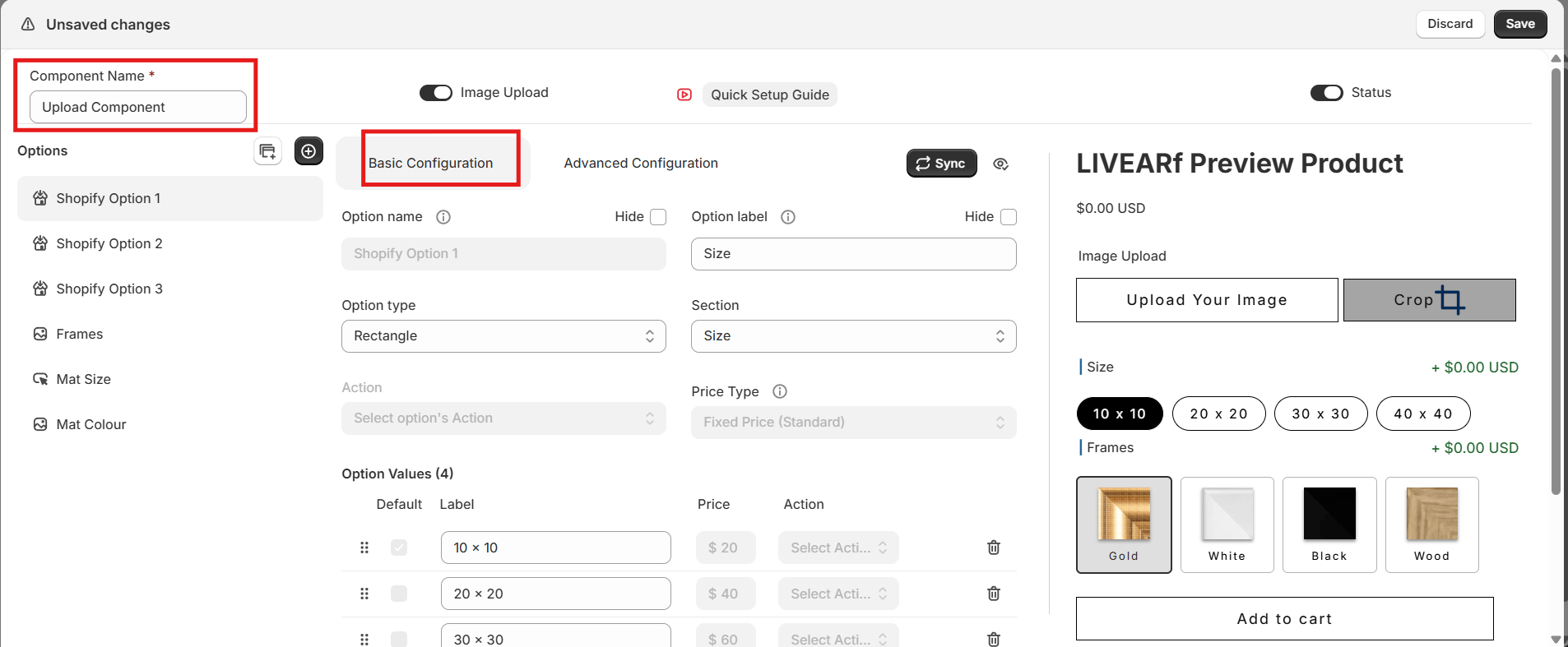
Component Header Settings
Component Header Settings
Set the Component Name, confirm Image Upload is ON, and set Component Status to ON.→ See Component Header Settings
Options Panel — Shopify & Custom Options
Options Panel — Shopify & Custom Options
Configure your Shopify-inherited options and the three default custom options — Frames, Mat Size, and Mat Colour.→ See Options Panel
Mat Size & Colour
Mat Size & Colour
Configure single or double mat spacing, mat styles, and mat colour swatches.→ See Mat Size & Colour
Pricing
Pricing
All eight pricing methods — Fixed, Surface Area, Perimeter, and Linear Unit across Standard and Predefined — are available here.→ See Pricing
Advanced Configuration — Conditional Rules
Advanced Configuration — Conditional Rules
Use WHEN / THEN rules to show, hide, or strikeout options based on customer selections.→ See Conditional Rules
Linking to Products
1
Enable the component
Turn Component Status ON and save all changes. The Link button only appears once the component is enabled.
2
Open the Link panel
Click Link in the top-right corner of the configuration screen.
3
Choose how to apply it
Click Link to confirm.
4
Verify
Go to LIVEARf → Components. Your component shows the number of linked products with a status of Active.
Tips for Upload Component Merchants
What’s Next?
Frame Generator
Create 2D and 3D frame visuals from your own frame strip images.
Artwork Component
Set up framing options for your own pre-made artwork.