

What is the Frame Generator?
The Frame Generator converts your frame strip images into fully usable frame visuals that appear in the live preview on your product page. It has two modes — 2D for flat, lightweight frame visuals and 3D for depth-accurate, realistic frame rendering.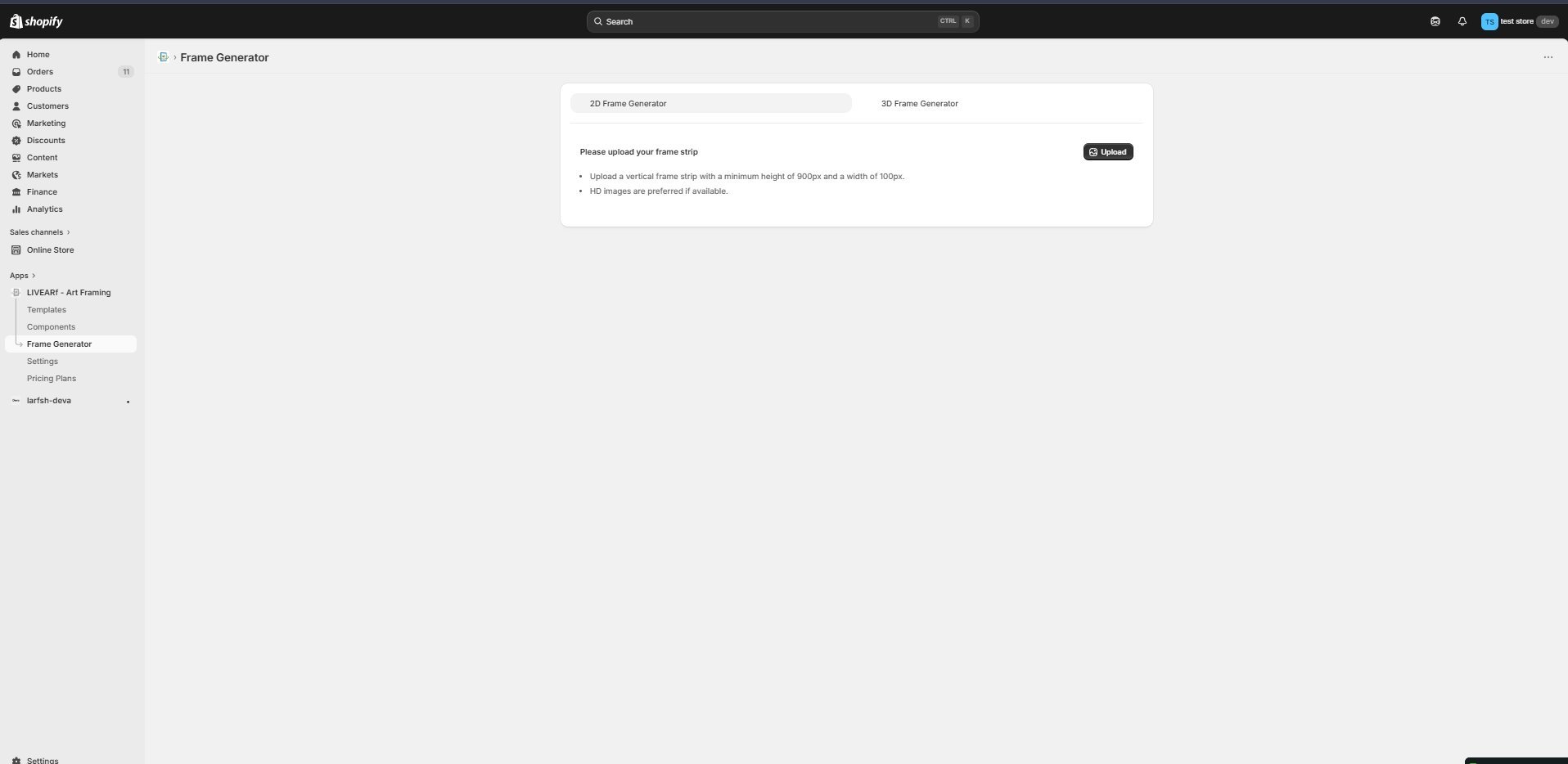
2D vs 3D — Which should you use?
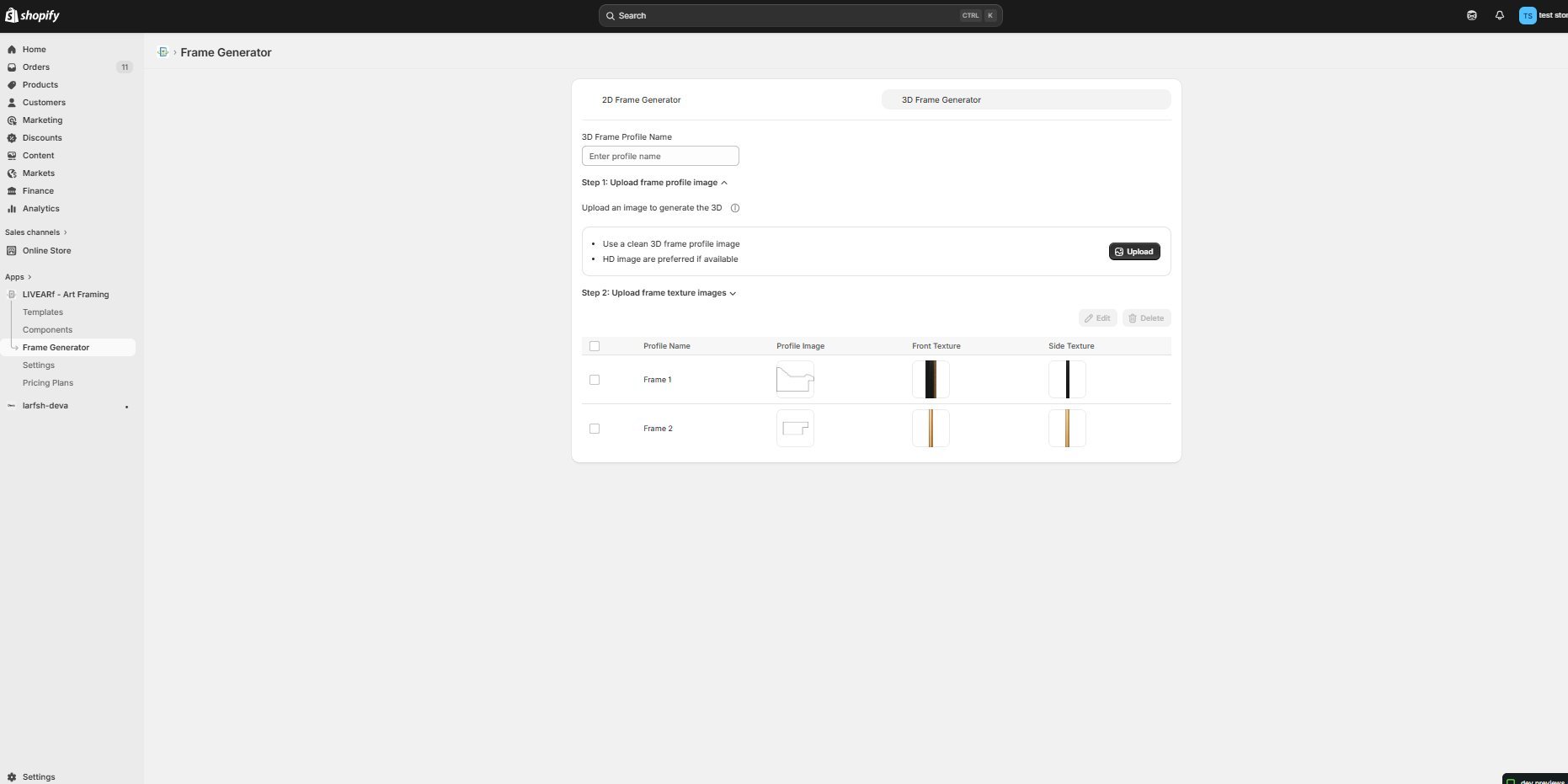
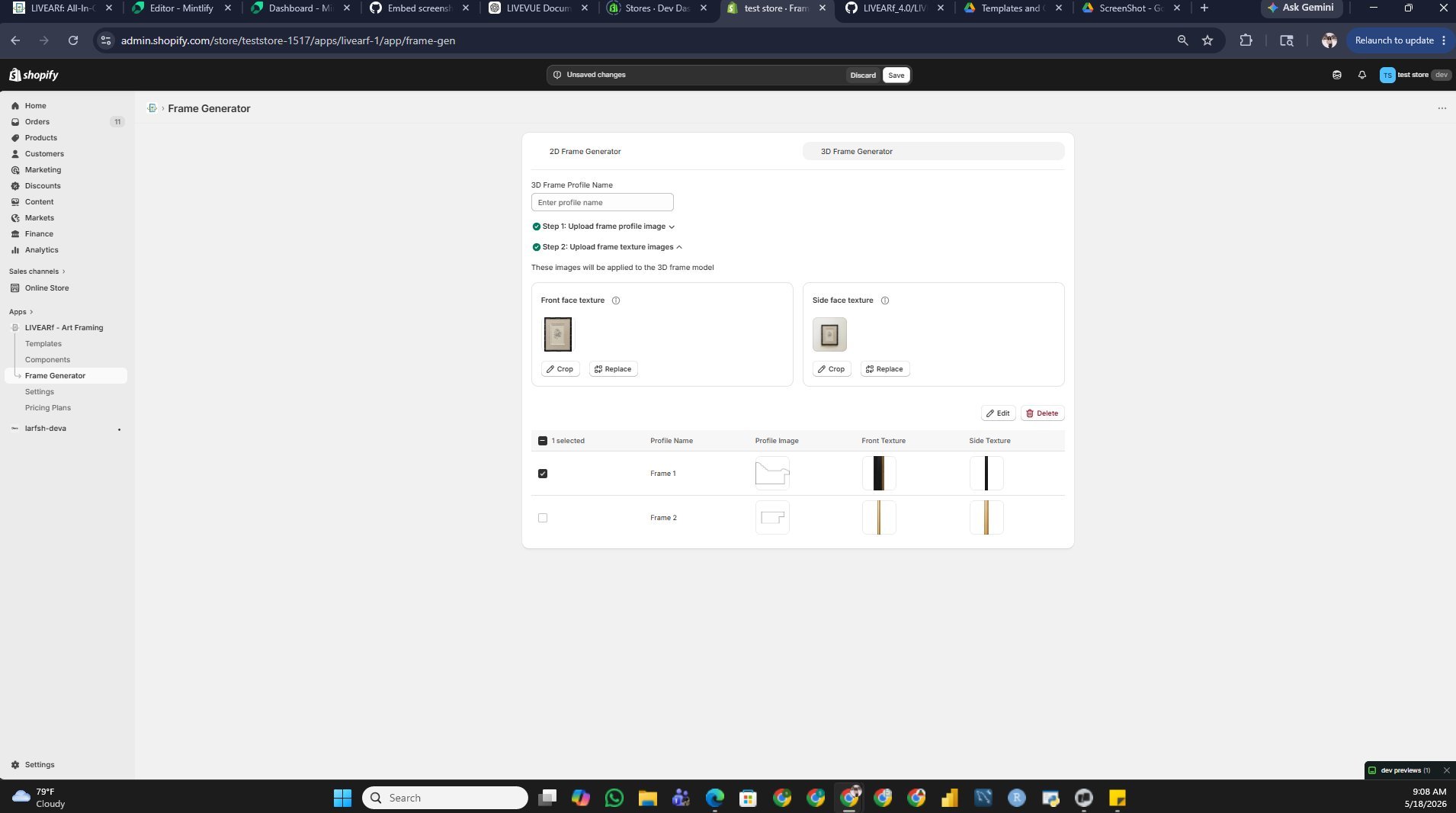
2D and 3D Frame Generator
- 2D Frame Generator
- 3D Frame Generator
Step 1 — Open the 2D tab and click Upload
Navigate to Frame Generator in your LIVEARf app sidebar. The 2D Frame Generator tab is selected by default. Click the Upload button in the top right.Before uploading, make sure your frame strip image meets these requirements:
- Vertical orientation
- Minimum height: 900px
- Minimum width: 100px
- HD images preferred for best results
Step 2 — Select or upload your frame strip
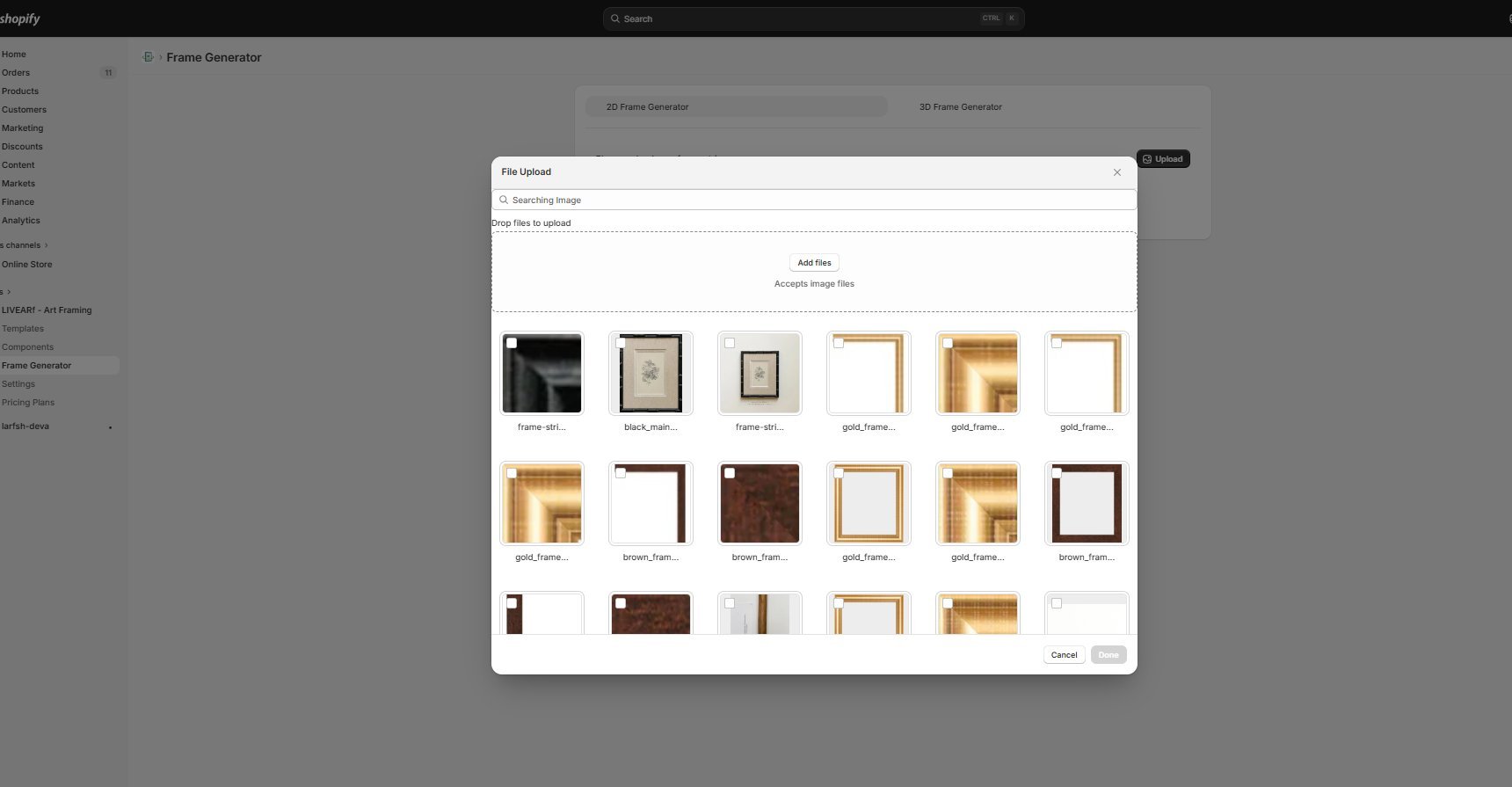
The File Upload popup opens. You can either:- Drag and drop a new frame strip image directly into the upload area
- Click Add files to browse your computer
-
Select an existing image from your frame library shown in the grid below
Step 3 — Crop the image and configure frame settings
After uploading, the crop tool appears. Use it to define exactly which part of the strip to use as your frame.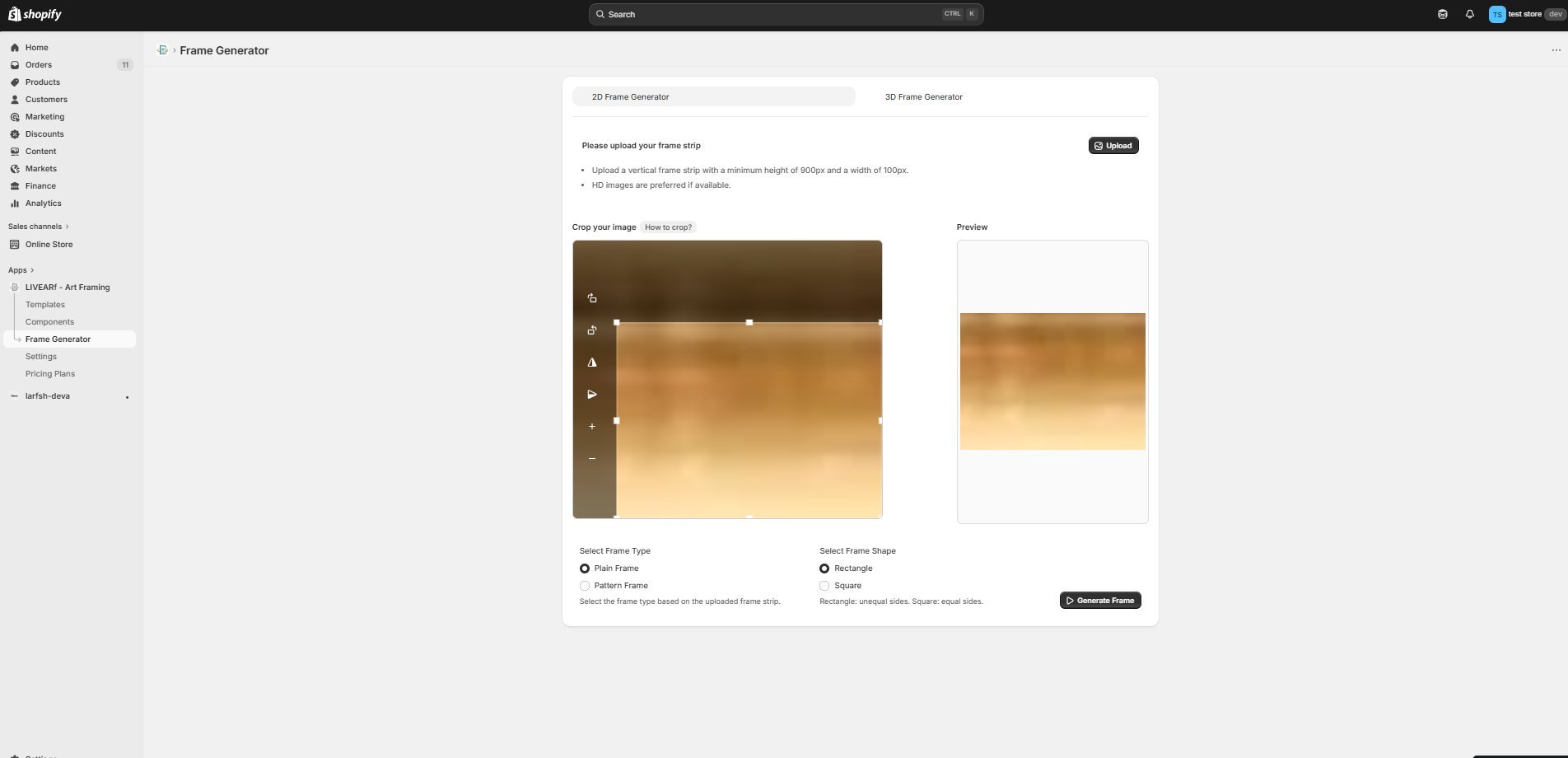
- Drag the crop handles to adjust the selection area
- The Preview panel on the right updates live as you crop
- Use the zoom controls ( + / − ) to get precise
Click Generate Frame when ready.
Step 4 — Review generated frames and save
LIVEVUE generates multiple frame corner variations from your strip. Review and select the ones you want to use.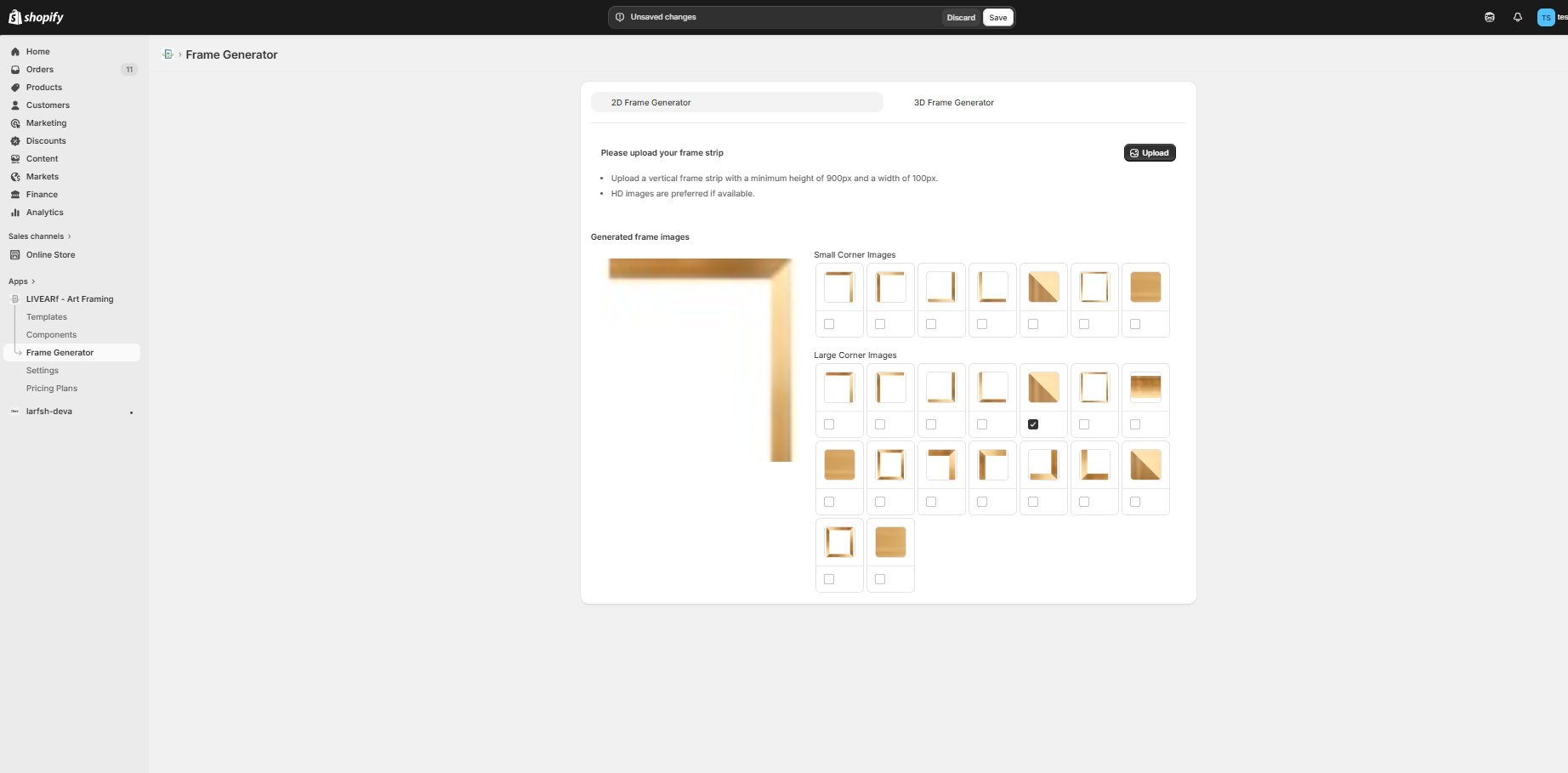
- Left panel — full frame preview showing how the selected corner image wraps around artwork
- Small Corner Images — smaller corner variations for use with smaller artwork sizes
- Large Corner Images — larger corner variations for use with larger artwork sizes
Your 2D frame is now saved and available to assign to a Frame option value in your Artwork or Upload Component.
Using Generated Frames in Your Components
Once a frame is generated and saved, here is how to assign it to your product:- Go to LIVEARf → Components and open your Artwork or Upload Component
- In the Options Panel, click on your Frames option
- For each frame option value, click the edit icon and select your generated frame image as the Main image and Thumbnail
- The frame will now appear in the live Preview Product and on your storefront
Image Requirements & Common Mistakes
Common mistakes to avoid:
What’s Next?
Artwork Component
Assign your generated frames to Frame option values in your component.
Settings
Configure global settings for your LIVEARf app.