
What is the Artwork Component?

The Artwork Component gives customers a live framing experience on your product page. They pick size, frame, and mat — the preview updates instantly. No redirects, no separate tool.
Best forCustomer experienceYou configure
Artists & photographers with pre-made artworkLive size, frame & mat preview before buyingOptions, pricing rules & smart visibility logic
The Artwork Component uses your existing artwork images. Customers cannot upload their own photos here. If you need customer uploads, use the Upload Component instead.
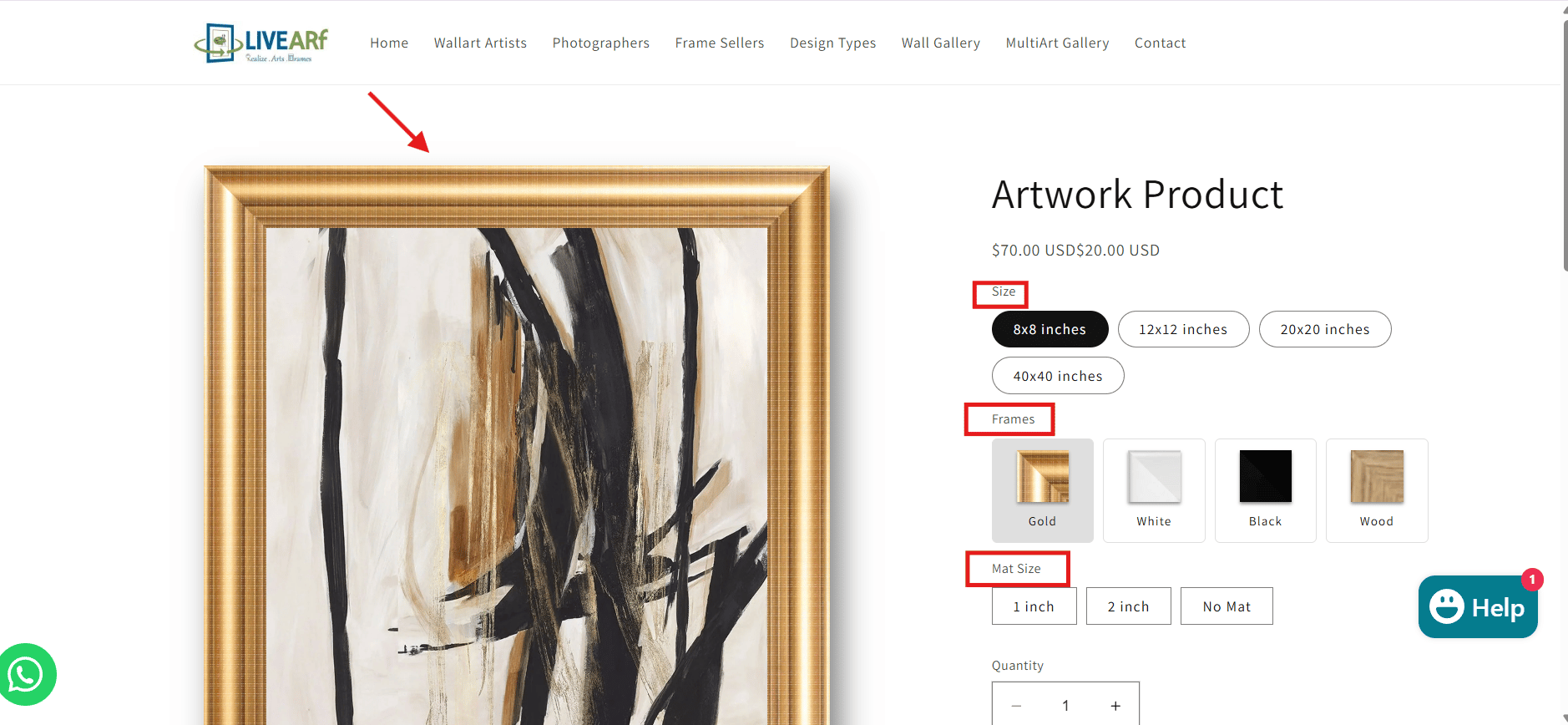
Here is what it looks like on your live store: Customer-facing product page — size, frame, and mat selectors shown with live artwork preview

Accessing the Component

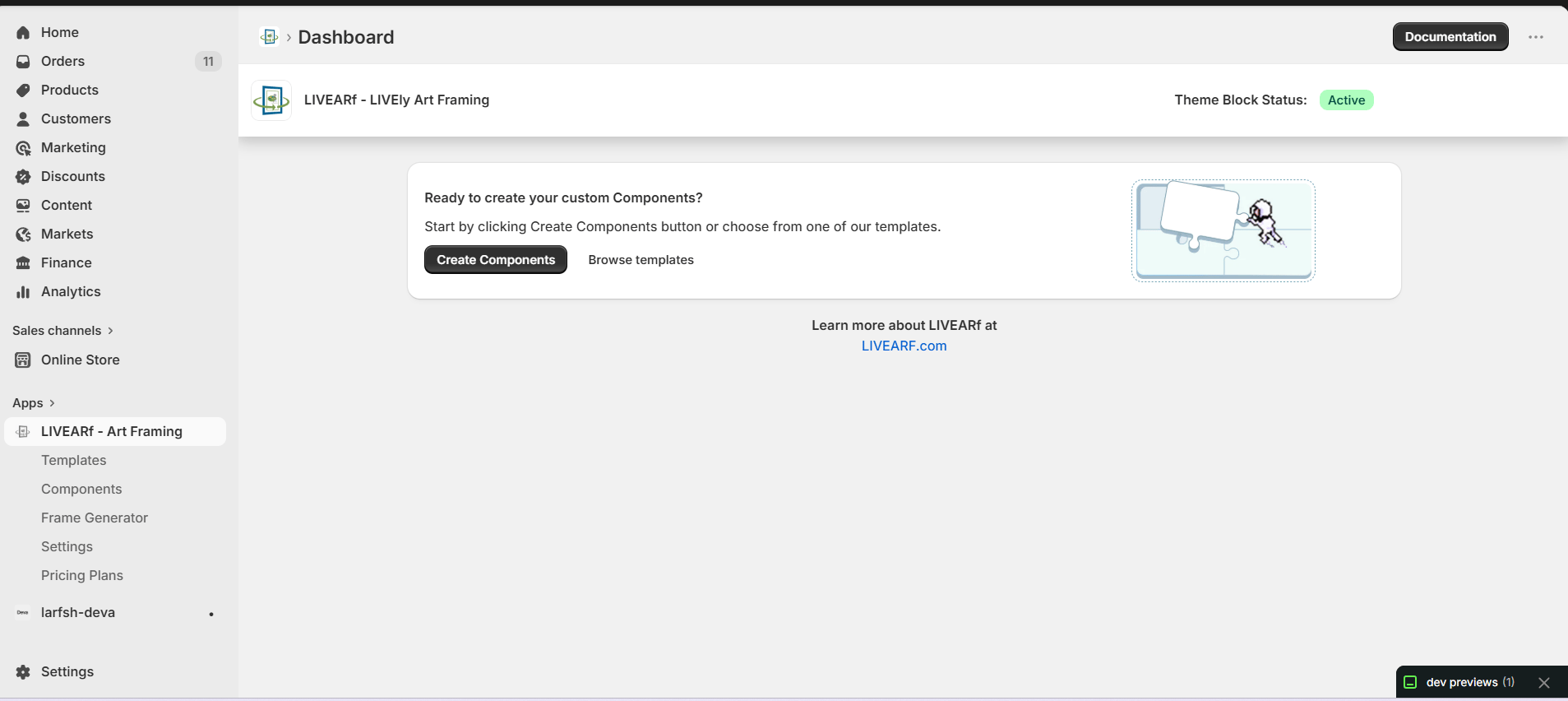
LIVEARf dashboard — navigate to Components in the left sidebar
  1. Open the LIVEARf app from your Shopify admin
  2. In the left sidebar, click Components
  3. Select an existing Artwork Component or click Create My Own
  4. Open the Basic Configuration tab
You will see two panels side by side — the configuration panel on the left and a live Preview Product on the right that updates as you make changes.
Watch the Preview Product panel as you configure. Every change reflects in real time so you can catch mistakes before saving.

Component Header Settings

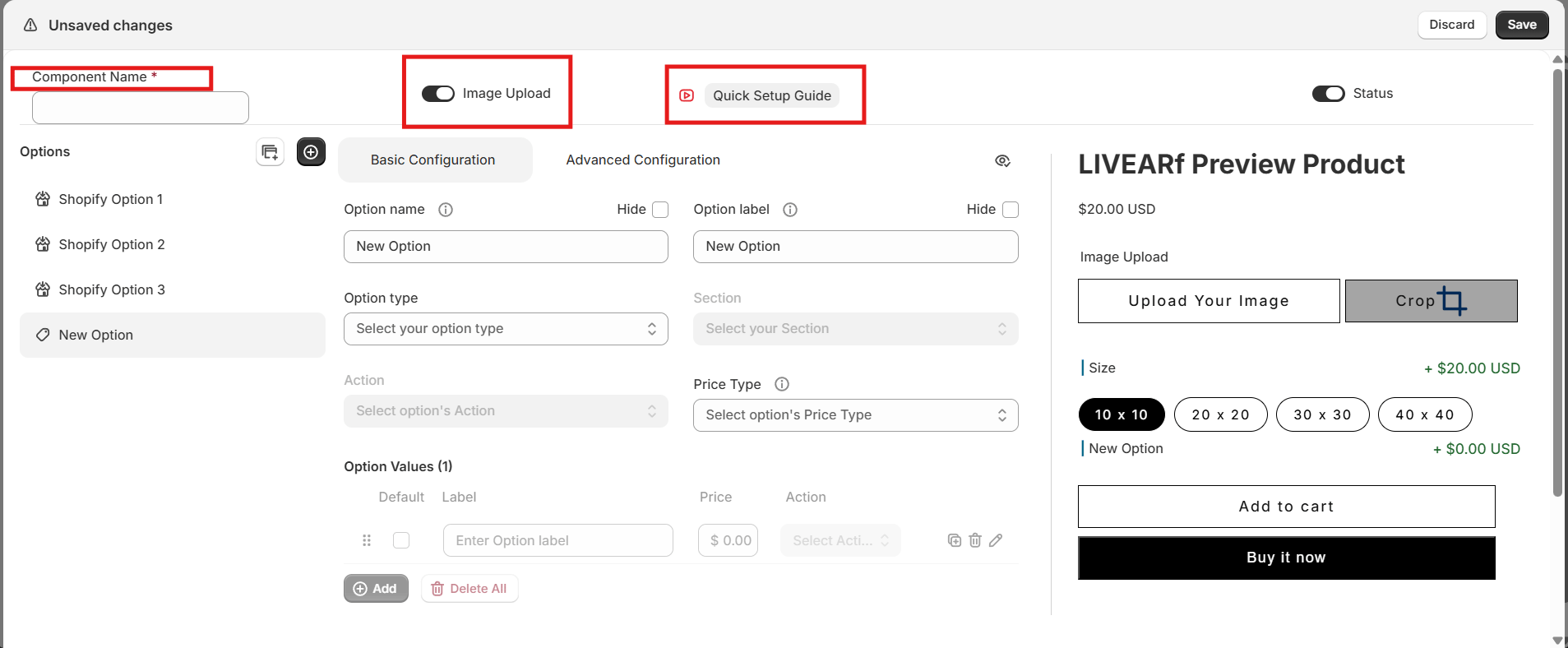
Component header — Component Name field, Image Upload toggle, Quick Setup Guide button, and Component Status toggle
SettingWhat it doesShown to customers?
Component NameInternal label to identify this componentNo
Image UploadEnables customer image upload. Keep OFF for Artwork Components — artwork is pre-definedNo
Component StatusON = active and linkable to products. OFF = paused without deletingNo
Always click Save after making changes. Navigating away without saving will lose all unsaved work.

Options Panel

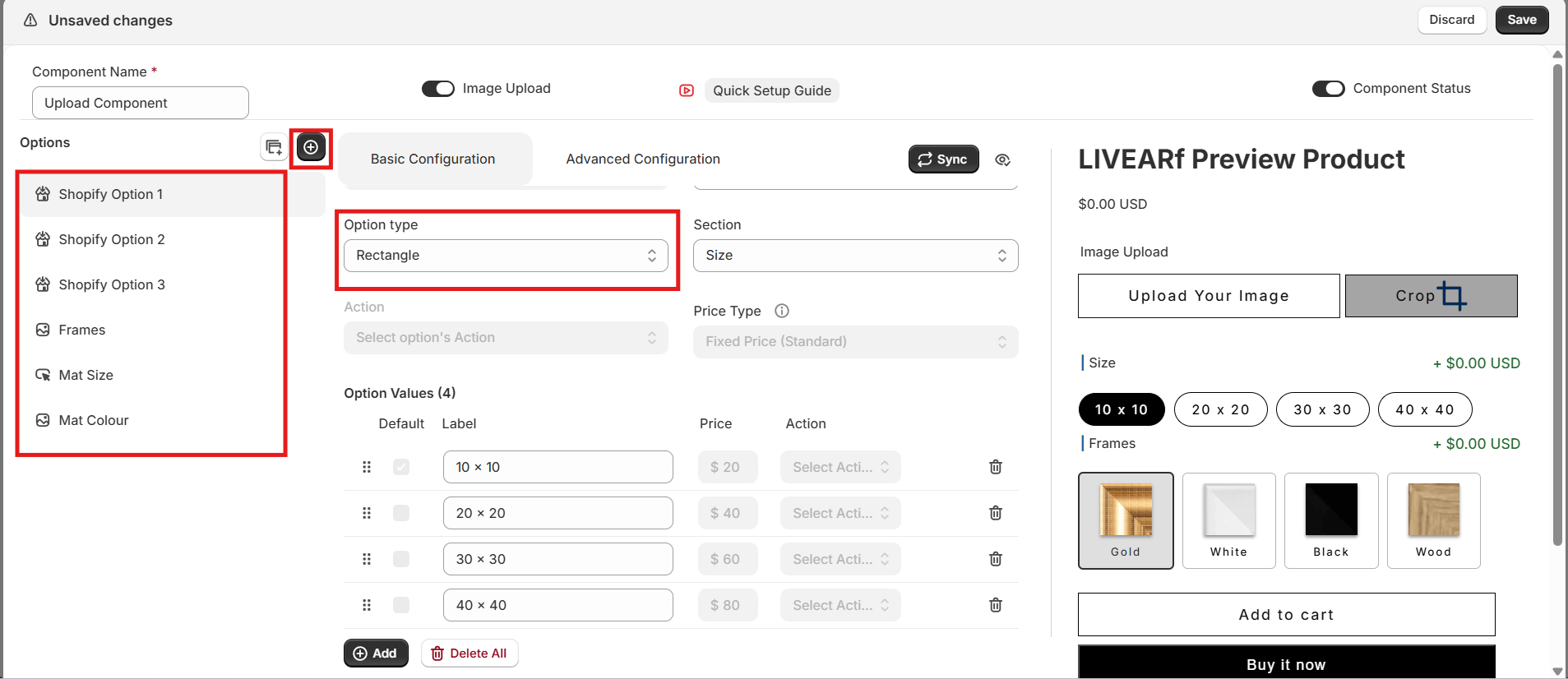
Options panel — Shopify Options list on the left, live Preview Product on the right
The first three options are automatically inherited from your Shopify product variants — for example, Size.
  • Use the eye icon to show or hide each option on the storefront
  • Hidden options do not appear in the Preview Product panel
  • These cannot be deleted — they come directly from your Shopify product
If your Shopify product has no variants, these slots appear empty. Set up product variants in Shopify first.

Configuring an Option

Click any option name in the list on the left to open its settings. Every option follows the same five steps.

Step 1 — Name and Label

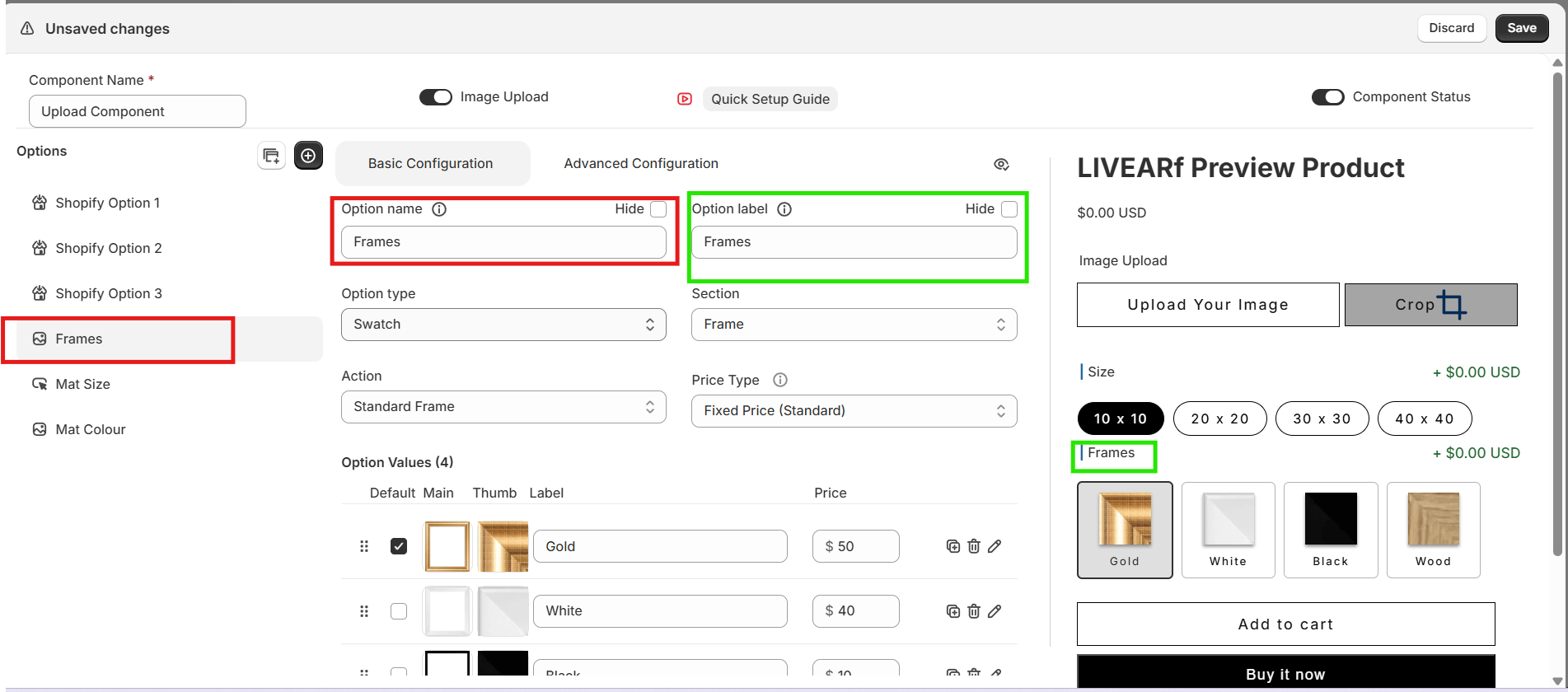
Option Name field (red, internal) and Option Label field (green, customer-facing)
FieldPurposeShown to customers?
Option NameInternal reference used in rules and configNo
Option LabelText customers see above the optionYes
Hide toggleHides the option from the storefront entirely

Step 2 — Option Type

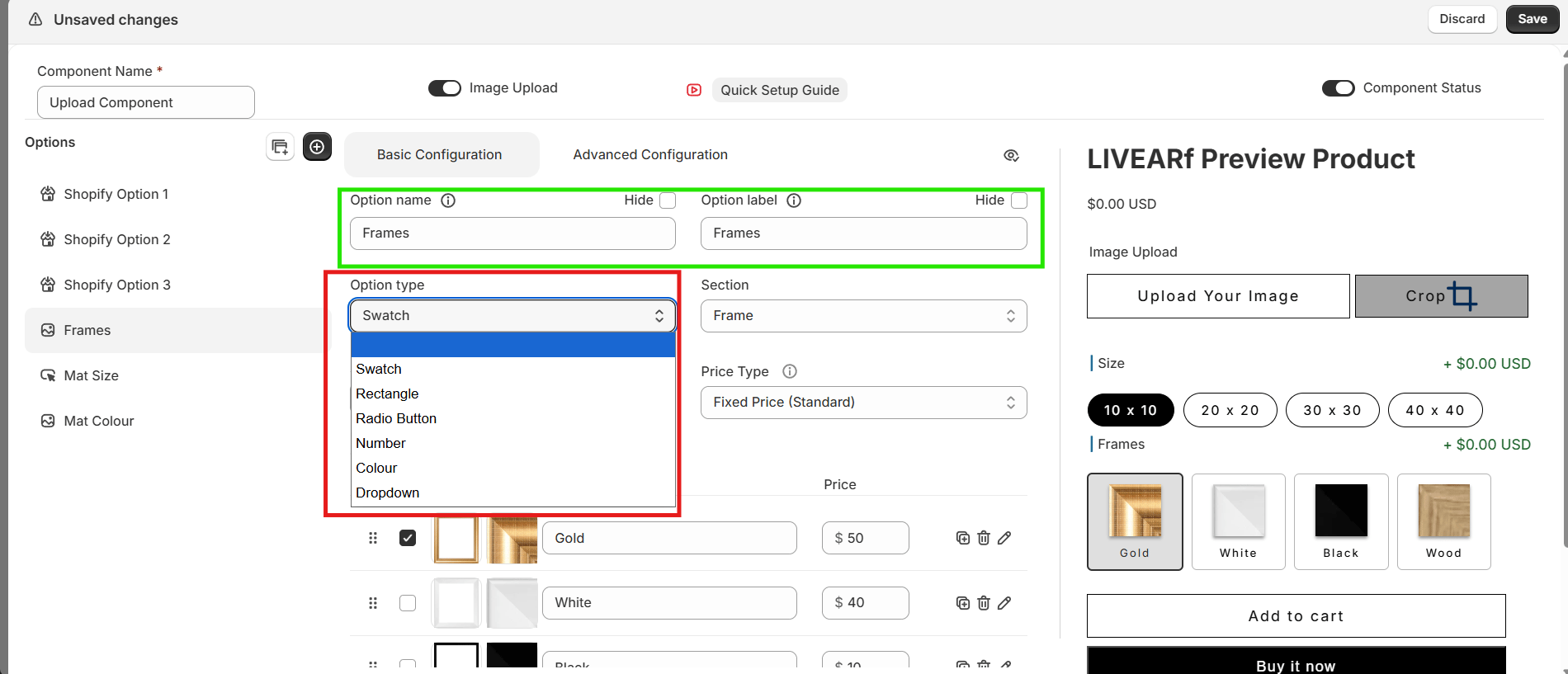
Option Type dropdown — showing Swatch, Rectangle, Radio Button, Number, Colour, Dropdown
TypeBest used for
SwatchFrame images or mat colour thumbnails
RectangleSize options shown as pill buttons
Radio ButtonSingle-choice text selections
DropdownLong lists of choices
NumberCustom numeric input (width, height)
ColourColour picker for mat colours

Step 3 — Section

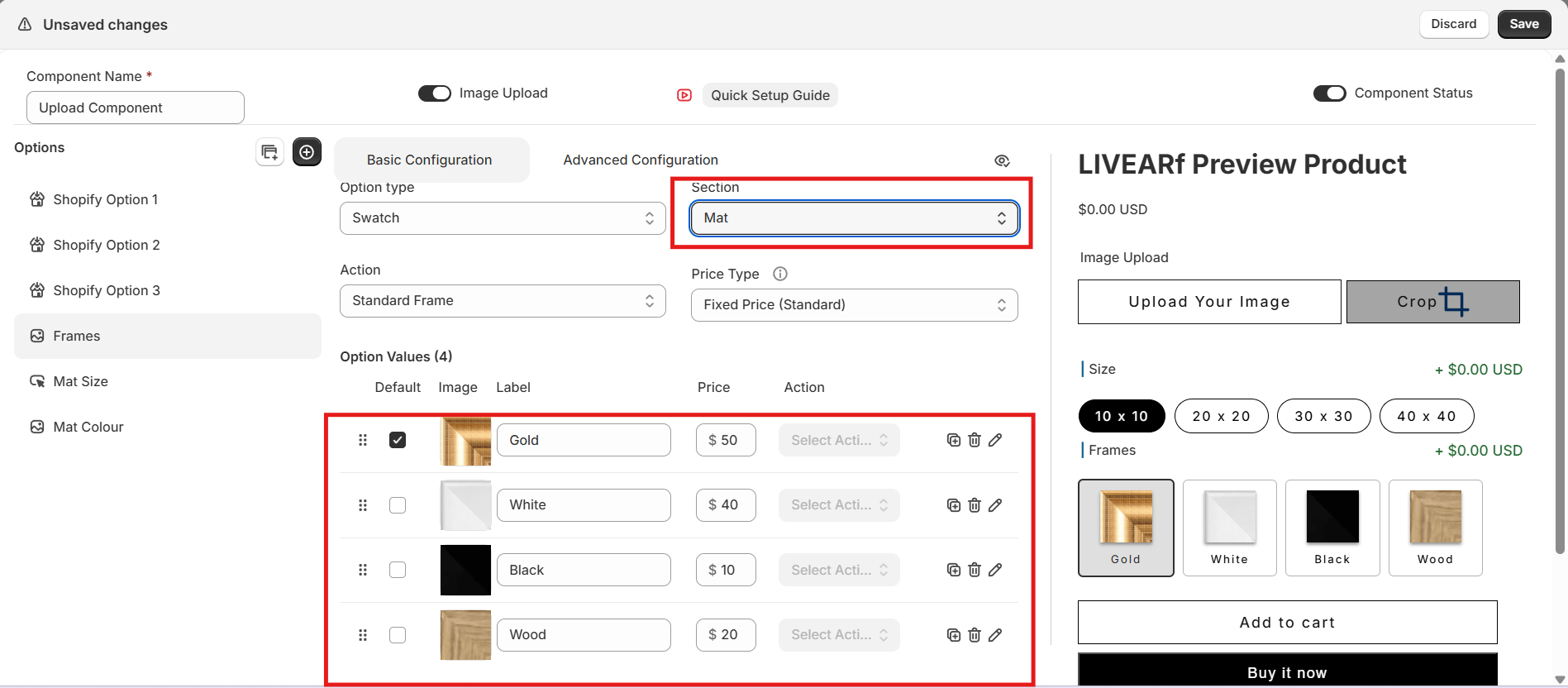
The Section tells LIVEVUE what this option represents and controls how it renders visually. Section dropdown — showing Frame, Mat, Canvas, Acrylic, Metal, Wood, Pricing, Additional, None
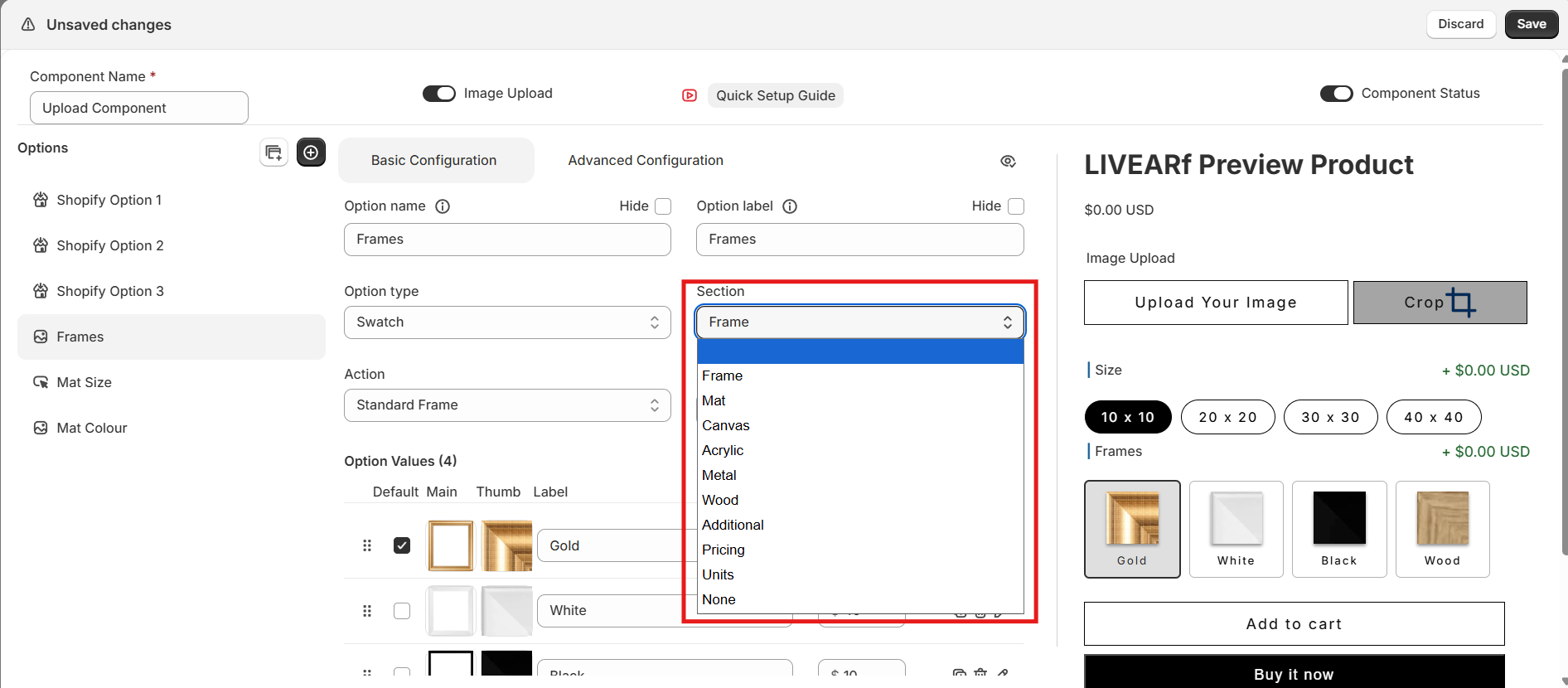
SectionPurpose
FrameFrame border visualisation and styles
MatMat appearance around the artwork
CanvasCanvas wrap rendering styles
AcrylicAcrylic mounting styles
MetalMetal print styles
WoodWood-based finish styles
Custom SizeCustom width and height inputs
Custom Mat SizeCustom mat spacing input
PricingAdds a pricing adjustment
AdditionalOptional add-ons
NoneNo special visual behaviour
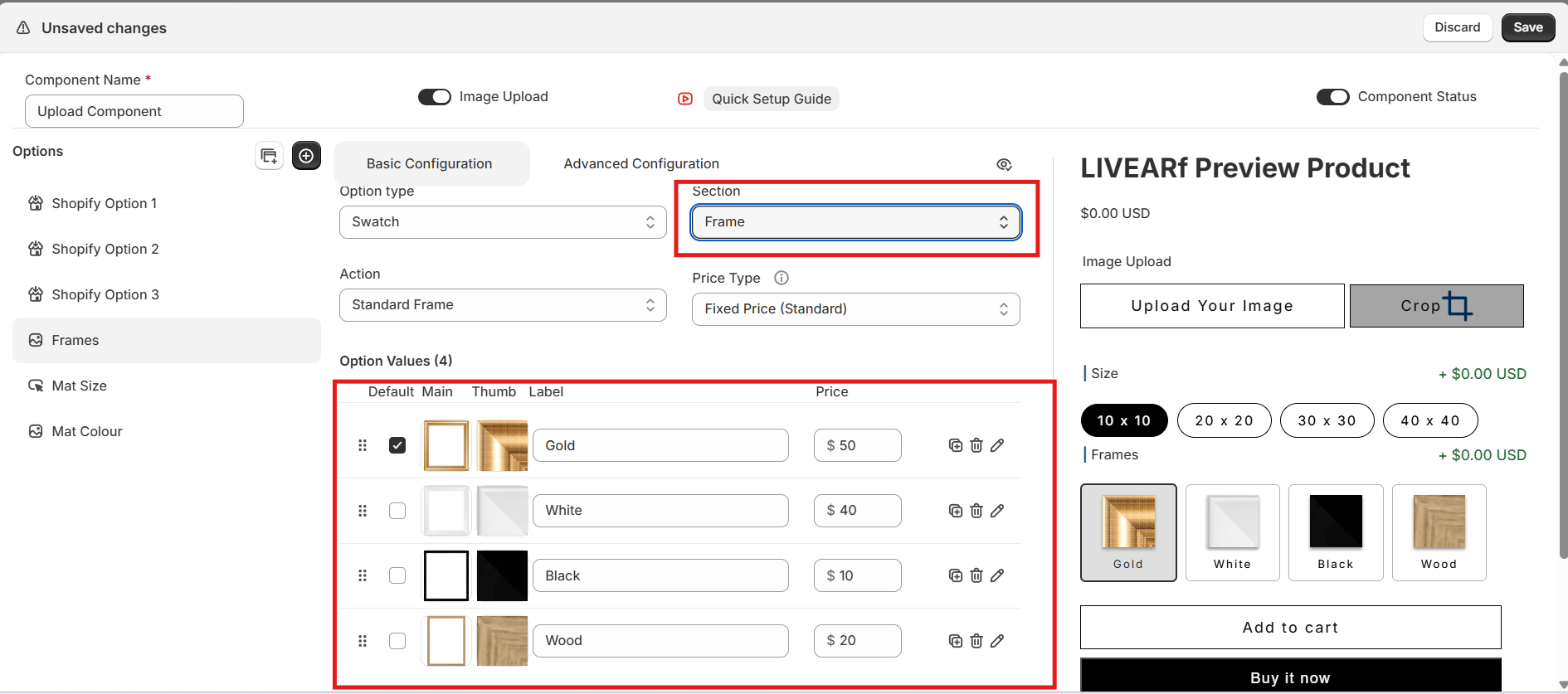
Section set to Frame — frame border wraps around artwork in the preview Section set to Mat — mat spacing applied around artwork in the preview

Step 4 — Actions

Some sections unlock an Action dropdown that defines how each value renders visually. Action dropdown — showing Standard Frame, Infinity Frame, Floater Frame for the Frame section
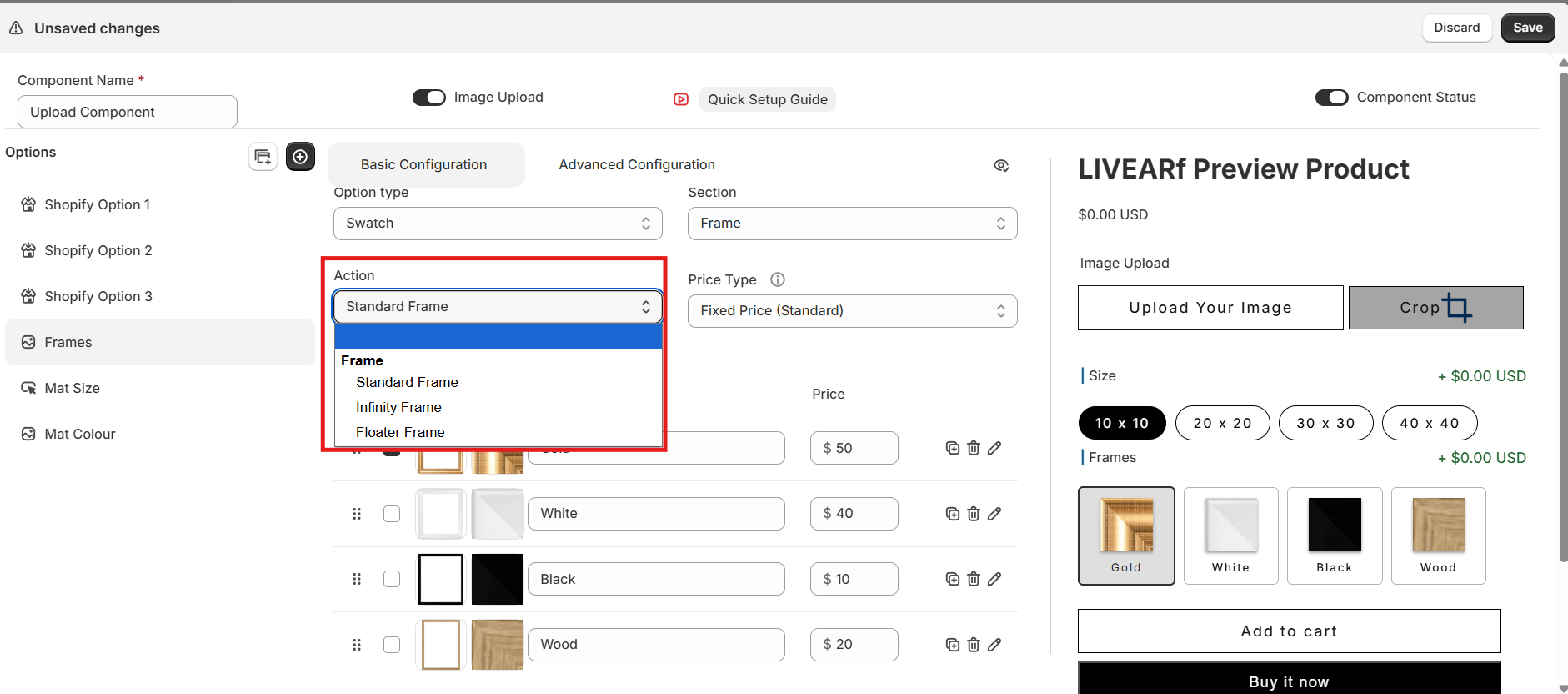
SectionAvailable Actions
FrameStandard Frame, Infinity Frame, Floater Frame
CanvasClassic Wrap, Mirror, Colour, Blur
AcrylicSpacers, Mount, Sandwich
MetalPrint, Float Mount
WoodWooden Pallet, Box Board
PricingDiscount, Margin, Markup
Sections like Mat do not support Actions — the dropdown is greyed out automatically.

Step 5 — Option Values

Option values are the individual choices customers see — for example Gold, White, Wood, Black for Frames. For each value you can:
  • Set a Label (text customers see)
  • Upload a Main image (used in the live visualisation) and a Thumbnail (shown in the selector)
  • Set one value as the Default
  • Assign a Price
  • Duplicate or Delete the value

Mat, Pricing & Advanced Configuration

Mat Size

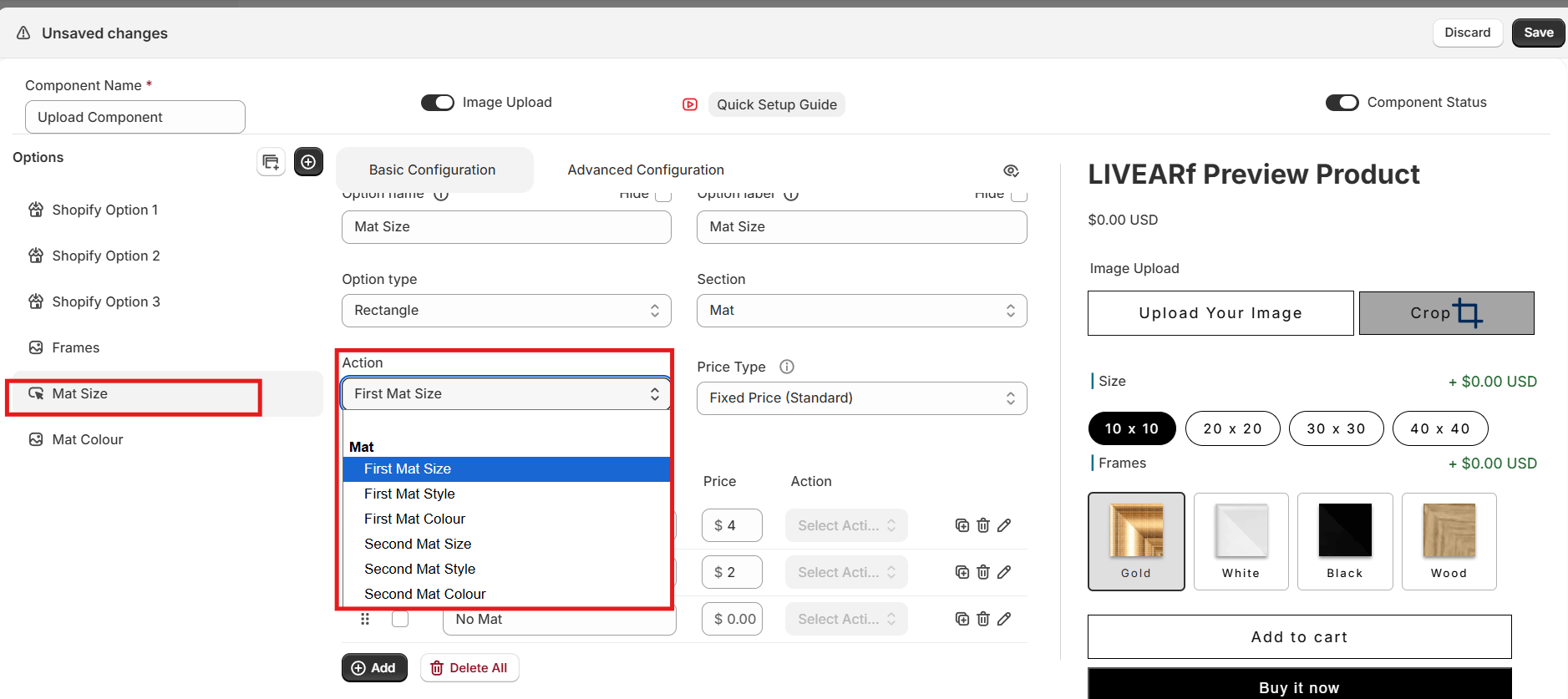
Controls the spacing between the artwork edge and the frame. Supports single mat and double mat configurations.Mat Size option — showing option name, Action dropdown, and values: 2 inch, 1 inch, No MatMat Size action dropdown — First Mat Size, First Mat Style, First Mat Colour, Second Mat Size, Second Mat Style, Second Mat Colour
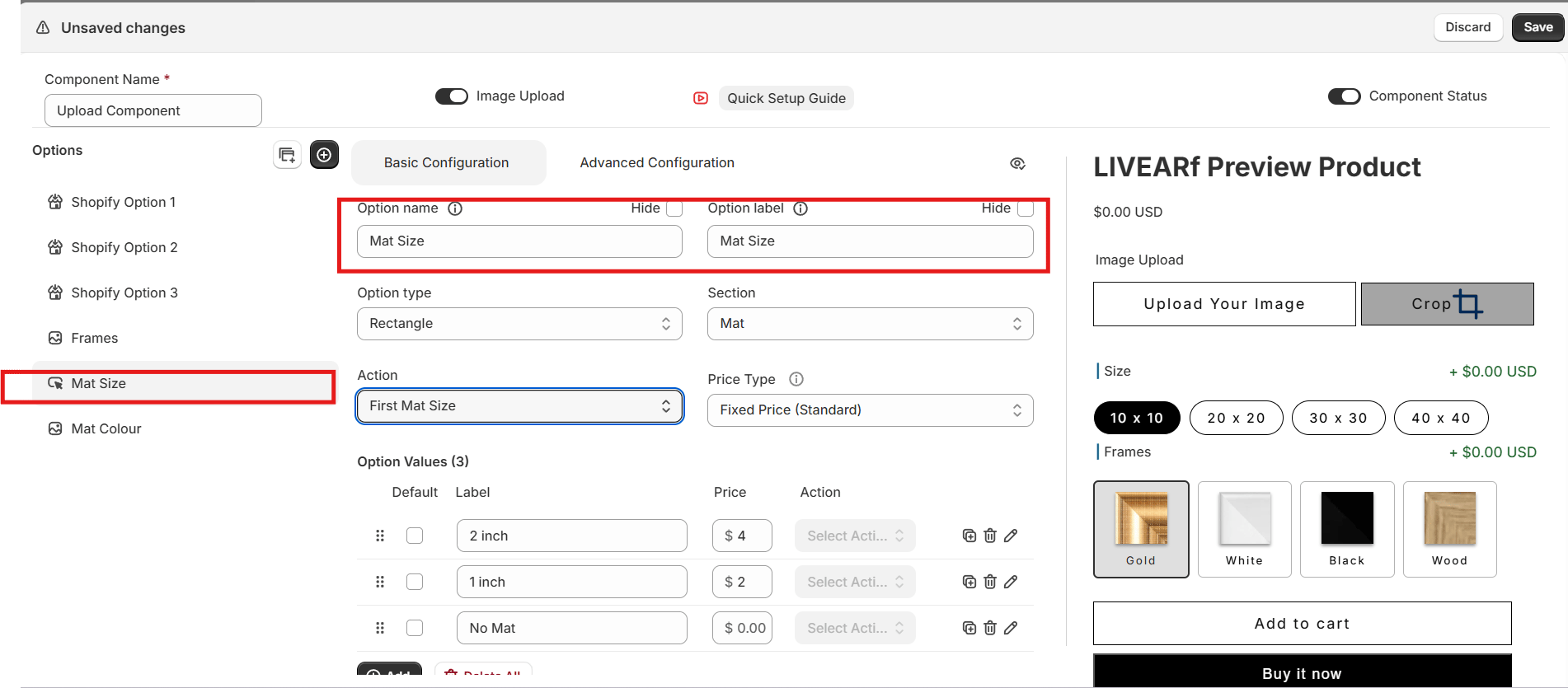
Sub-settingPurpose
First Mat SizeWidth of the primary mat border
First Mat StyleVisual style of the primary mat
First Mat ColourColour of the primary mat
Second Mat SizeWidth of the secondary mat border
Second Mat StyleVisual style of the secondary mat
Second Mat ColourColour of the secondary mat
For a single mat, configure First Mat only and set Second Mat values to zero — or hide them with a Conditional Rule.
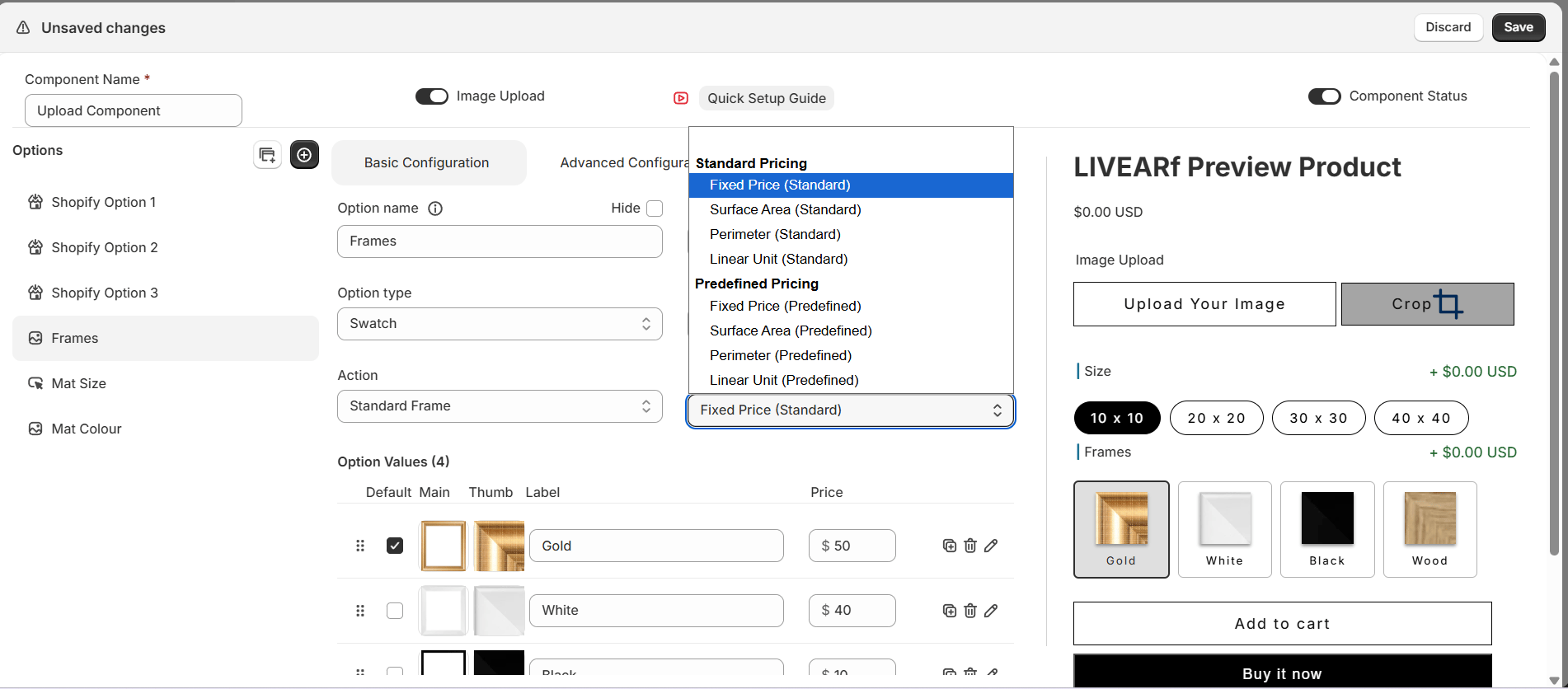
Click the edit icon on any value to configure its price.

Mat Colour

Controls the visual colour of the mat in the live preview.Mat Colour option — Swatch type, Mat section, Black and White values configured
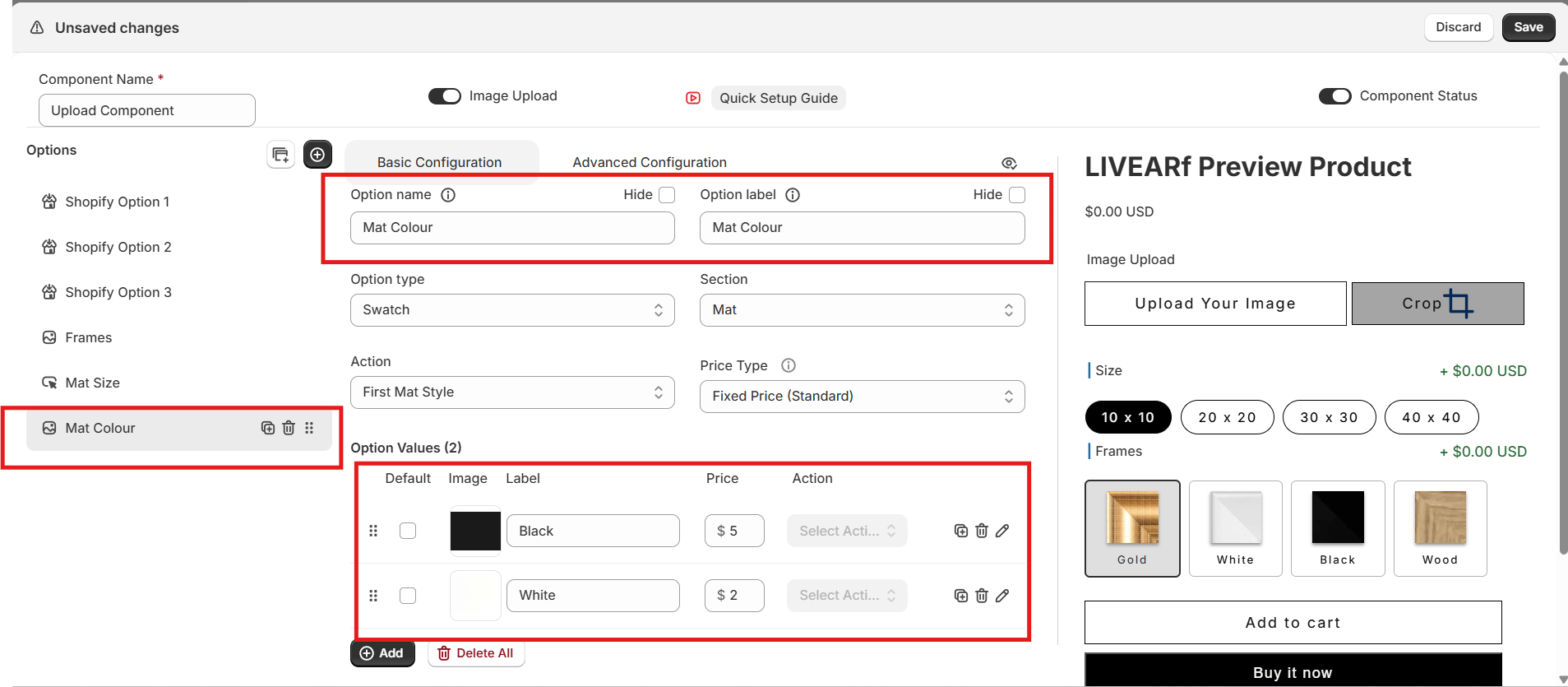
  • Uses the same six mat action sub-settings as Mat Size
  • Supports all pricing methods
  • Use the image icon on each value to upload a colour swatch
  • Changes reflect immediately in the Preview Product panel
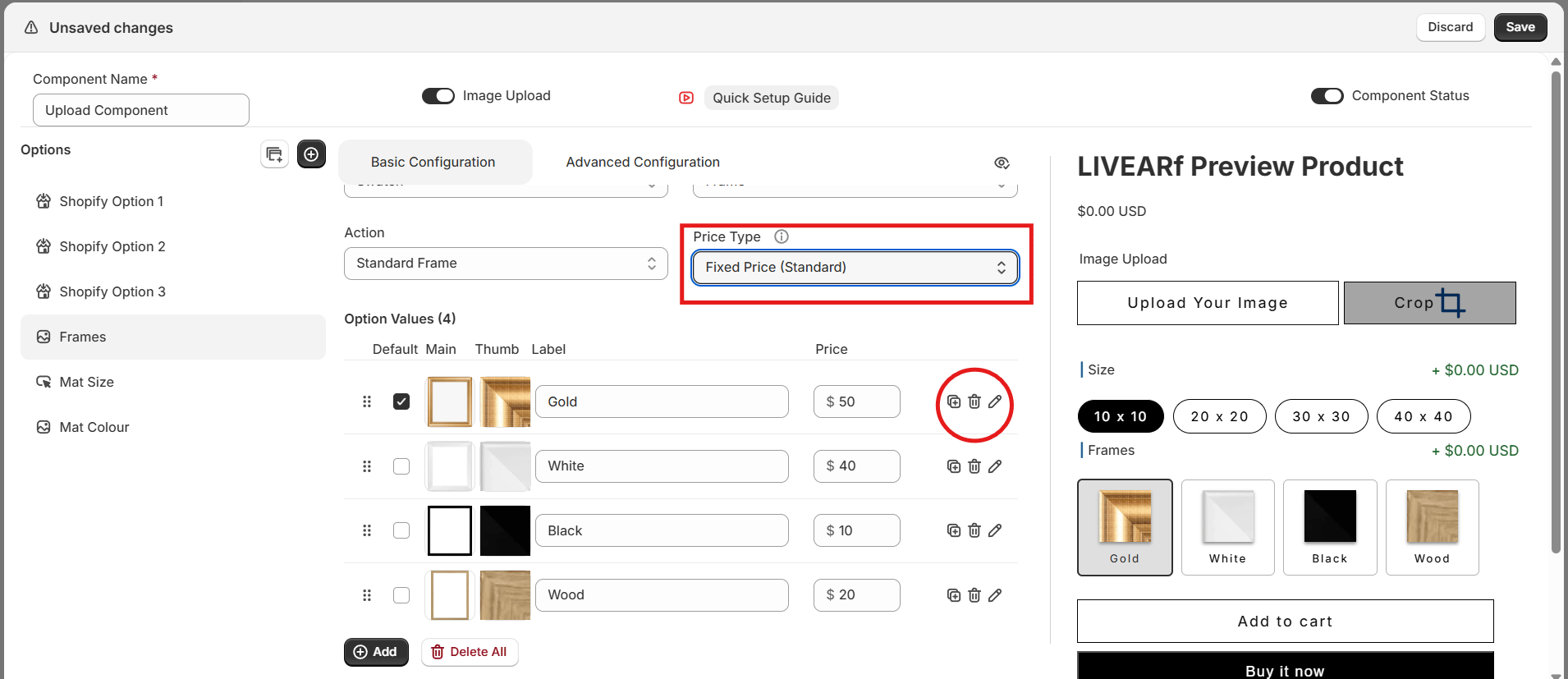
Preview & Saving
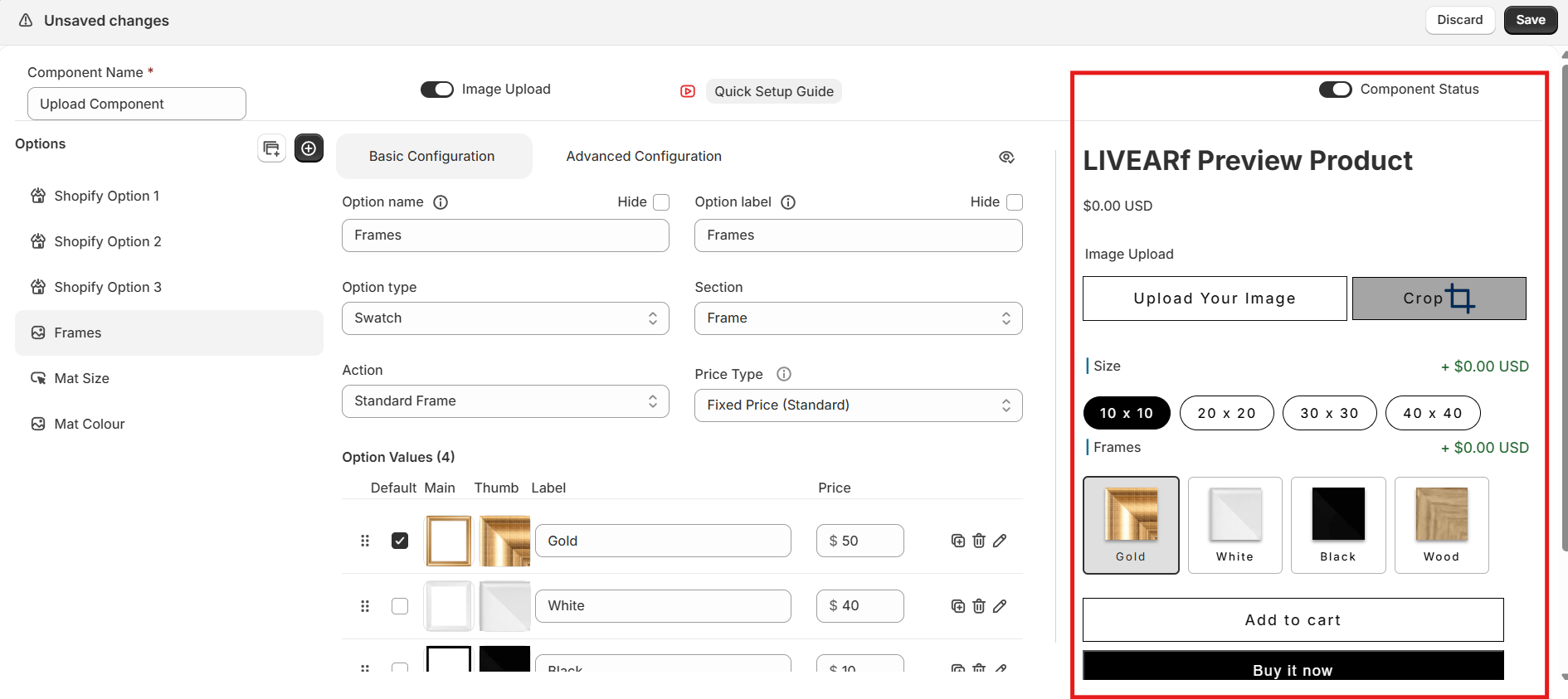
Preview Product panel — live size, frame, and mat selection updating in real time Before clicking Save, check:
  • Option types display correctly — swatches, rectangles, dropdowns all render as expected
  • Prices calculate correctly for each combination
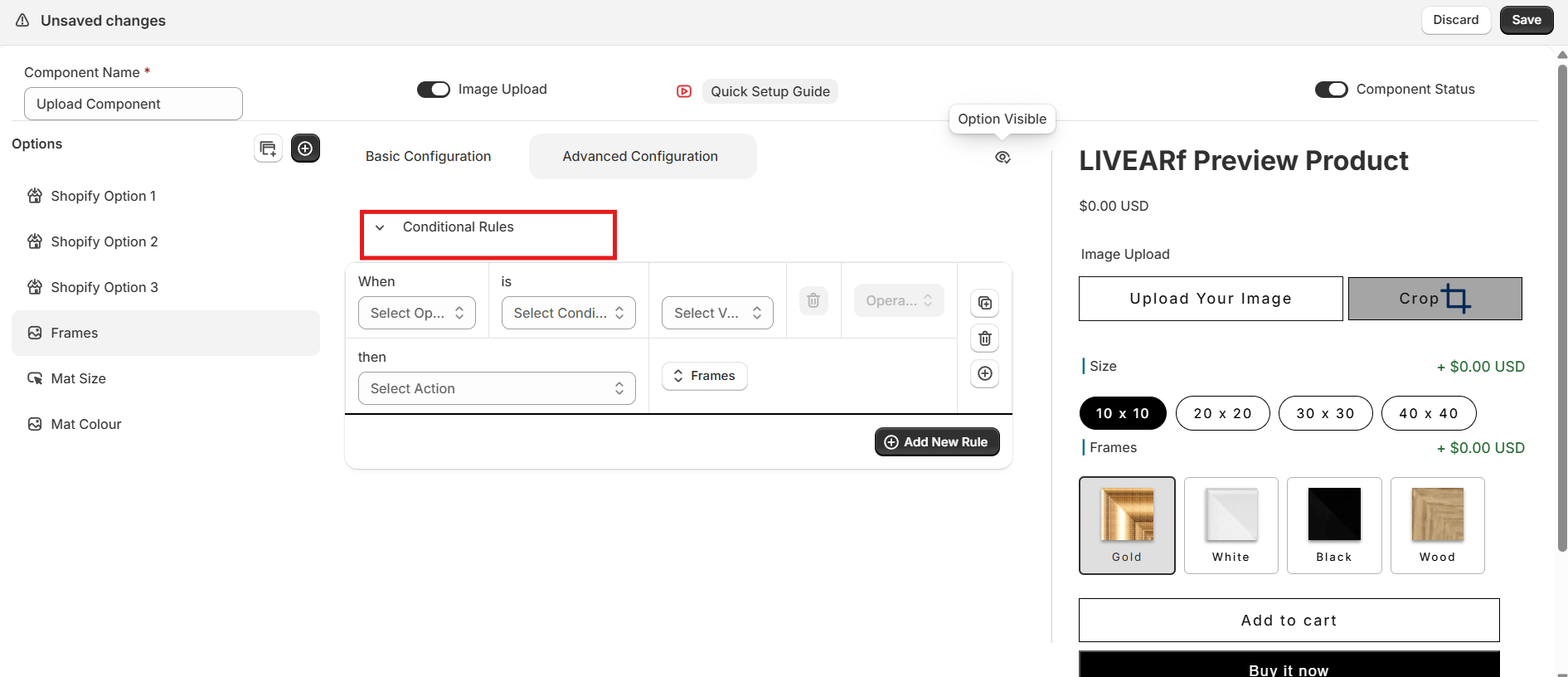
  • Conditional rules trigger — options show, hide, and strikeout correctly
  • The live artwork preview updates with each selection
  • Default values are set for each option
Click Save in the top-right corner when everything looks correct.
Saved successfully? Your component is ready to link to products.

Linking to Products

1

Enable the component

Turn Component Status ON and save. The Link button only appears after the component is enabled.
2

Open the Link panel

Click Link in the top-right corner of the configuration screen.
3

Choose how to apply it

OptionWhat it does
Selected CollectionsAll products in chosen Shopify collections
Selected ProductsOnly individually chosen products
All Products (LIVEVUE Template Enabled)Every product already using a LIVEVUE template
Click Link to confirm.
4

Verify

Go to LIVEARf → Components. Your component shows the number of linked products with a status of Active.

What’s Next?

Upload Component

Let customers upload their own photos and visualise them with your frames.

Frame Generator

Create 2D and 3D frame visuals from your own frame strip images.