> ## Documentation Index
> Fetch the complete documentation index at: https://docs.livearf.com/llms.txt
> Use this file to discover all available pages before exploring further.
# LIVEARf Setup Guide
> Install and enable LIVEVUE on your Shopify store in 8 simple steps.
## Who is this guide for?
Sell your own artwork or photography with interactive frame and mat options for customers.
Let customers upload their own photos and visualise them inside your frames before buying.
Use this guide to understand the full onboarding flow before supporting customers.
***
## Before You Begin
Make sure you have the following ready before starting:
* An active Shopify store with admin access
* At least one product published in your store (used for testing the preview)
* The LIVEARf app installed from the Shopify App Store
LIVEVUE runs entirely inside your Shopify admin. You do not need a separate account or login beyond Shopify.
***
## Setup Steps
Once installed, open the LIVEARf app from your Shopify admin. Go to **Apps → LIVEARf - Art Framing** in the left sidebar.
You will land on the LIVEARf Dashboard showing your Theme Block Status and quick-start options.
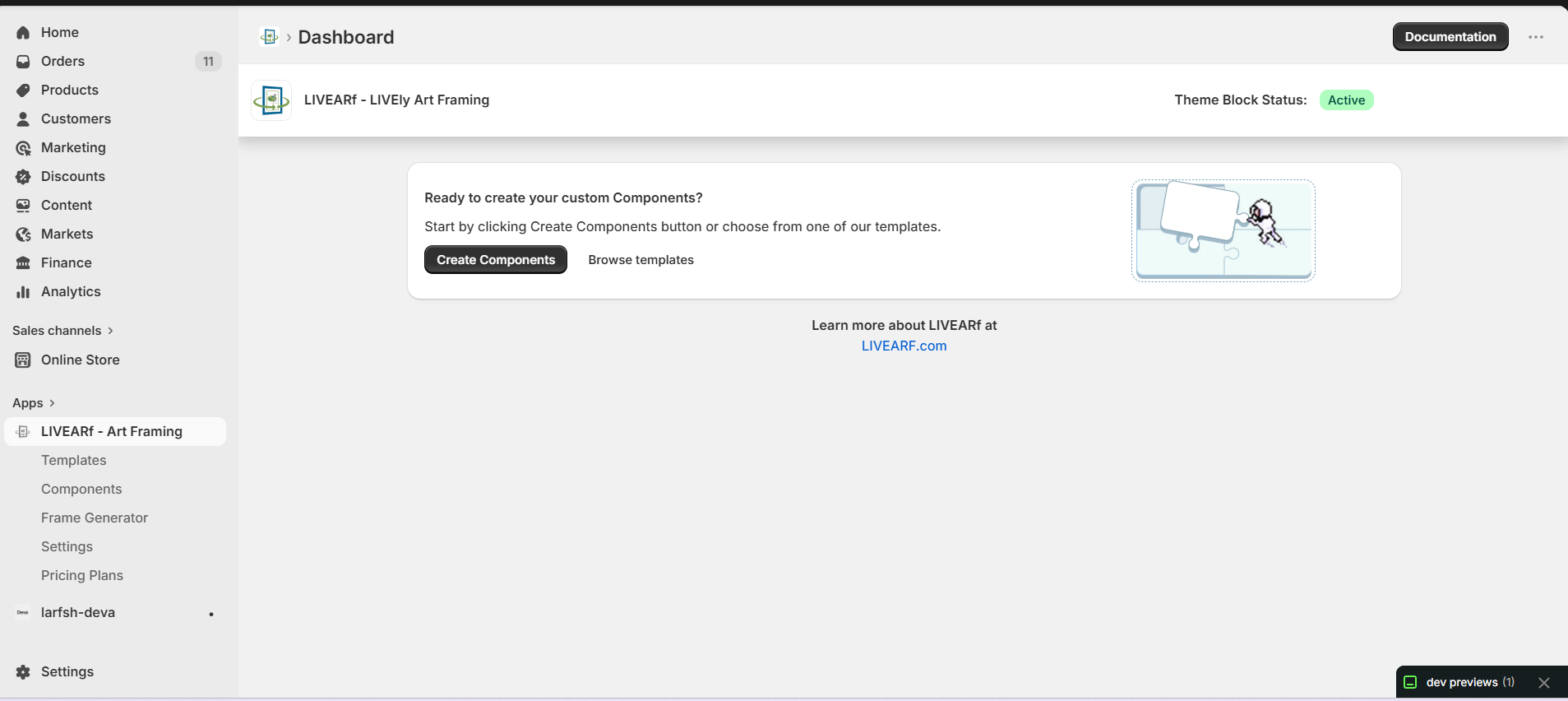 Notice the left sidebar shows all sections you will use: **Templates**, **Components**, **Frame Generator**, **Settings**, and **Pricing Plans**. You will work through most of these as you set up your store.
Click **Next** on the welcome screen to begin.
The next screen shows the Terms and Conditions. LIVEVUE will create temporary sample data in your store — this lets you preview the full experience without touching any of your real products.
Sample items that will be created:
* Sample images on file
* A Sample Preview Product (unlisted — invisible to customers)
* Sample Collections
Check **I Agree** and click **Create**. Once it completes, click **Next**.
The sample product is unlisted and will never appear in your live store. It exists only so you can test the visualisation during setup.
Choose the role that best describes your business. This determines which default component and options get pre-loaded for you.
| Role | Best for |
| ------------------------- | ------------------------------------------------------- |
| **Artist / Seller** | Selling your own paintings, prints, or original artwork |
| **Framer / Seller** | Custom picture framing services |
| **Photographer / Seller** | Selling digital photography or photo prints |
Select your role, click **Save**, then click **Next**.
Not sure which to pick? Artists and Photographers should choose the **Artwork Component** path. Framers and print-on-demand businesses should choose **Upload Component**. You can always create both types of components later.
A reference video is shown at this step. It demonstrates exactly what your customers will see — how the frame, mat, and size options update the artwork preview in real time.
Watch the full video before moving on. It gives you a clear picture of the end result you are building toward.
Click **Next** after watching.
This is where you choose your component type. You will be taken to the **Templates** screen.
Notice the left sidebar shows all sections you will use: **Templates**, **Components**, **Frame Generator**, **Settings**, and **Pricing Plans**. You will work through most of these as you set up your store.
Click **Next** on the welcome screen to begin.
The next screen shows the Terms and Conditions. LIVEVUE will create temporary sample data in your store — this lets you preview the full experience without touching any of your real products.
Sample items that will be created:
* Sample images on file
* A Sample Preview Product (unlisted — invisible to customers)
* Sample Collections
Check **I Agree** and click **Create**. Once it completes, click **Next**.
The sample product is unlisted and will never appear in your live store. It exists only so you can test the visualisation during setup.
Choose the role that best describes your business. This determines which default component and options get pre-loaded for you.
| Role | Best for |
| ------------------------- | ------------------------------------------------------- |
| **Artist / Seller** | Selling your own paintings, prints, or original artwork |
| **Framer / Seller** | Custom picture framing services |
| **Photographer / Seller** | Selling digital photography or photo prints |
Select your role, click **Save**, then click **Next**.
Not sure which to pick? Artists and Photographers should choose the **Artwork Component** path. Framers and print-on-demand businesses should choose **Upload Component**. You can always create both types of components later.
A reference video is shown at this step. It demonstrates exactly what your customers will see — how the frame, mat, and size options update the artwork preview in real time.
Watch the full video before moving on. It gives you a clear picture of the end result you are building toward.
Click **Next** after watching.
This is where you choose your component type. You will be taken to the **Templates** screen.
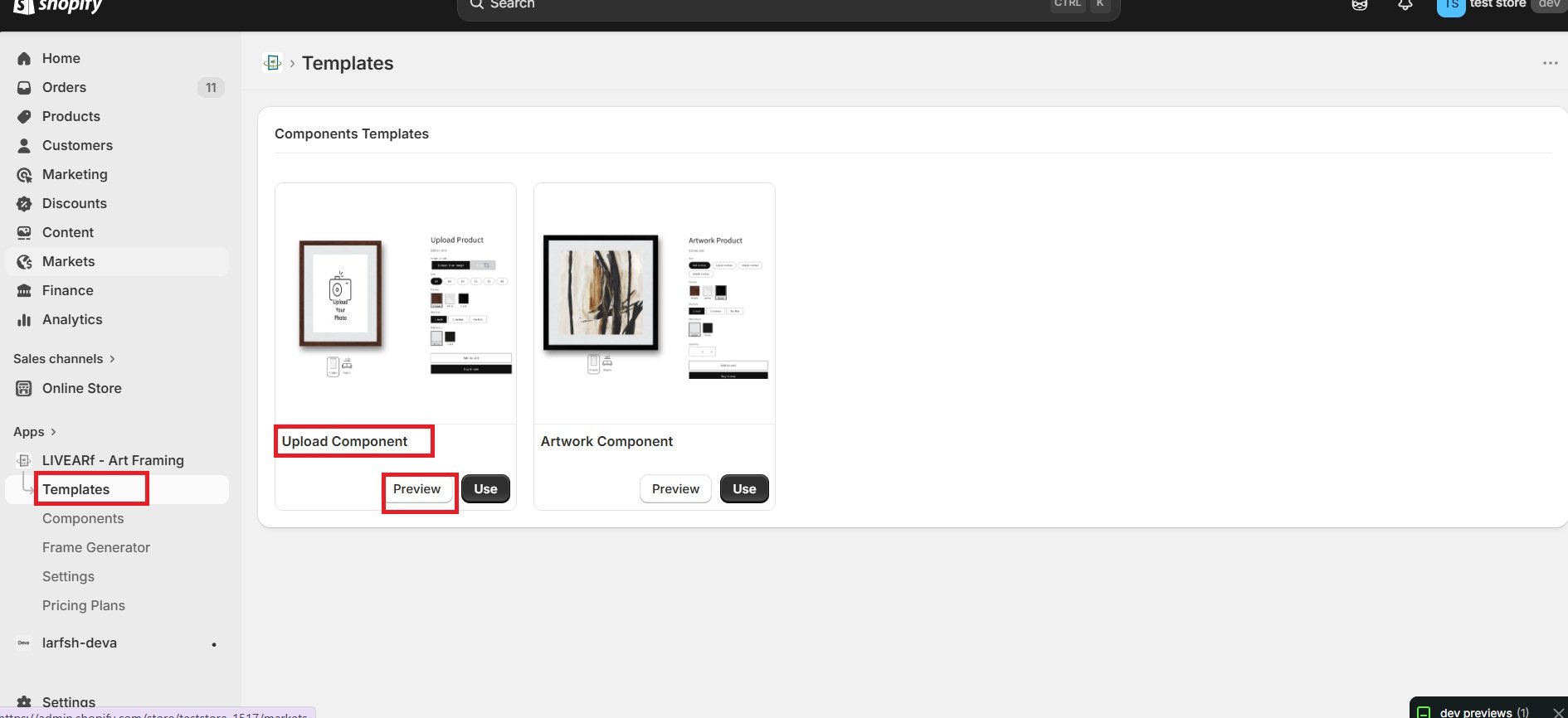 Select based on your role:
| Component | Choose if you are... |
| --------------------- | -------------------------------------------- |
| **Artwork Component** | An Artist or Photographer with pre-made work |
| **Upload Component** | A Framer or print-on-demand business |
Click **Preview** first to see the customer-facing experience, then click **Use** to select it.
A popup will appear with auto-generated sample frame and mat options. Click **Save** to confirm.
This sample component is just for testing during setup. You will build your real custom component after completing these steps.
A template is what connects LIVEVUE to your Shopify product pages. Without an enabled template, customers will not see the visualisation on your store.
1. Click **Create** — your LIVEVUE template generates automatically
2. Click **Enable** to activate it
3. A Shopify window opens — click **Save** in the top-right corner
4. You will see the template listed with an **Enabled** status
If the template shows Enabled status, this step is complete.
Now connect your template to an actual product so you can preview the full experience.
Use the **Switch Template** feature to assign your LIVEVUE template to a product. Then click **Preview Product** to verify everything is working.
You should see the product page update in real time as you change size, frame, and mat selections — this is exactly what your customers will experience.
Use the sample product created in Step 2 for this test. It is safe to use without affecting your live store.
LIVEVUE is now enabled and connected to your store. 🎉
From here you can:
* Build your own custom components tailored to your specific products
* Link components to individual products, entire collections, or all LIVEVUE-enabled products
* Configure advanced pricing rules, conditional logic, and frame styles
Your store is ready. Choose your next step below based on your business type.
***
## What's Next?
For Artists & Photographers. Set up frame, mat, and size options for your pre-made artwork.
For Framers. Let customers upload their own photos and visualise them framed.
Select based on your role:
| Component | Choose if you are... |
| --------------------- | -------------------------------------------- |
| **Artwork Component** | An Artist or Photographer with pre-made work |
| **Upload Component** | A Framer or print-on-demand business |
Click **Preview** first to see the customer-facing experience, then click **Use** to select it.
A popup will appear with auto-generated sample frame and mat options. Click **Save** to confirm.
This sample component is just for testing during setup. You will build your real custom component after completing these steps.
A template is what connects LIVEVUE to your Shopify product pages. Without an enabled template, customers will not see the visualisation on your store.
1. Click **Create** — your LIVEVUE template generates automatically
2. Click **Enable** to activate it
3. A Shopify window opens — click **Save** in the top-right corner
4. You will see the template listed with an **Enabled** status
If the template shows Enabled status, this step is complete.
Now connect your template to an actual product so you can preview the full experience.
Use the **Switch Template** feature to assign your LIVEVUE template to a product. Then click **Preview Product** to verify everything is working.
You should see the product page update in real time as you change size, frame, and mat selections — this is exactly what your customers will experience.
Use the sample product created in Step 2 for this test. It is safe to use without affecting your live store.
LIVEVUE is now enabled and connected to your store. 🎉
From here you can:
* Build your own custom components tailored to your specific products
* Link components to individual products, entire collections, or all LIVEVUE-enabled products
* Configure advanced pricing rules, conditional logic, and frame styles
Your store is ready. Choose your next step below based on your business type.
***
## What's Next?
For Artists & Photographers. Set up frame, mat, and size options for your pre-made artwork.
For Framers. Let customers upload their own photos and visualise them framed.