> ## Documentation Index
> Fetch the complete documentation index at: https://docs.livearf.com/llms.txt
> Use this file to discover all available pages before exploring further.
# Frame Generator
> Turn your frame strip images into usable 2D and 3D frame visuals for your components.
## What is the Frame Generator?
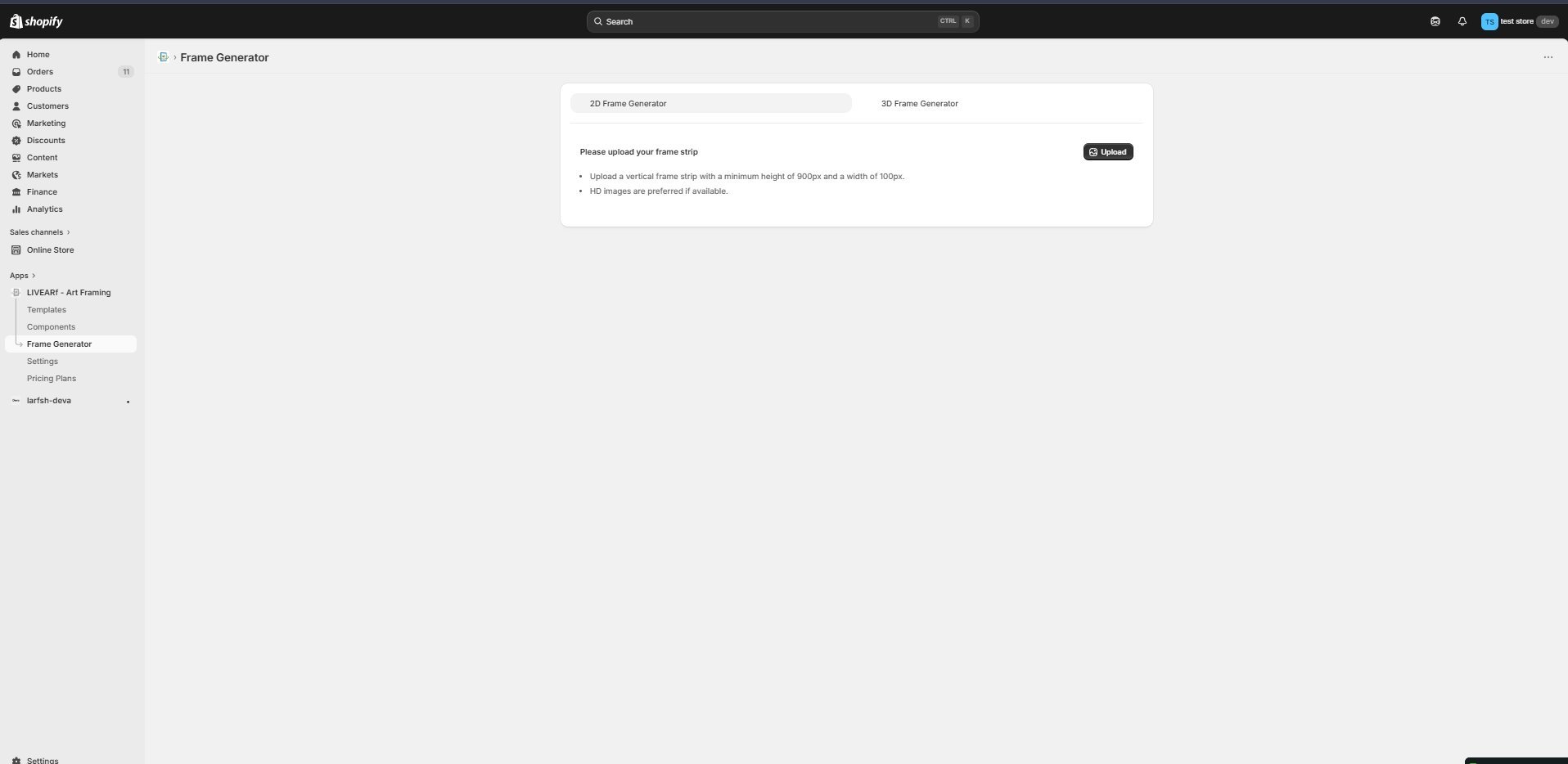
The Frame Generator converts your frame strip images into fully usable frame visuals that appear in the live preview on your product page. It has two modes — **2D** for flat, lightweight frame visuals and **3D** for depth-accurate, realistic frame rendering.
 ***
## 2D vs 3D — Which should you use?
| | 2D Frame Generator | 3D Frame Generator |
| -------------------- | ---------------------------------------- | ----------------------------------------------- |
| **Best for** | Standard frame previews, faster setup | Premium or custom frames where depth matters |
| **What you need** | A single vertical frame strip image | A profile image + front and side texture images |
| **Setup time** | Quick — upload, crop, generate | Longer — requires profile + two textures |
| **Visual result** | Flat, front-facing frame wrap | Realistic depth with visible frame profile |
| **Recommended when** | You have one frame strip image available | Frame depth and profile shape are important |
***
## 2D and 3D Frame Generator
### Step 1 — Open the 2D tab and click Upload
Navigate to **Frame Generator** in your LIVEARf app sidebar. The **2D Frame Generator** tab is selected by default. Click the **Upload** button in the top right.
Before uploading, make sure your frame strip image meets these requirements:
* Vertical orientation
* Minimum height: **900px**
* Minimum width: **100px**
* HD images preferred for best results
***
### Step 2 — Select or upload your frame strip
The **File Upload** popup opens. You can either:
* **Drag and drop** a new frame strip image directly into the upload area
* Click **Add files** to browse your computer
* **Select an existing image** from your frame library shown in the grid below
***
## 2D vs 3D — Which should you use?
| | 2D Frame Generator | 3D Frame Generator |
| -------------------- | ---------------------------------------- | ----------------------------------------------- |
| **Best for** | Standard frame previews, faster setup | Premium or custom frames where depth matters |
| **What you need** | A single vertical frame strip image | A profile image + front and side texture images |
| **Setup time** | Quick — upload, crop, generate | Longer — requires profile + two textures |
| **Visual result** | Flat, front-facing frame wrap | Realistic depth with visible frame profile |
| **Recommended when** | You have one frame strip image available | Frame depth and profile shape are important |
***
## 2D and 3D Frame Generator
### Step 1 — Open the 2D tab and click Upload
Navigate to **Frame Generator** in your LIVEARf app sidebar. The **2D Frame Generator** tab is selected by default. Click the **Upload** button in the top right.
Before uploading, make sure your frame strip image meets these requirements:
* Vertical orientation
* Minimum height: **900px**
* Minimum width: **100px**
* HD images preferred for best results
***
### Step 2 — Select or upload your frame strip
The **File Upload** popup opens. You can either:
* **Drag and drop** a new frame strip image directly into the upload area
* Click **Add files** to browse your computer
* **Select an existing image** from your frame library shown in the grid below
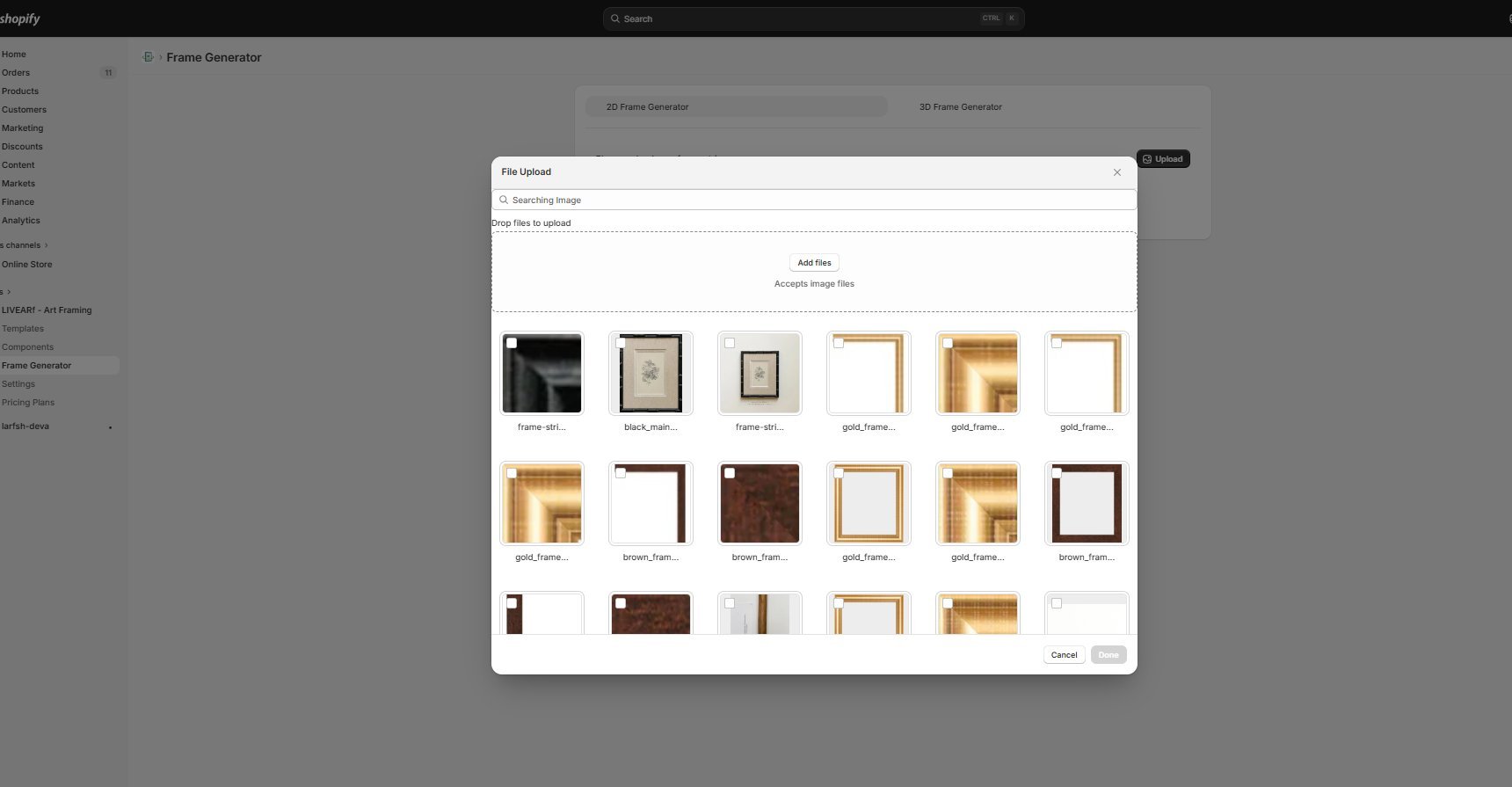 Your existing uploaded frame images are shown in the grid. If you have already uploaded a frame strip before, you can reuse it here without uploading again.
***
### Step 3 — Crop the image and configure frame settings
After uploading, the crop tool appears. Use it to define exactly which part of the strip to use as your frame.
Your existing uploaded frame images are shown in the grid. If you have already uploaded a frame strip before, you can reuse it here without uploading again.
***
### Step 3 — Crop the image and configure frame settings
After uploading, the crop tool appears. Use it to define exactly which part of the strip to use as your frame.
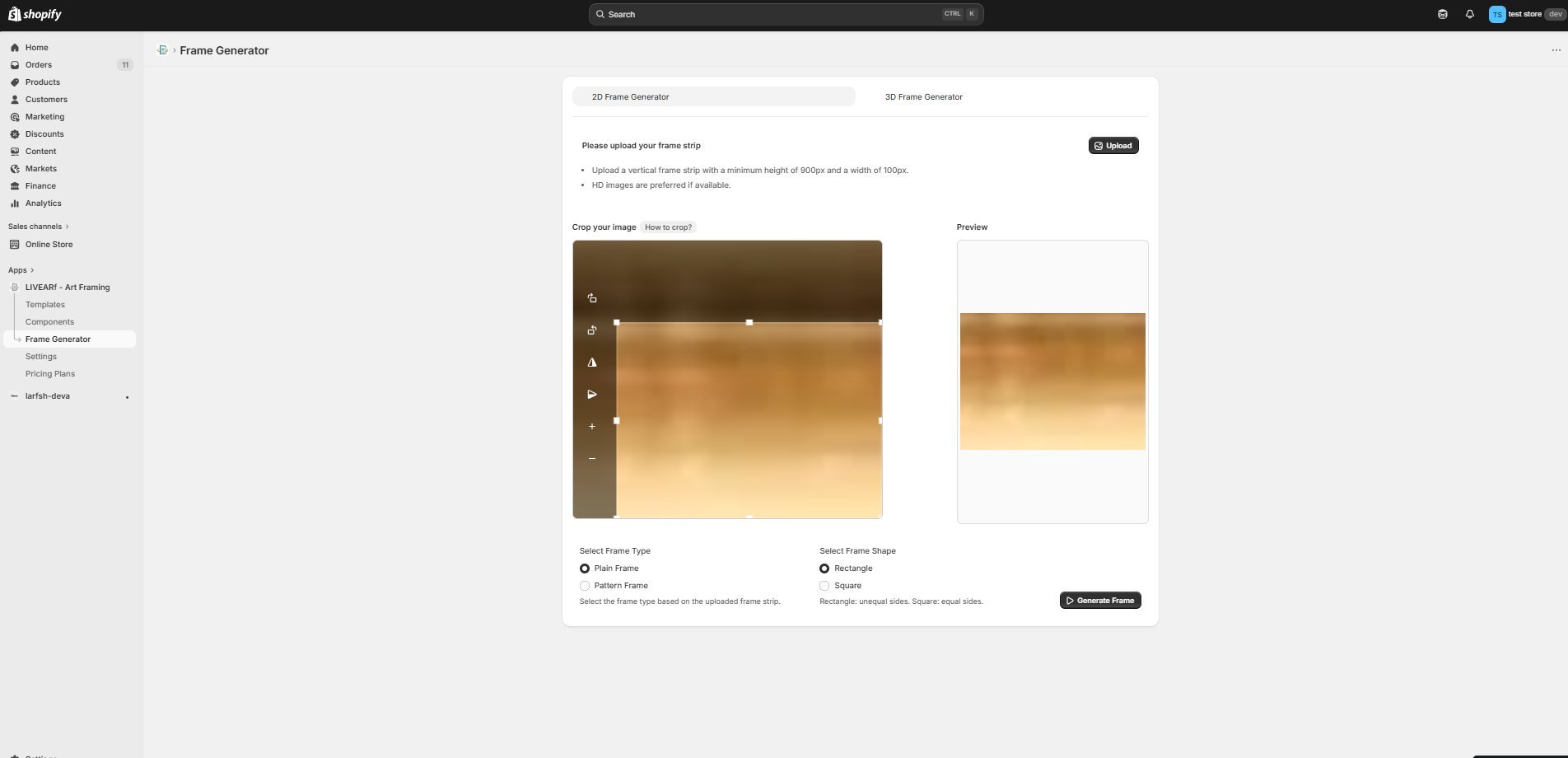 **Crop tool controls:**
* Drag the crop handles to adjust the selection area
* The **Preview panel** on the right updates live as you crop
* Use the zoom controls ( + / − ) to get precise
Then configure two settings below the crop tool:
| Setting | Options | What it means |
| --------------- | --------------------------- | --------------------------------------------------------------------------------------------------------------------------- |
| **Frame Type** | Plain Frame / Pattern Frame | Plain = solid colour or simple texture. Pattern = repeating design (e.g. ornate, carved). Select based on your strip image. |
| **Frame Shape** | Rectangle / Square | Rectangle = unequal sides (standard portrait or landscape). Square = equal sides. |
Click **Generate Frame** when ready.
***
### Step 4 — Review generated frames and save
LIVEVUE generates multiple frame corner variations from your strip. Review and select the ones you want to use.
**Crop tool controls:**
* Drag the crop handles to adjust the selection area
* The **Preview panel** on the right updates live as you crop
* Use the zoom controls ( + / − ) to get precise
Then configure two settings below the crop tool:
| Setting | Options | What it means |
| --------------- | --------------------------- | --------------------------------------------------------------------------------------------------------------------------- |
| **Frame Type** | Plain Frame / Pattern Frame | Plain = solid colour or simple texture. Pattern = repeating design (e.g. ornate, carved). Select based on your strip image. |
| **Frame Shape** | Rectangle / Square | Rectangle = unequal sides (standard portrait or landscape). Square = equal sides. |
Click **Generate Frame** when ready.
***
### Step 4 — Review generated frames and save
LIVEVUE generates multiple frame corner variations from your strip. Review and select the ones you want to use.
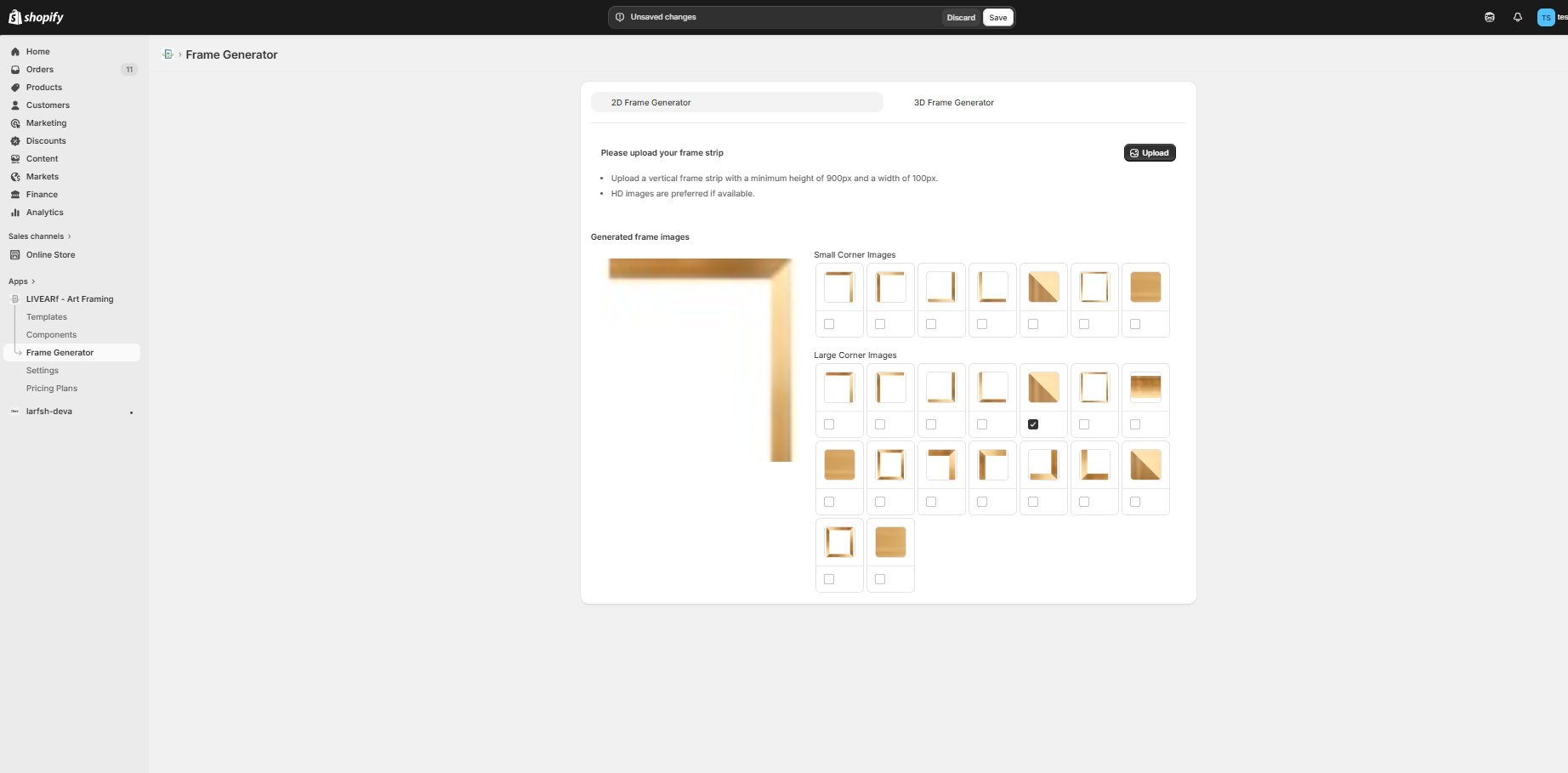 * **Left panel** — full frame preview showing how the selected corner image wraps around artwork
* **Small Corner Images** — smaller corner variations for use with smaller artwork sizes
* **Large Corner Images** — larger corner variations for use with larger artwork sizes
Check the box under each corner image you want to keep, then click **Save**.
Your 2D frame is now saved and available to assign to a Frame option value in your Artwork or Upload Component.
### Step 1 — Open the 3D tab and enter a Profile Name
Click the **3D Frame Generator** tab. In the **3D Frame Profile Name** field at the top, enter a clear name for this profile — for example `Gold Ornate 3D` or `Black Slim 3D`.
* **Left panel** — full frame preview showing how the selected corner image wraps around artwork
* **Small Corner Images** — smaller corner variations for use with smaller artwork sizes
* **Large Corner Images** — larger corner variations for use with larger artwork sizes
Check the box under each corner image you want to keep, then click **Save**.
Your 2D frame is now saved and available to assign to a Frame option value in your Artwork or Upload Component.
### Step 1 — Open the 3D tab and enter a Profile Name
Click the **3D Frame Generator** tab. In the **3D Frame Profile Name** field at the top, enter a clear name for this profile — for example `Gold Ornate 3D` or `Black Slim 3D`.
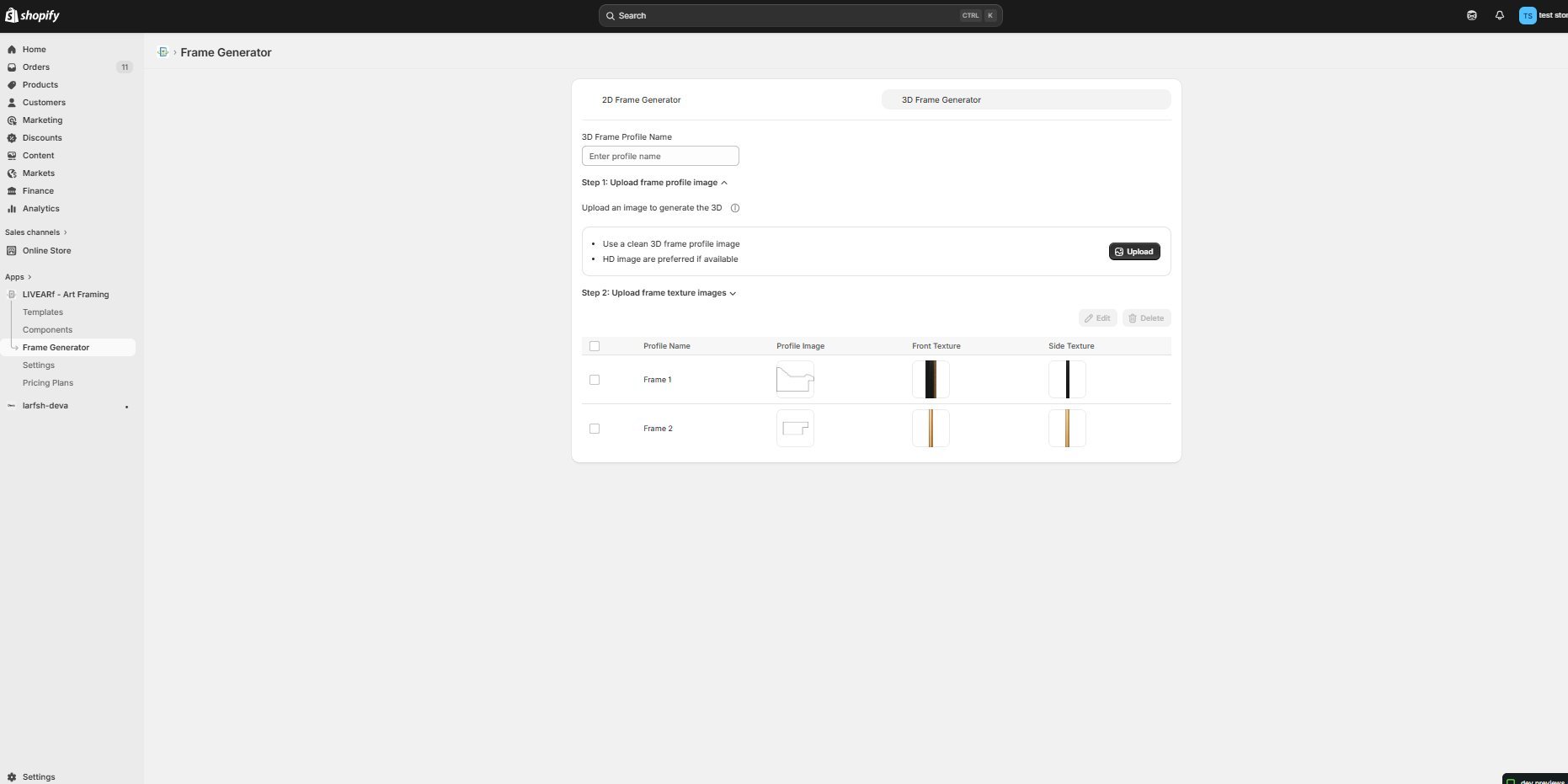 The Profile Name is your internal reference. Use a name that clearly identifies the frame style — you will use this when assigning the 3D frame to a component option value.
Your previously created 3D profiles are listed in the table at the bottom showing:
| Column | What it shows |
| ----------------- | -------------------------------------------------- |
| **Profile Name** | The name you gave the profile |
| **Profile Image** | The uploaded frame profile shape |
| **Front Texture** | The texture applied to the front-facing surface |
| **Side Texture** | The texture applied to the depth/side of the frame |
***
### Step 2 — Upload the frame profile image
Expand **Step 1: Upload frame profile image** and click **Upload**. Select a clean 3D frame profile image — this defines the **shape and depth** of the frame moulding.
Use a clean profile image with no shadows, no background, and a clear moulding shape. A cluttered or low-quality profile image will produce a poor 3D render.
Once uploaded successfully, **Step 1** will show a green tick ✅ confirming it is complete.
***
### Step 3 — Upload frame texture images
Expand **Step 2: Upload frame texture images**. You need to upload two separate textures that are applied to the 3D frame model:
The Profile Name is your internal reference. Use a name that clearly identifies the frame style — you will use this when assigning the 3D frame to a component option value.
Your previously created 3D profiles are listed in the table at the bottom showing:
| Column | What it shows |
| ----------------- | -------------------------------------------------- |
| **Profile Name** | The name you gave the profile |
| **Profile Image** | The uploaded frame profile shape |
| **Front Texture** | The texture applied to the front-facing surface |
| **Side Texture** | The texture applied to the depth/side of the frame |
***
### Step 2 — Upload the frame profile image
Expand **Step 1: Upload frame profile image** and click **Upload**. Select a clean 3D frame profile image — this defines the **shape and depth** of the frame moulding.
Use a clean profile image with no shadows, no background, and a clear moulding shape. A cluttered or low-quality profile image will produce a poor 3D render.
Once uploaded successfully, **Step 1** will show a green tick ✅ confirming it is complete.
***
### Step 3 — Upload frame texture images
Expand **Step 2: Upload frame texture images**. You need to upload two separate textures that are applied to the 3D frame model:
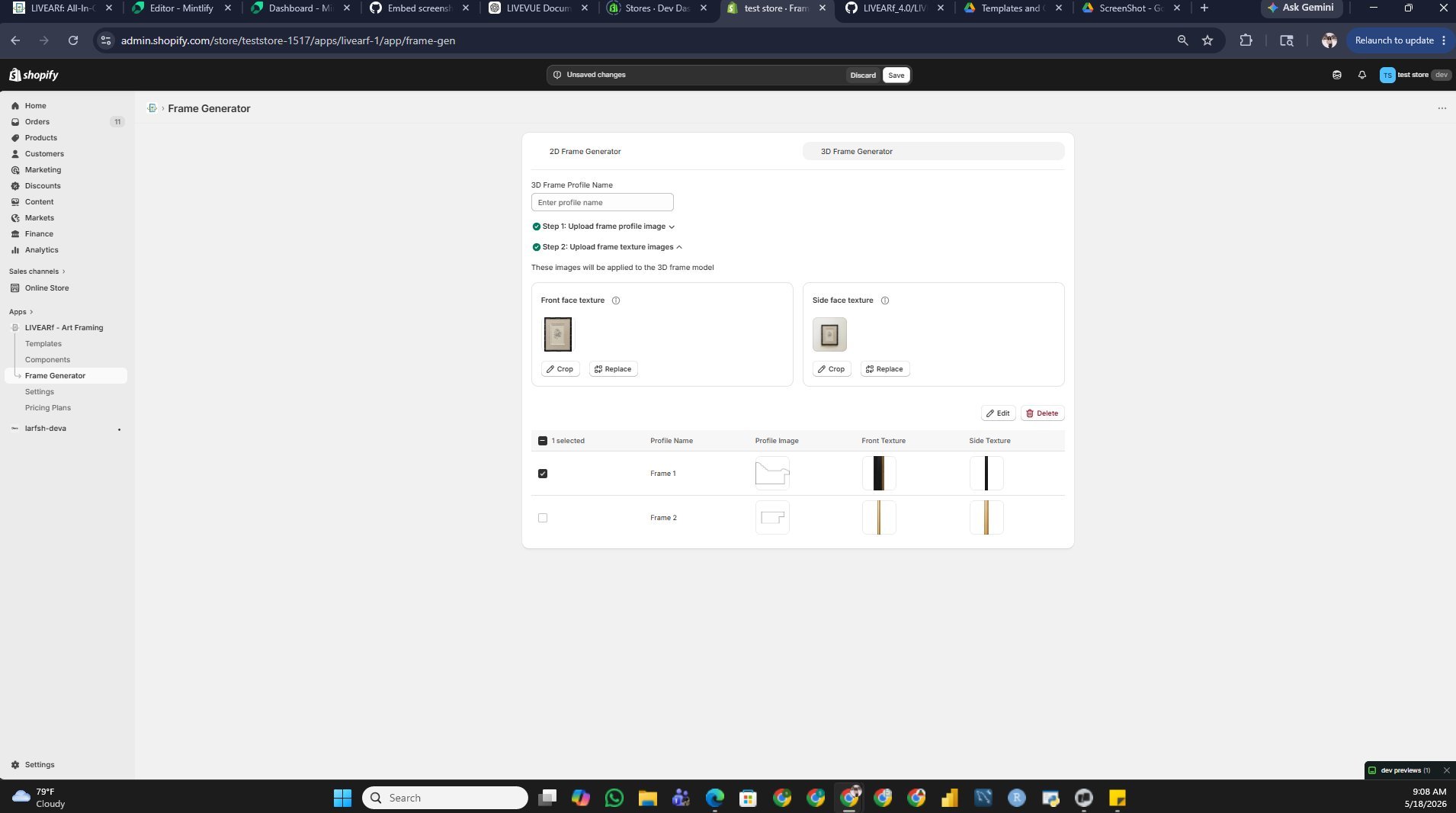 | Texture | Purpose | Tips |
| ---------------------- | ----------------------------------------------------- | --------------------------------------------------- |
| **Front face texture** | Applied to the front-facing flat surface of the frame | Use a straight-on, flat crop of the frame material |
| **Side face texture** | Applied to the side depth of the frame | Use a narrow strip showing the side profile texture |
For each texture:
* Click the upload area to select an image
* Use **Crop** to adjust the crop area for best fit
* Use **Replace** to swap the image without losing your other settings
Once both textures are uploaded, **Step 2** shows a green tick ✅.
***
### Step 4 — Select the profile and save
Your new 3D profile now appears in the profiles table at the bottom. Check the box next to the profile you want to use, then click **Save** in the top-right corner.
You can manage existing profiles directly from this table:
* **Edit** — update the name, profile image, or textures
* **Delete** — permanently remove the profile
Your 3D frame profile is now saved and available to assign to a Frame option value in your Artwork or Upload Component.
***
## Using Generated Frames in Your Components
Once a frame is generated and saved, here is how to assign it to your product:
1. Go to **LIVEARf → Components** and open your Artwork or Upload Component
2. In the **Options Panel**, click on your **Frames** option
3. For each frame option value, click the **edit icon** and select your generated frame image as the **Main image** and **Thumbnail**
4. The frame will now appear in the live Preview Product and on your storefront
***
## Image Requirements & Common Mistakes
| | 2D Frame Generator | 3D Frame Generator |
| ---------------- | -------------------------- | ------------------------------------- |
| **Minimum size** | 900px height × 100px width | No minimum — HD recommended |
| **Orientation** | Vertical strip | Profile image — straight on, no angle |
| **Format** | Any image file | Any image file |
| **Quality** | HD preferred | HD required for clean 3D render |
**Common mistakes to avoid:**
| Mistake | What goes wrong | Fix |
| ------------------------------------- | -------------------------------------- | --------------------------------------------- |
| Uploading a horizontal strip for 2D | Frame wraps incorrectly around artwork | Rotate image to vertical before uploading |
| Choosing Pattern when strip is plain | Tiling artefacts appear on frame | Set Frame Type to Plain Frame |
| Using a low-res profile image for 3D | Pixelated or blurry 3D frame render | Use the highest resolution image available |
| Uploading wrong texture for Side face | Depth of frame looks inconsistent | Use a narrow strip of the side texture only |
| Not cropping tightly enough | Extra whitespace appears in the frame | Adjust crop handles closely to the frame edge |
***
## What's Next?
Assign your generated frames to Frame option values in your component.
Configure global settings for your LIVEARf app.
| Texture | Purpose | Tips |
| ---------------------- | ----------------------------------------------------- | --------------------------------------------------- |
| **Front face texture** | Applied to the front-facing flat surface of the frame | Use a straight-on, flat crop of the frame material |
| **Side face texture** | Applied to the side depth of the frame | Use a narrow strip showing the side profile texture |
For each texture:
* Click the upload area to select an image
* Use **Crop** to adjust the crop area for best fit
* Use **Replace** to swap the image without losing your other settings
Once both textures are uploaded, **Step 2** shows a green tick ✅.
***
### Step 4 — Select the profile and save
Your new 3D profile now appears in the profiles table at the bottom. Check the box next to the profile you want to use, then click **Save** in the top-right corner.
You can manage existing profiles directly from this table:
* **Edit** — update the name, profile image, or textures
* **Delete** — permanently remove the profile
Your 3D frame profile is now saved and available to assign to a Frame option value in your Artwork or Upload Component.
***
## Using Generated Frames in Your Components
Once a frame is generated and saved, here is how to assign it to your product:
1. Go to **LIVEARf → Components** and open your Artwork or Upload Component
2. In the **Options Panel**, click on your **Frames** option
3. For each frame option value, click the **edit icon** and select your generated frame image as the **Main image** and **Thumbnail**
4. The frame will now appear in the live Preview Product and on your storefront
***
## Image Requirements & Common Mistakes
| | 2D Frame Generator | 3D Frame Generator |
| ---------------- | -------------------------- | ------------------------------------- |
| **Minimum size** | 900px height × 100px width | No minimum — HD recommended |
| **Orientation** | Vertical strip | Profile image — straight on, no angle |
| **Format** | Any image file | Any image file |
| **Quality** | HD preferred | HD required for clean 3D render |
**Common mistakes to avoid:**
| Mistake | What goes wrong | Fix |
| ------------------------------------- | -------------------------------------- | --------------------------------------------- |
| Uploading a horizontal strip for 2D | Frame wraps incorrectly around artwork | Rotate image to vertical before uploading |
| Choosing Pattern when strip is plain | Tiling artefacts appear on frame | Set Frame Type to Plain Frame |
| Using a low-res profile image for 3D | Pixelated or blurry 3D frame render | Use the highest resolution image available |
| Uploading wrong texture for Side face | Depth of frame looks inconsistent | Use a narrow strip of the side texture only |
| Not cropping tightly enough | Extra whitespace appears in the frame | Adjust crop handles closely to the frame edge |
***
## What's Next?
Assign your generated frames to Frame option values in your component.
Configure global settings for your LIVEARf app.