> ## Documentation Index
> Fetch the complete documentation index at: https://docs.livearf.com/llms.txt
> Use this file to discover all available pages before exploring further.
# Artwork Component
> Configure interactive framing and visualization options for your pre-made artwork and photography.
## What is the Artwork Component?
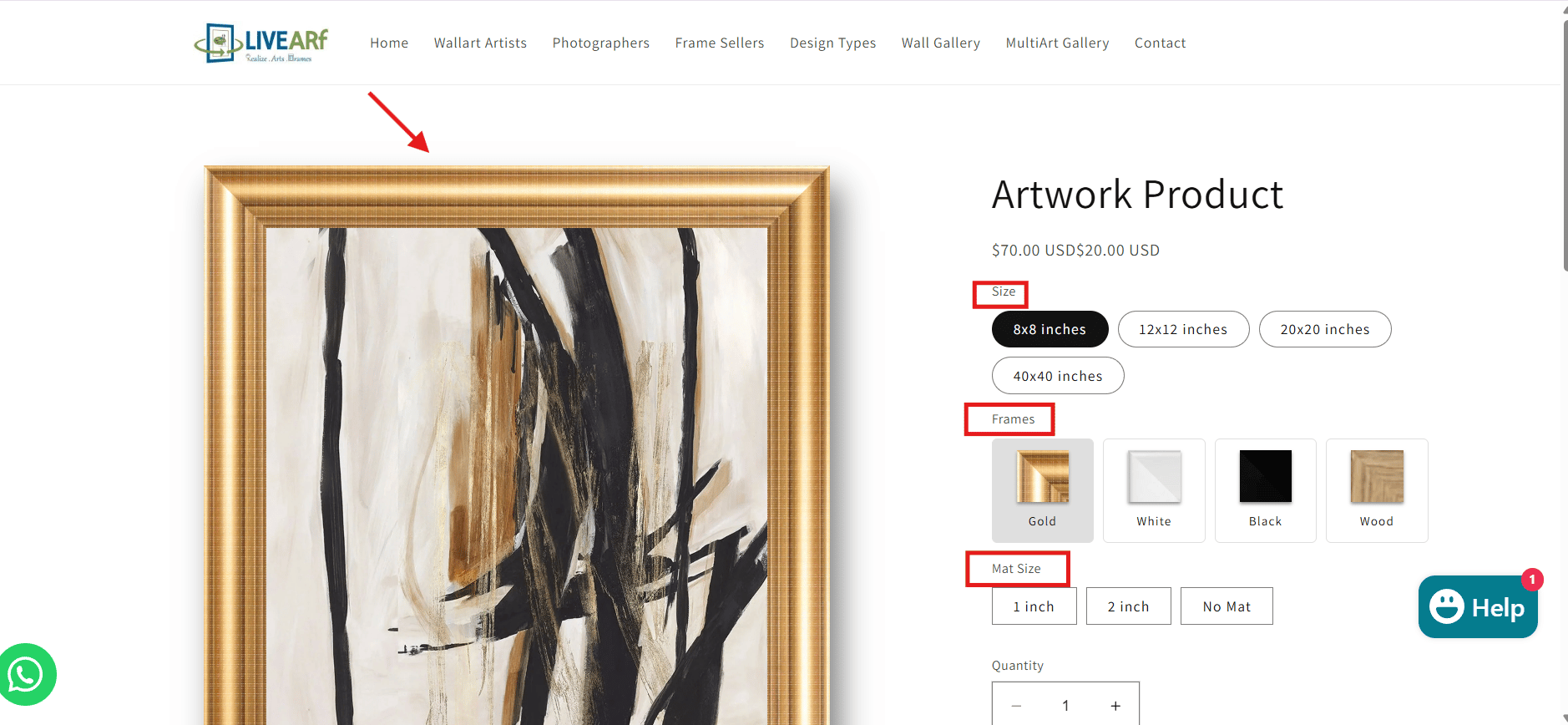
The Artwork Component gives customers a **live framing experience** on your product page. They pick size, frame, and mat — the preview updates instantly. No redirects, no separate tool.
| Best for | Customer experience | You configure |
| --------------------------------------------- | -------------------------------------------- | ----------------------------------------------- |
| Artists & photographers with pre-made artwork | Live size, frame & mat preview before buying | Options, pricing rules & smart visibility logic |
The Artwork Component uses **your existing artwork images**. Customers cannot upload their own photos here. If you need customer uploads, use the [Upload Component](/livevue/upload-component) instead.
**Here is what it looks like on your live store:**
 ***
## Accessing the Component
***
## Accessing the Component
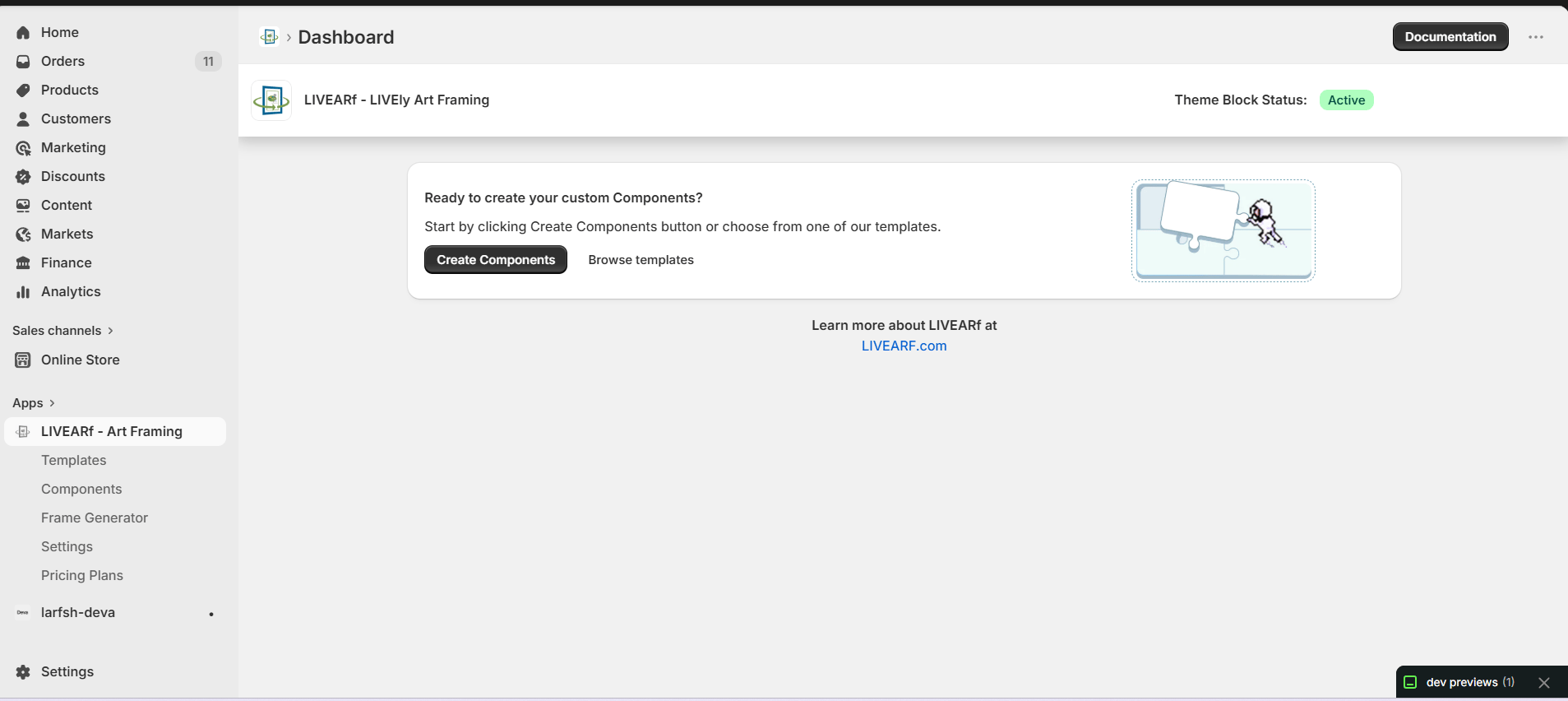 1. Open the **LIVEARf app** from your Shopify admin
2. In the left sidebar, click **Components**
3. Select an existing **Artwork Component** or click **Create My Own**
4. Open the **Basic Configuration** tab
You will see two panels side by side — the **configuration panel** on the left and a live **Preview Product** on the right that updates as you make changes.
Watch the Preview Product panel as you configure. Every change reflects in real time so you can catch mistakes before saving.
***
## Component Header Settings
1. Open the **LIVEARf app** from your Shopify admin
2. In the left sidebar, click **Components**
3. Select an existing **Artwork Component** or click **Create My Own**
4. Open the **Basic Configuration** tab
You will see two panels side by side — the **configuration panel** on the left and a live **Preview Product** on the right that updates as you make changes.
Watch the Preview Product panel as you configure. Every change reflects in real time so you can catch mistakes before saving.
***
## Component Header Settings
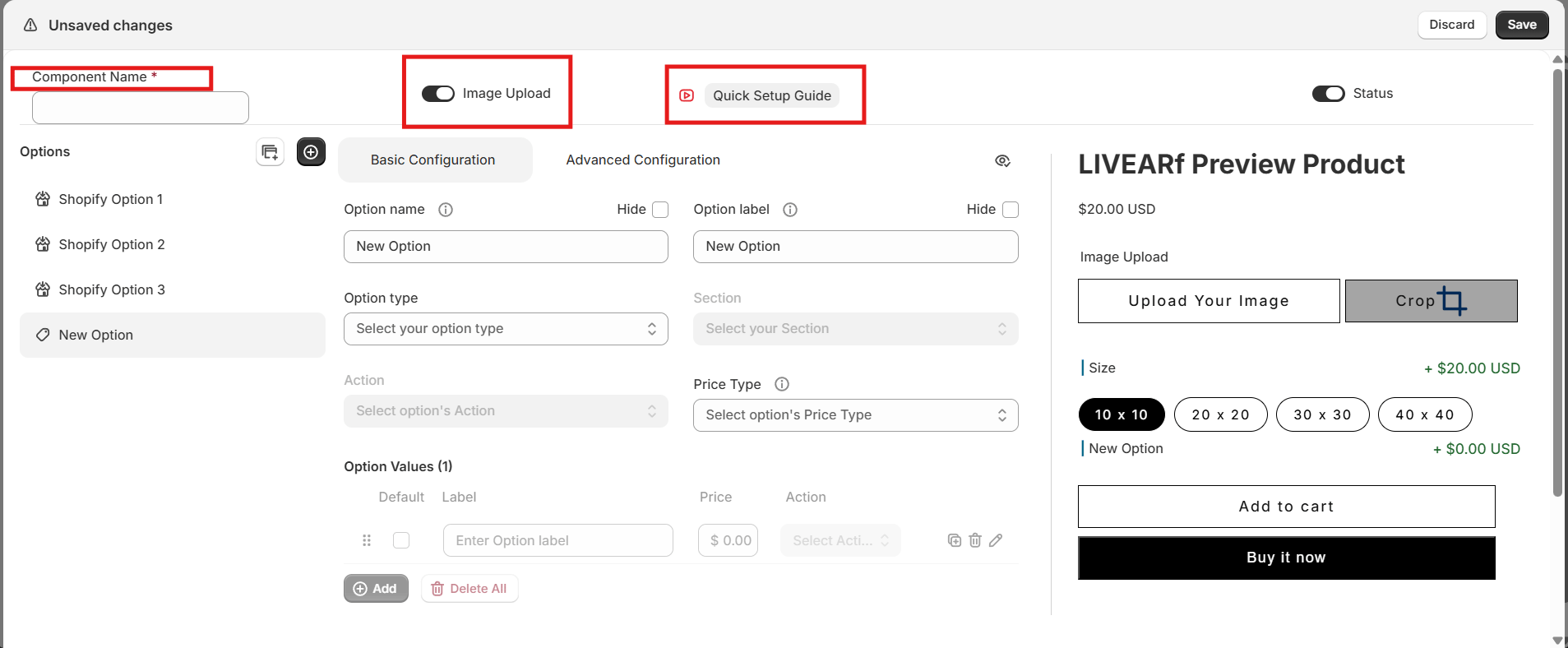 | Setting | What it does | Shown to customers? |
| -------------------- | ------------------------------------------------------------------------------------------- | ------------------- |
| **Component Name** | Internal label to identify this component | No |
| **Image Upload** | Enables customer image upload. Keep **OFF** for Artwork Components — artwork is pre-defined | No |
| **Component Status** | **ON** = active and linkable to products. **OFF** = paused without deleting | No |
Always click **Save** after making changes. Navigating away without saving will lose all unsaved work.
***
## Options Panel
| Setting | What it does | Shown to customers? |
| -------------------- | ------------------------------------------------------------------------------------------- | ------------------- |
| **Component Name** | Internal label to identify this component | No |
| **Image Upload** | Enables customer image upload. Keep **OFF** for Artwork Components — artwork is pre-defined | No |
| **Component Status** | **ON** = active and linkable to products. **OFF** = paused without deleting | No |
Always click **Save** after making changes. Navigating away without saving will lose all unsaved work.
***
## Options Panel
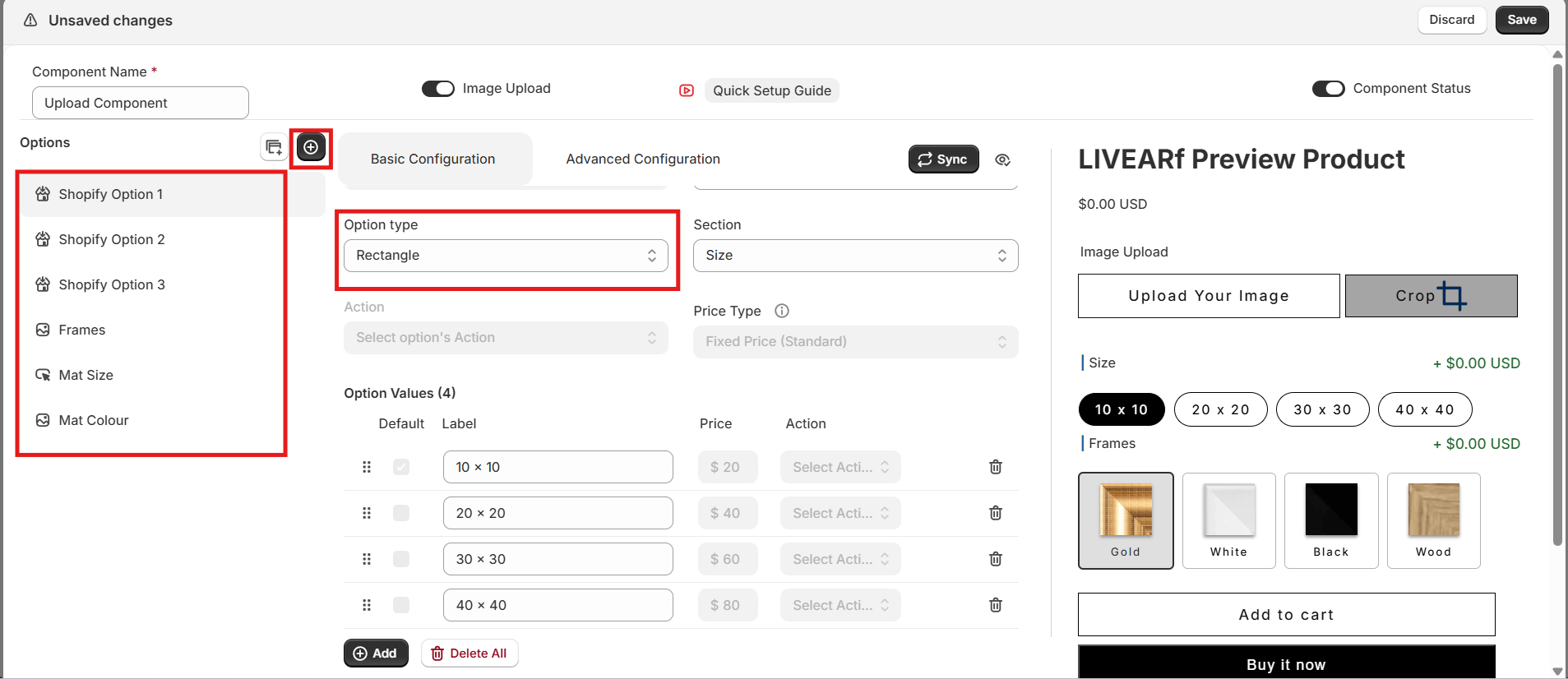 The first three options are **automatically inherited from your Shopify product variants** — for example, Size.
* Use the **eye icon** to show or hide each option on the storefront
* Hidden options do not appear in the Preview Product panel
* These cannot be deleted — they come directly from your Shopify product
If your Shopify product has no variants, these slots appear empty. Set up product variants in Shopify first.
LIVEARf creates three custom options by default:
| Option | Purpose |
| -------------- | ---------------------------------------------- |
| **Frames** | Frame style selection shown as visual swatches |
| **Mat Size** | Spacing between the artwork and the frame |
| **Mat Colour** | Colour of the mat border |
Each can be **edited**, **duplicated**, or **deleted** using the icons on the right of each row.
***
## Configuring an Option
Click any option name in the list on the left to open its settings. Every option follows the same five steps.
### Step 1 — Name and Label
The first three options are **automatically inherited from your Shopify product variants** — for example, Size.
* Use the **eye icon** to show or hide each option on the storefront
* Hidden options do not appear in the Preview Product panel
* These cannot be deleted — they come directly from your Shopify product
If your Shopify product has no variants, these slots appear empty. Set up product variants in Shopify first.
LIVEARf creates three custom options by default:
| Option | Purpose |
| -------------- | ---------------------------------------------- |
| **Frames** | Frame style selection shown as visual swatches |
| **Mat Size** | Spacing between the artwork and the frame |
| **Mat Colour** | Colour of the mat border |
Each can be **edited**, **duplicated**, or **deleted** using the icons on the right of each row.
***
## Configuring an Option
Click any option name in the list on the left to open its settings. Every option follows the same five steps.
### Step 1 — Name and Label
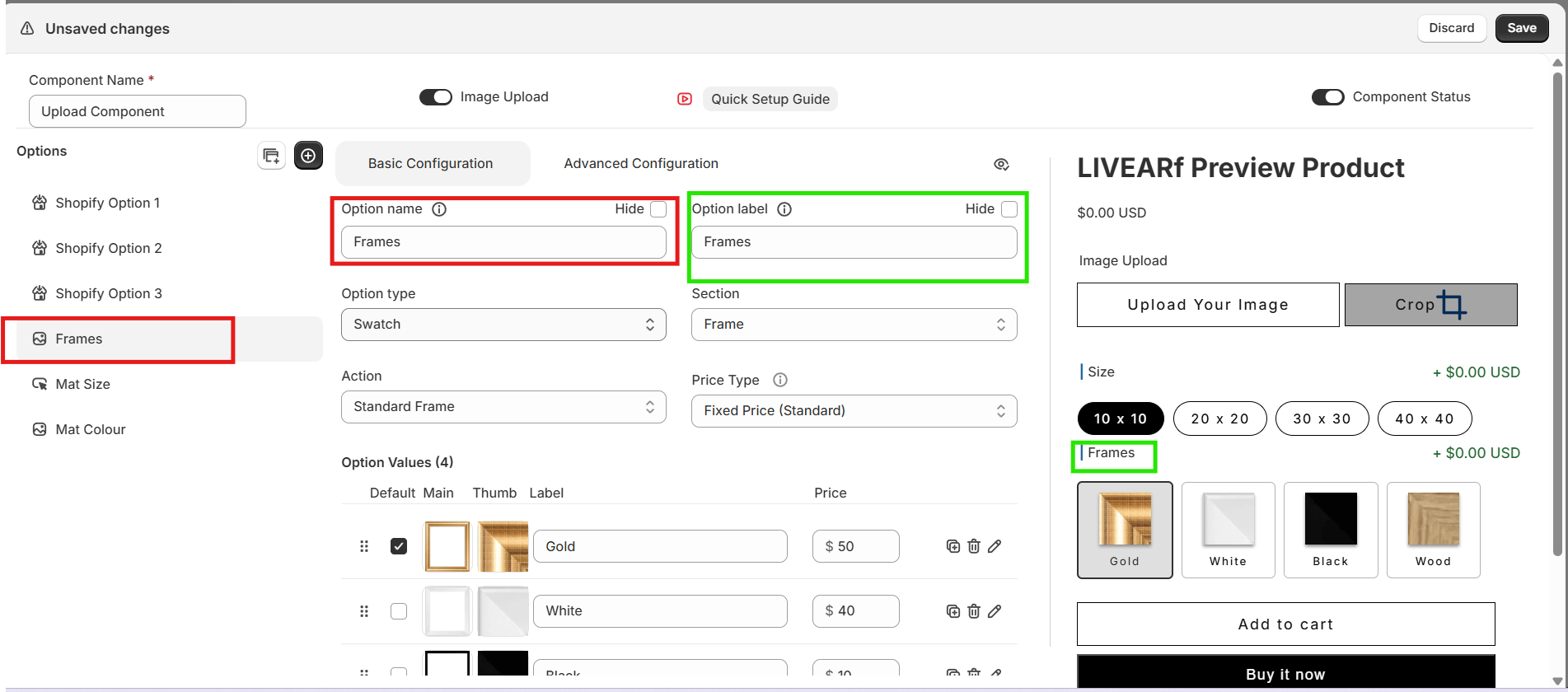 | Field | Purpose | Shown to customers? |
| ---------------- | --------------------------------------------- | ------------------- |
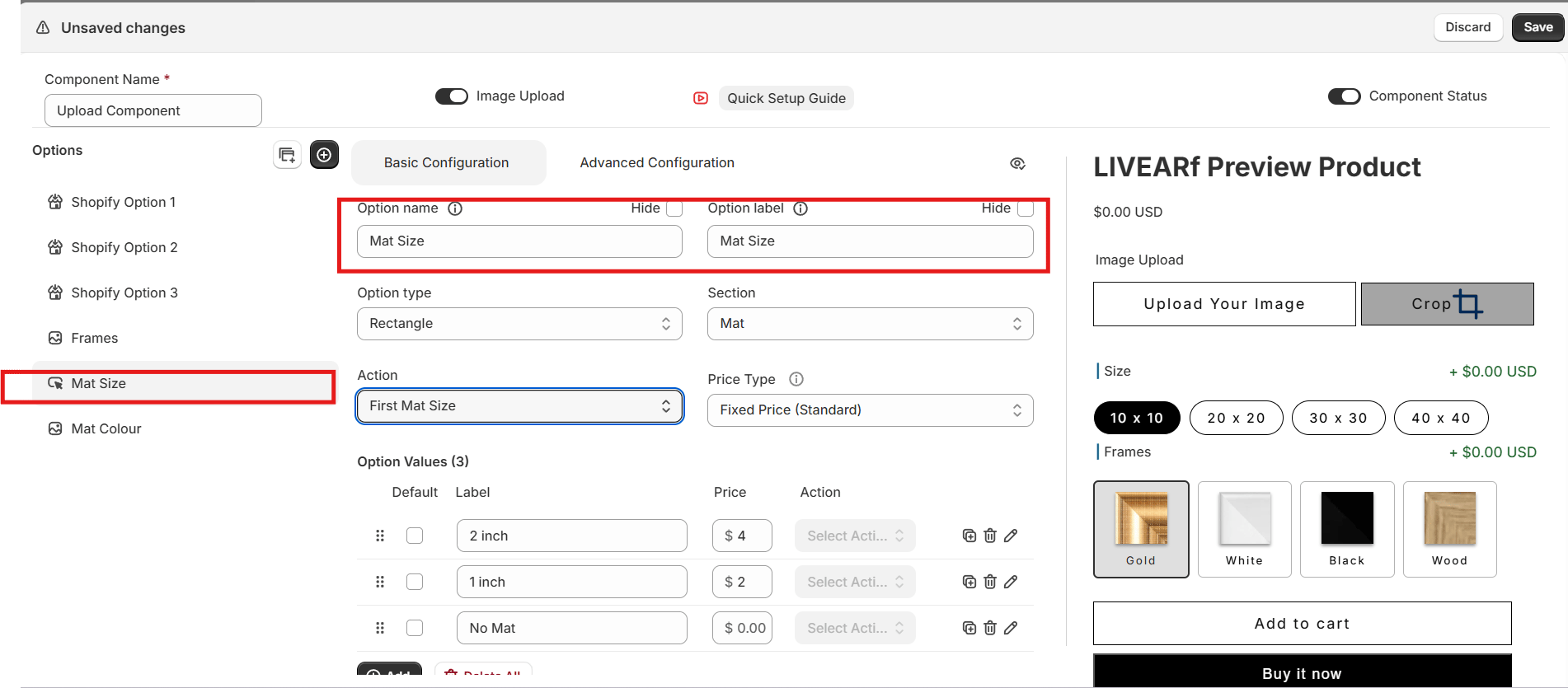
| **Option Name** | Internal reference used in rules and config | No |
| **Option Label** | Text customers see above the option | Yes |
| **Hide toggle** | Hides the option from the storefront entirely | — |
***
### Step 2 — Option Type
| Field | Purpose | Shown to customers? |
| ---------------- | --------------------------------------------- | ------------------- |
| **Option Name** | Internal reference used in rules and config | No |
| **Option Label** | Text customers see above the option | Yes |
| **Hide toggle** | Hides the option from the storefront entirely | — |
***
### Step 2 — Option Type
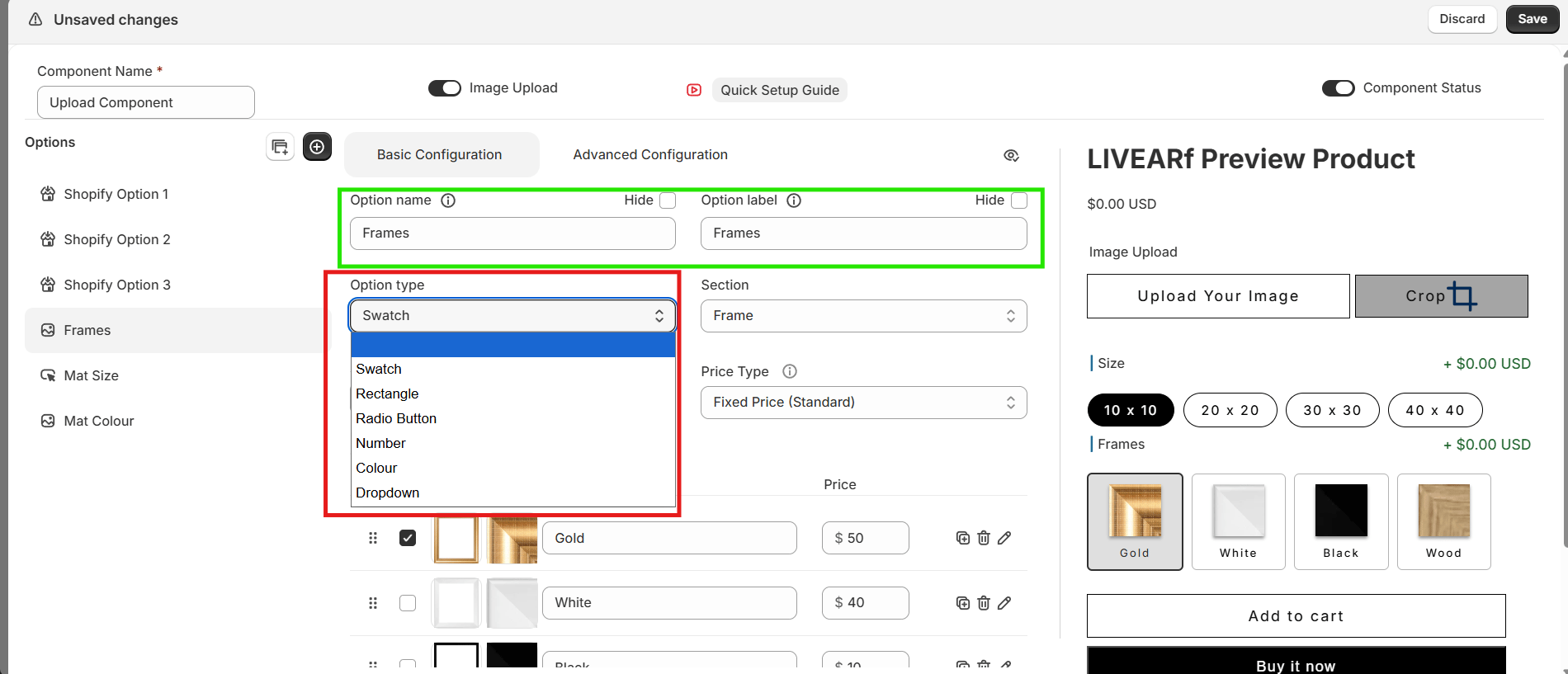 | Type | Best used for |
| ---------------- | ------------------------------------- |
| **Swatch** | Frame images or mat colour thumbnails |
| **Rectangle** | Size options shown as pill buttons |
| **Radio Button** | Single-choice text selections |
| **Dropdown** | Long lists of choices |
| **Number** | Custom numeric input (width, height) |
| **Colour** | Colour picker for mat colours |
***
### Step 3 — Section
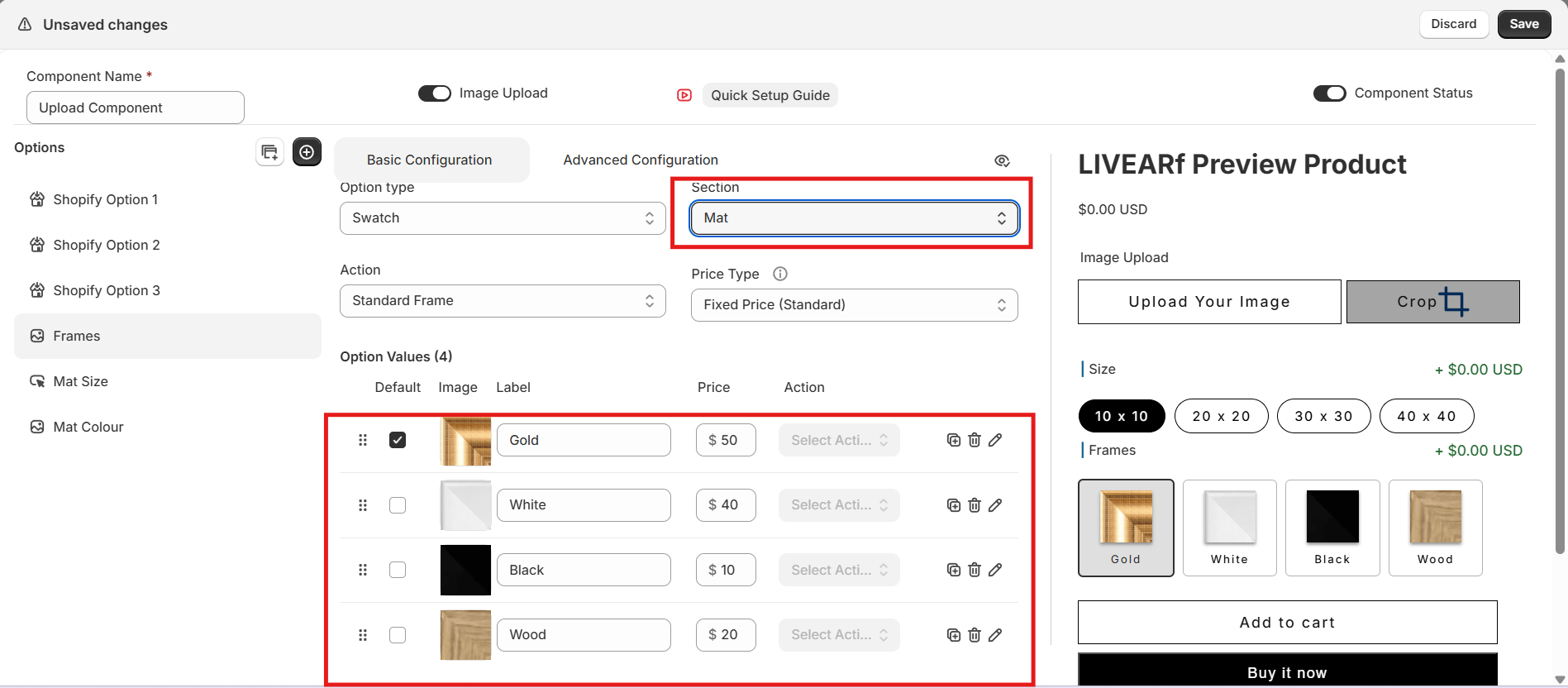
The Section tells LIVEVUE what this option represents and controls how it renders visually.
| Type | Best used for |
| ---------------- | ------------------------------------- |
| **Swatch** | Frame images or mat colour thumbnails |
| **Rectangle** | Size options shown as pill buttons |
| **Radio Button** | Single-choice text selections |
| **Dropdown** | Long lists of choices |
| **Number** | Custom numeric input (width, height) |
| **Colour** | Colour picker for mat colours |
***
### Step 3 — Section
The Section tells LIVEVUE what this option represents and controls how it renders visually.
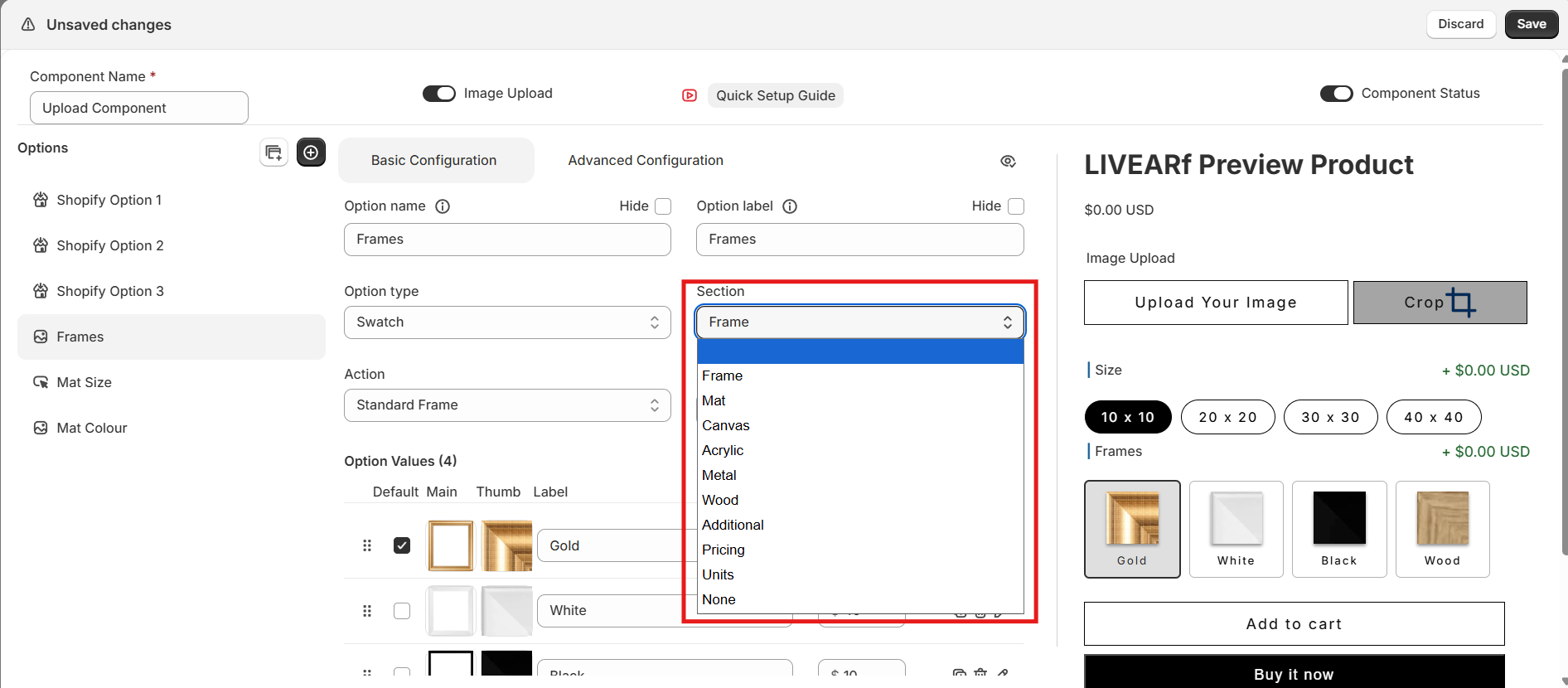 | Section | Purpose |
| ------------------- | ------------------------------------- |
| **Frame** | Frame border visualisation and styles |
| **Mat** | Mat appearance around the artwork |
| **Canvas** | Canvas wrap rendering styles |
| **Acrylic** | Acrylic mounting styles |
| **Metal** | Metal print styles |
| **Wood** | Wood-based finish styles |
| **Custom Size** | Custom width and height inputs |
| **Custom Mat Size** | Custom mat spacing input |
| **Pricing** | Adds a pricing adjustment |
| **Additional** | Optional add-ons |
| **None** | No special visual behaviour |
| Section | Purpose |
| ------------------- | ------------------------------------- |
| **Frame** | Frame border visualisation and styles |
| **Mat** | Mat appearance around the artwork |
| **Canvas** | Canvas wrap rendering styles |
| **Acrylic** | Acrylic mounting styles |
| **Metal** | Metal print styles |
| **Wood** | Wood-based finish styles |
| **Custom Size** | Custom width and height inputs |
| **Custom Mat Size** | Custom mat spacing input |
| **Pricing** | Adds a pricing adjustment |
| **Additional** | Optional add-ons |
| **None** | No special visual behaviour |
 ***
### Step 4 — Actions
Some sections unlock an **Action** dropdown that defines how each value renders visually.
***
### Step 4 — Actions
Some sections unlock an **Action** dropdown that defines how each value renders visually.
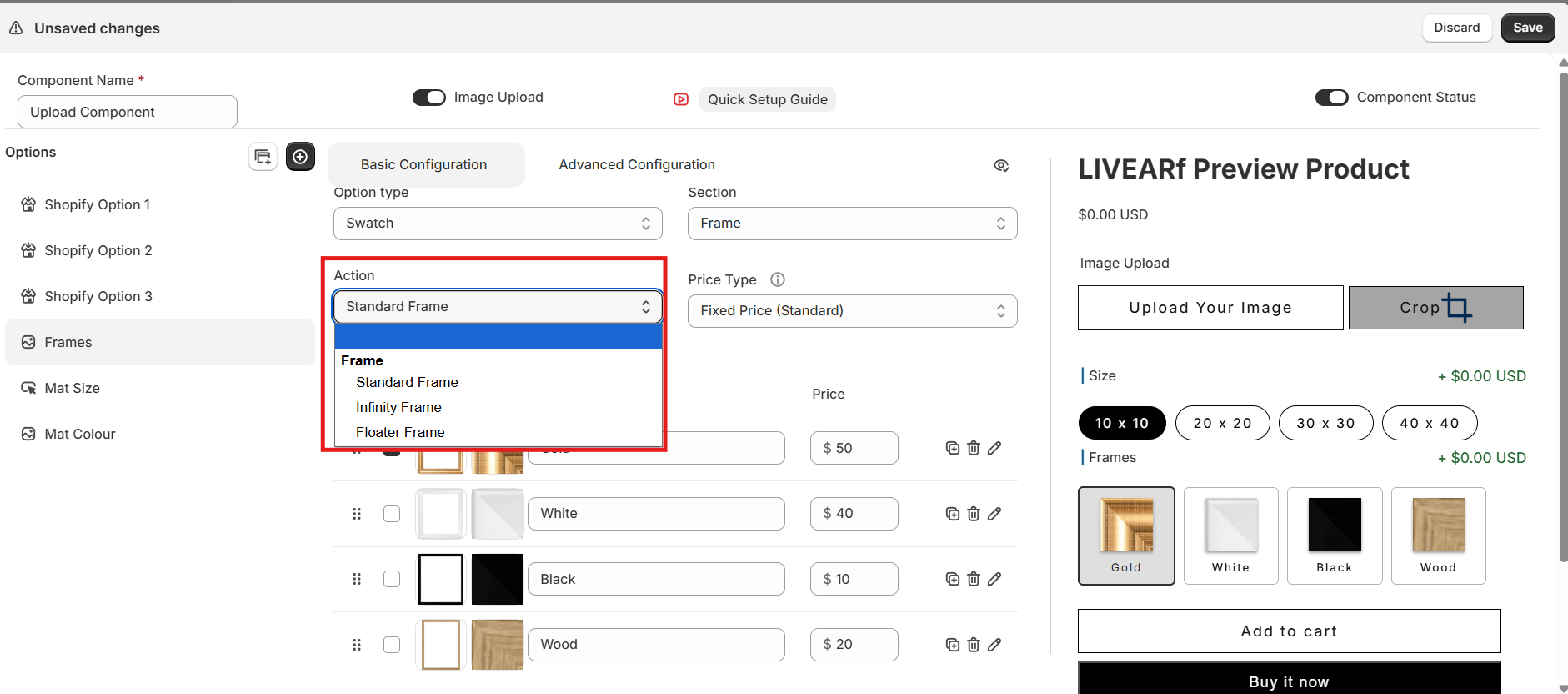 | Section | Available Actions |
| ----------- | --------------------------------------------- |
| **Frame** | Standard Frame, Infinity Frame, Floater Frame |
| **Canvas** | Classic Wrap, Mirror, Colour, Blur |
| **Acrylic** | Spacers, Mount, Sandwich |
| **Metal** | Print, Float Mount |
| **Wood** | Wooden Pallet, Box Board |
| **Pricing** | Discount, Margin, Markup |
Sections like Mat do not support Actions — the dropdown is greyed out automatically.
***
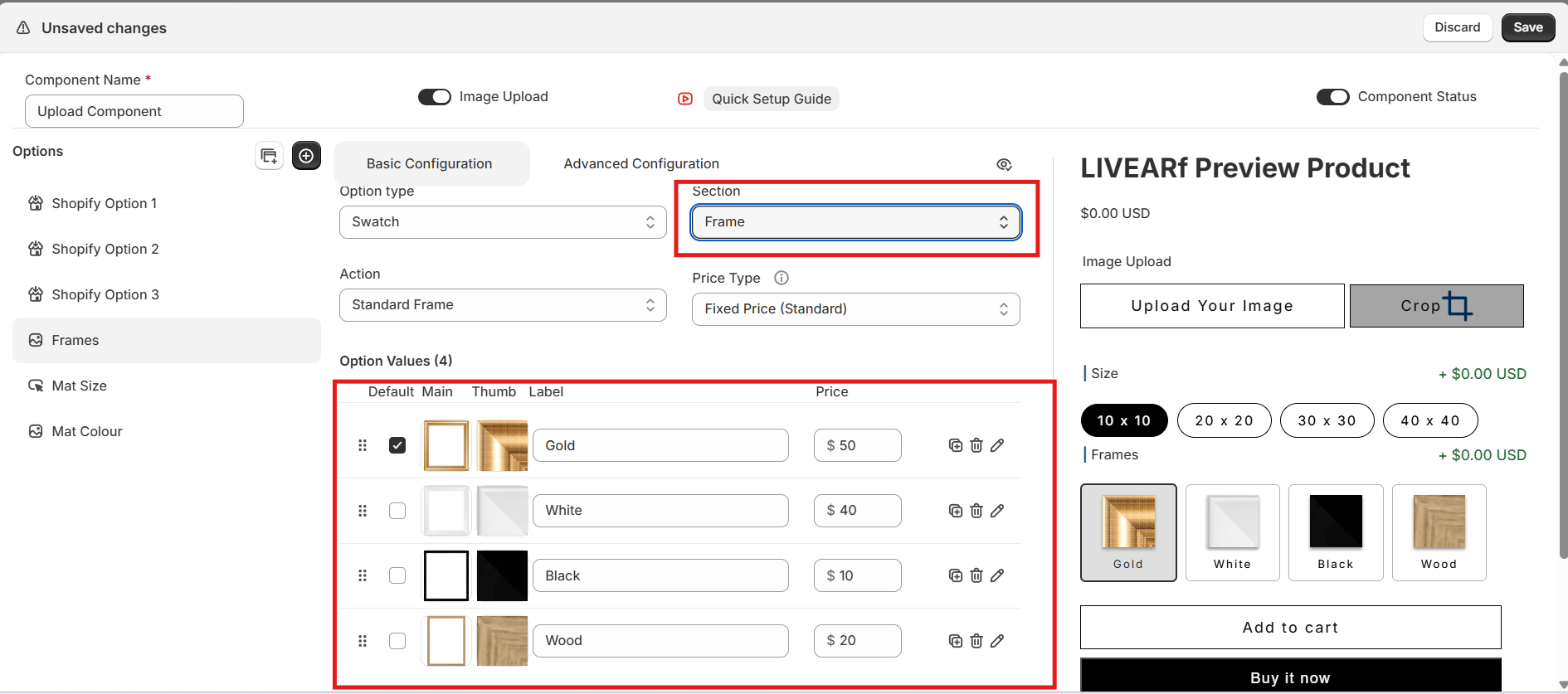
### Step 5 — Option Values
Option values are the individual choices customers see — for example Gold, White, Wood, Black for Frames.
For each value you can:
* Set a **Label** (text customers see)
* Upload a **Main image** (used in the live visualisation) and a **Thumbnail** (shown in the selector)
* Set one value as the **Default**
* Assign a **Price**
* **Duplicate** or **Delete** the value
***
## Mat, Pricing & Advanced Configuration
### Mat Size
Controls the spacing between the artwork edge and the frame. Supports **single mat** and **double mat** configurations.
| Section | Available Actions |
| ----------- | --------------------------------------------- |
| **Frame** | Standard Frame, Infinity Frame, Floater Frame |
| **Canvas** | Classic Wrap, Mirror, Colour, Blur |
| **Acrylic** | Spacers, Mount, Sandwich |
| **Metal** | Print, Float Mount |
| **Wood** | Wooden Pallet, Box Board |
| **Pricing** | Discount, Margin, Markup |
Sections like Mat do not support Actions — the dropdown is greyed out automatically.
***
### Step 5 — Option Values
Option values are the individual choices customers see — for example Gold, White, Wood, Black for Frames.
For each value you can:
* Set a **Label** (text customers see)
* Upload a **Main image** (used in the live visualisation) and a **Thumbnail** (shown in the selector)
* Set one value as the **Default**
* Assign a **Price**
* **Duplicate** or **Delete** the value
***
## Mat, Pricing & Advanced Configuration
### Mat Size
Controls the spacing between the artwork edge and the frame. Supports **single mat** and **double mat** configurations.
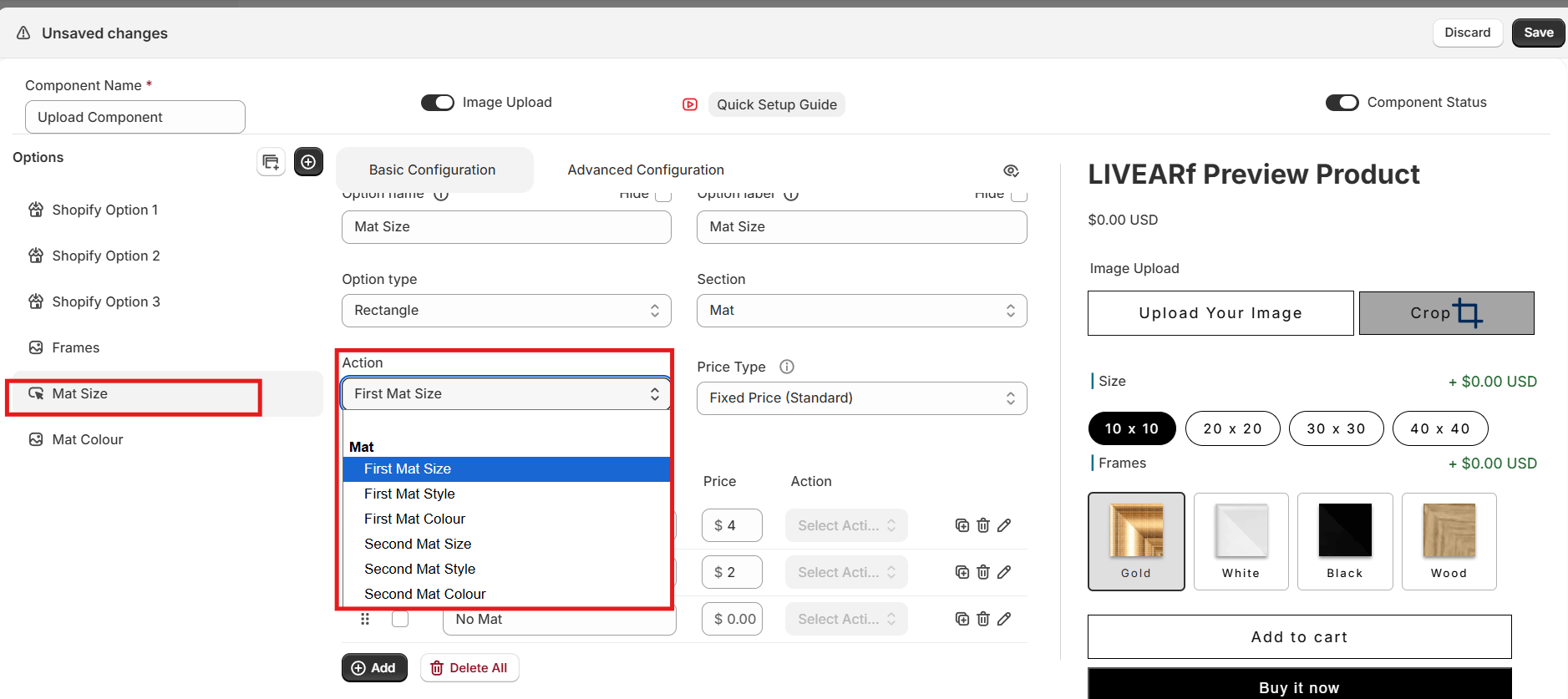 | Sub-setting | Purpose |
| --------------------- | --------------------------------- |
| **First Mat Size** | Width of the primary mat border |
| **First Mat Style** | Visual style of the primary mat |
| **First Mat Colour** | Colour of the primary mat |
| **Second Mat Size** | Width of the secondary mat border |
| **Second Mat Style** | Visual style of the secondary mat |
| **Second Mat Colour** | Colour of the secondary mat |
For a single mat, configure First Mat only and set Second Mat values to zero — or hide them with a Conditional Rule.
Click the **edit icon** on any value to configure its price.
***
### Mat Colour
Controls the visual colour of the mat in the live preview.
| Sub-setting | Purpose |
| --------------------- | --------------------------------- |
| **First Mat Size** | Width of the primary mat border |
| **First Mat Style** | Visual style of the primary mat |
| **First Mat Colour** | Colour of the primary mat |
| **Second Mat Size** | Width of the secondary mat border |
| **Second Mat Style** | Visual style of the secondary mat |
| **Second Mat Colour** | Colour of the secondary mat |
For a single mat, configure First Mat only and set Second Mat values to zero — or hide them with a Conditional Rule.
Click the **edit icon** on any value to configure its price.
***
### Mat Colour
Controls the visual colour of the mat in the live preview.
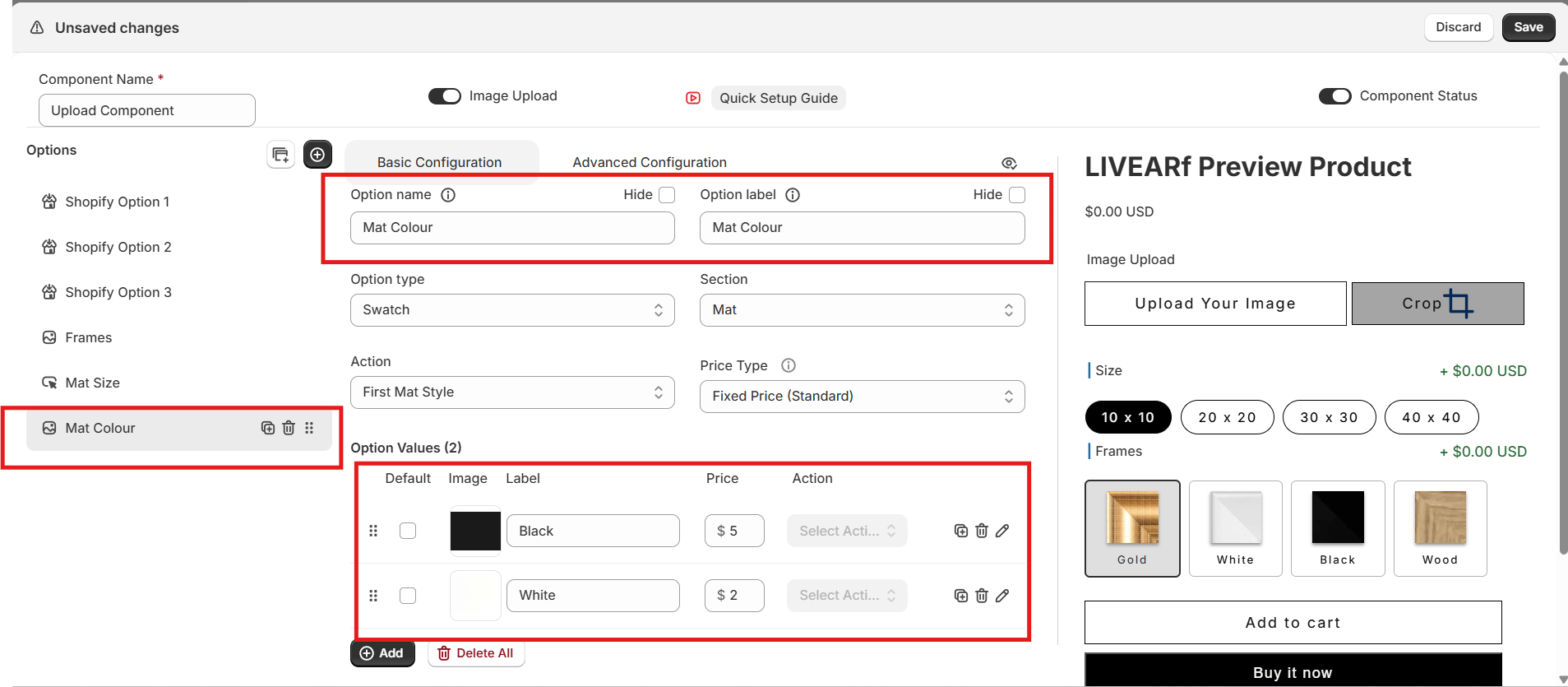 * Uses the same six mat action sub-settings as Mat Size
* Supports all pricing methods
* Use the **image icon** on each value to upload a colour swatch
* Changes reflect immediately in the Preview Product panel
### Pricing Methods
Every option value can have a price attached. LIVEVUE supports eight methods across two categories.
* Uses the same six mat action sub-settings as Mat Size
* Supports all pricing methods
* Use the **image icon** on each value to upload a colour swatch
* Changes reflect immediately in the Preview Product panel
### Pricing Methods
Every option value can have a price attached. LIVEVUE supports eight methods across two categories.
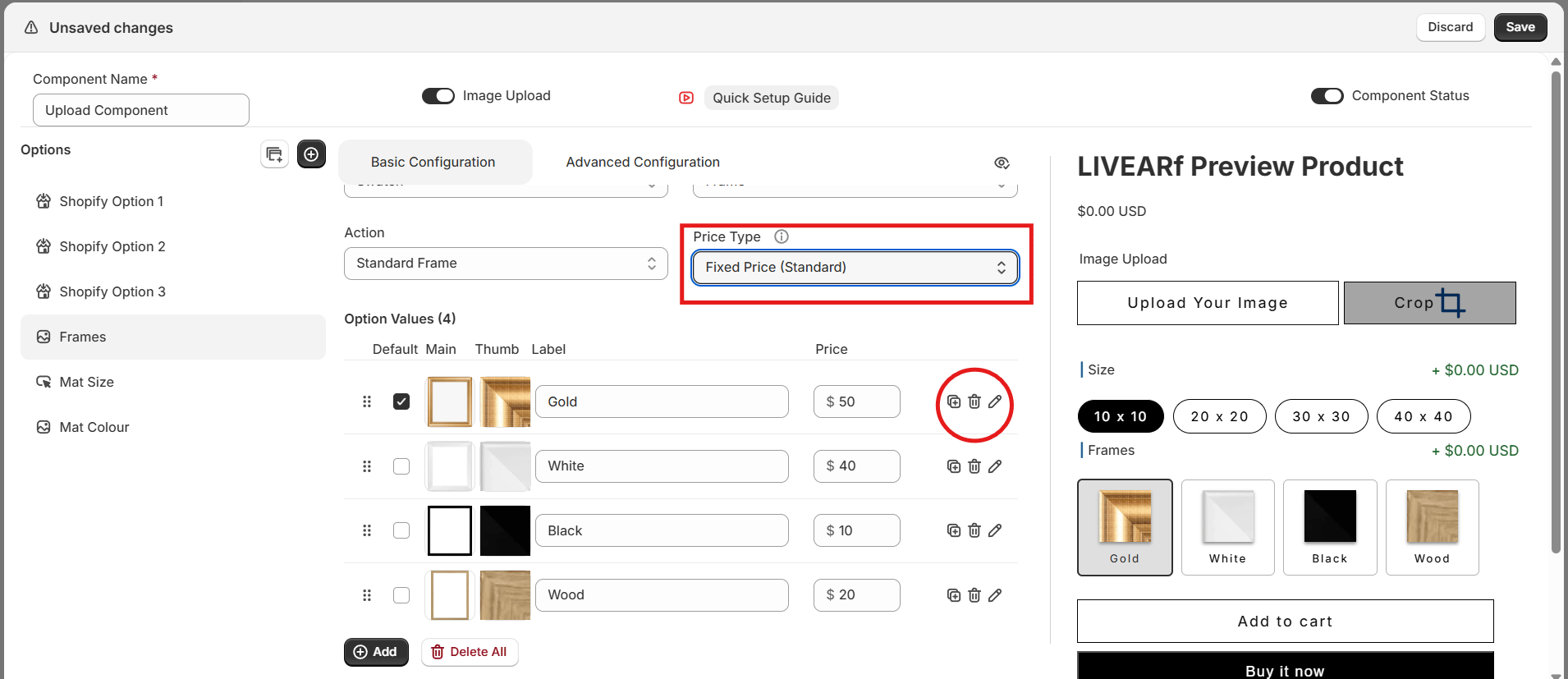
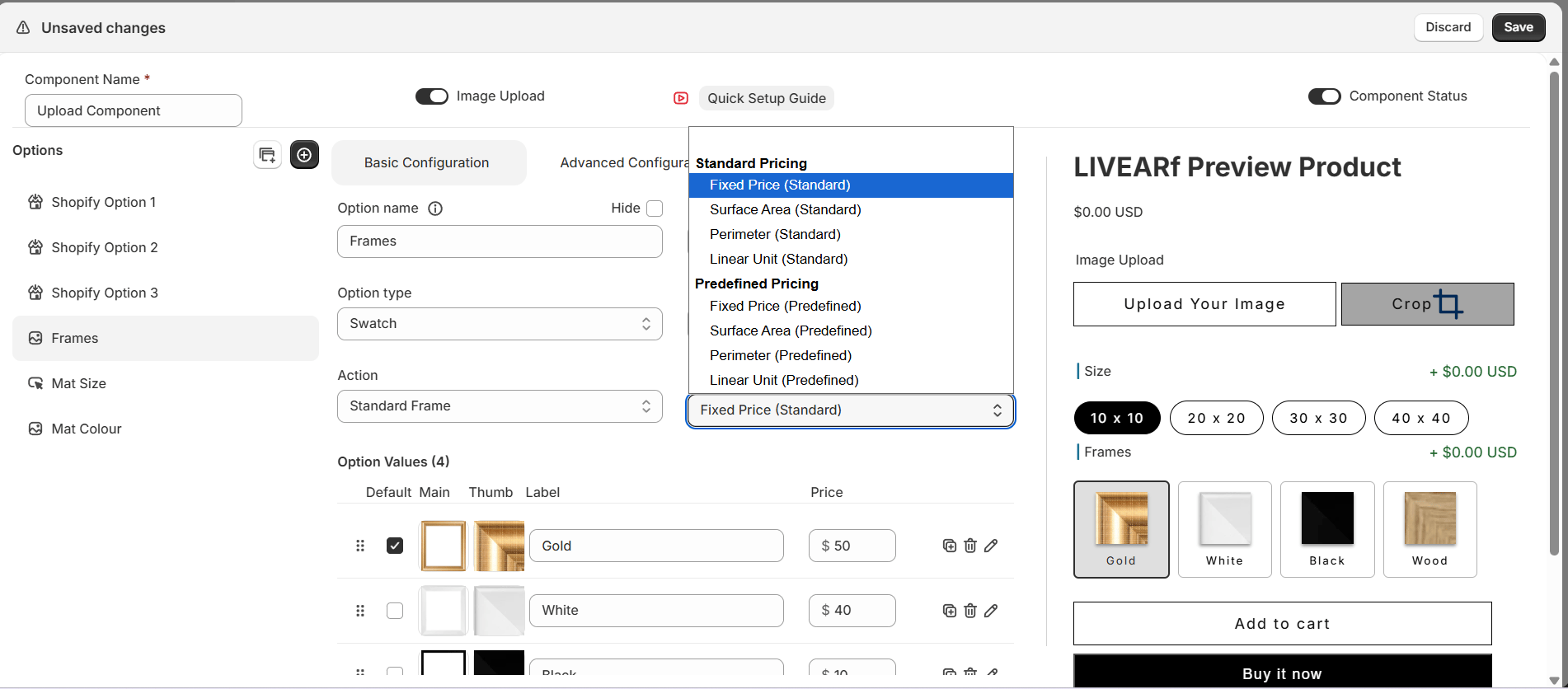 **Standard Pricing** — calculates automatically based on actual artwork dimensions:
| Method | How it calculates | Best for |
| ---------------- | ------------------------------- | ------------------------------ |
| **Fixed Price** | Flat amount per selection | Frame styles, mat colours |
| **Surface Area** | Price × width × height | Canvas, metal, acrylic prints |
| **Perimeter** | Price × total edge length | Frame moulding per linear inch |
| **Linear Unit** | Price per unit of one dimension | Mat border width |
**Predefined Pricing** — you manually set a price for each size variant:
| Method | How it calculates | Best for |
| ----------------------------- | ----------------------------- | ---------------------------- |
| **Fixed Price (Predefined)** | Different flat price per size | Irregular pricing per size |
| **Surface Area (Predefined)** | Surface area per size | Custom price per size |
| **Perimeter (Predefined)** | Perimeter per size | Size-dependent frame pricing |
| **Linear Unit (Predefined)** | Linear unit per size | Size-dependent mat pricing |
Use **Standard** when your pricing follows a formula. Use **Predefined** when each size has its own specific price that doesn't follow a pattern.
***
### Tooltip and Description
All pricing methods support two optional customer-facing fields:
| Field | Where it appears | Purpose |
| --------------- | ------------------------------------ | --------------------------------------- |
| **Tooltip** | On hover over the option label | Short note, e.g. "Price varies by size" |
| **Description** | Below the option on the product page | Longer explanation of what is included |
### What are Conditional Rules?
Conditional Rules automatically **show, hide, or disable options** based on what a customer has already selected. They keep your product page clean and prevent invalid combinations.
**Standard Pricing** — calculates automatically based on actual artwork dimensions:
| Method | How it calculates | Best for |
| ---------------- | ------------------------------- | ------------------------------ |
| **Fixed Price** | Flat amount per selection | Frame styles, mat colours |
| **Surface Area** | Price × width × height | Canvas, metal, acrylic prints |
| **Perimeter** | Price × total edge length | Frame moulding per linear inch |
| **Linear Unit** | Price per unit of one dimension | Mat border width |
**Predefined Pricing** — you manually set a price for each size variant:
| Method | How it calculates | Best for |
| ----------------------------- | ----------------------------- | ---------------------------- |
| **Fixed Price (Predefined)** | Different flat price per size | Irregular pricing per size |
| **Surface Area (Predefined)** | Surface area per size | Custom price per size |
| **Perimeter (Predefined)** | Perimeter per size | Size-dependent frame pricing |
| **Linear Unit (Predefined)** | Linear unit per size | Size-dependent mat pricing |
Use **Standard** when your pricing follows a formula. Use **Predefined** when each size has its own specific price that doesn't follow a pattern.
***
### Tooltip and Description
All pricing methods support two optional customer-facing fields:
| Field | Where it appears | Purpose |
| --------------- | ------------------------------------ | --------------------------------------- |
| **Tooltip** | On hover over the option label | Short note, e.g. "Price varies by size" |
| **Description** | Below the option on the product page | Longer explanation of what is included |
### What are Conditional Rules?
Conditional Rules automatically **show, hide, or disable options** based on what a customer has already selected. They keep your product page clean and prevent invalid combinations.
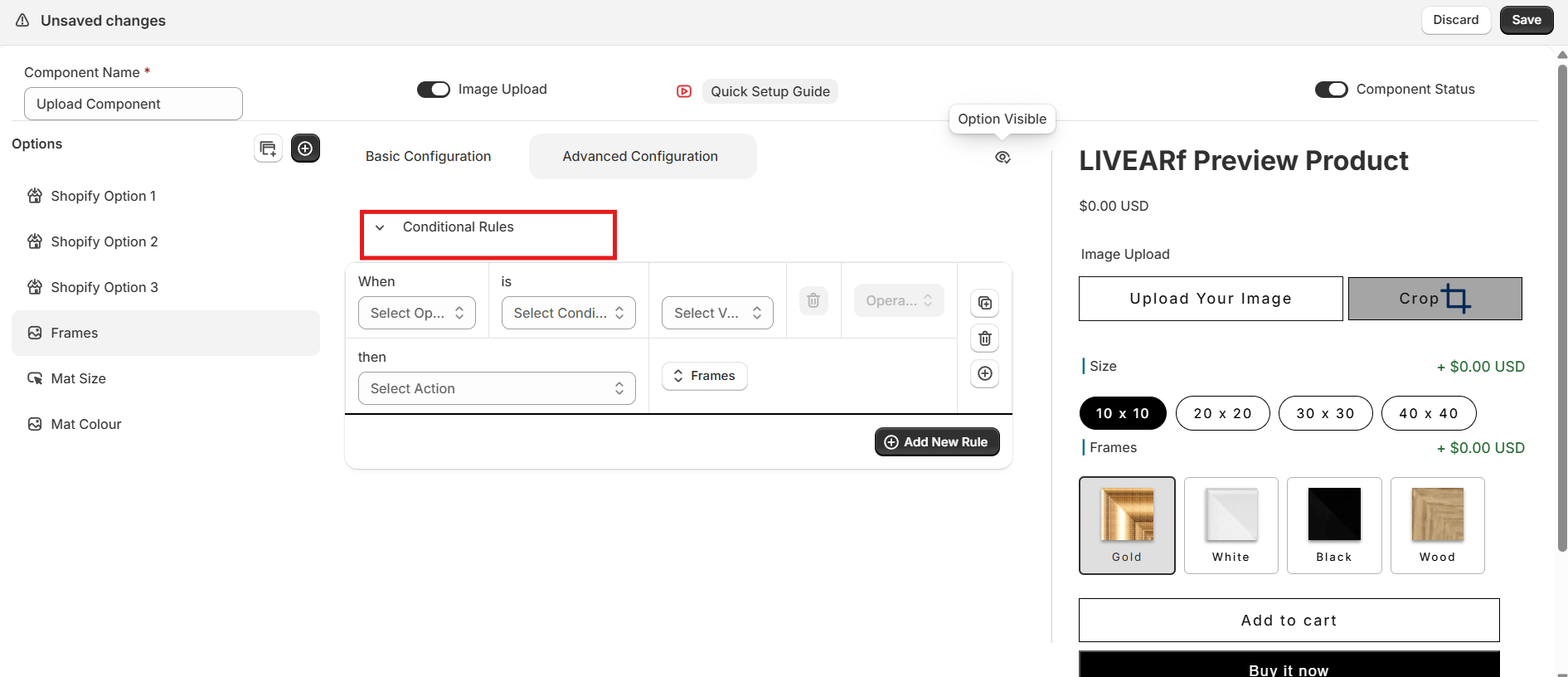 ### How to access
1. Click the **Advanced Configuration** tab
2. Expand **Conditional Rules**
3. Click **Add New Rule**
***
### Rule structure
```text theme={null}
WHEN [Option] [Condition] [Value]
THEN [Action] [Target Option] [Target Values]
```
| Part | What you set | Options |
| ----------------- | ------------------------------ | ------------------------------------------------- |
| **WHEN Option** | Which option triggers the rule | Frames, Mat Size, Mat Colour, any custom option |
| **Condition** | How to evaluate it | Equals to, Not equals to, Greater than, Less than |
| **Value** | What value triggers it | Any, or specific values |
| **THEN Action** | What happens | Show, Hide, StrikeOut |
| **Target** | Which option is affected | Any option in the component |
| **Target Values** | Which values are affected | All, or specific values |
***
### The 3 actions
| Action | What it does | When to use |
| ------------- | ---------------------------------------------------- | --------------------------------- |
| **Show** | Makes a hidden option or value visible | Reveal options only when relevant |
| **Hide** | Removes an option or value from the page entirely | Remove irrelevant combinations |
| **StrikeOut** | Keeps value visible but crossed out and unselectable | Show it exists but is unavailable |
To use Show rules effectively: first hide the option using the Hide toggle in Basic Configuration, then use a Show rule to reveal it only when needed.
***
### Examples
**Scenario:** Your Black frame looks best without a mat. Showing Mat Colour when Black is selected causes confusion.
**Rule:**
```text theme={null}
WHEN Frames equals Black
THEN Hide Mat Colour (all values)
```
**Result:** The Mat Colour selector disappears as soon as a customer selects Black. It reappears if they switch to another frame.
**Scenario:** Your Floater Frame is only available up to 20×20. For larger sizes, you want to show it exists but prevent selection.
**Rule:**
```text theme={null}
WHEN Size greater than 20×20
THEN StrikeOut Frames (Floater Frame only)
```
**Result:** On sizes 30×30 and above, the Floater Frame swatch shows with a strikethrough. Customers understand it is unavailable without needing to contact support.
**Scenario:** Gold and White frames are the only ones that look right with a 2 inch mat. You want to hide all others when that mat size is chosen.
**Rule:**
```text theme={null}
WHEN Mat Size equals 2 inch
THEN Show Frames (Gold, White only)
```
**Result:** Selecting 2 inch mat shows only Gold and White frames. All others are hidden, simplifying the decision and avoiding mismatched orders.
**Scenario:** When a customer selects No Mat, Second Mat Size and Mat Colour are irrelevant and clutter the page.
**Rule 1:**
```text theme={null}
WHEN Mat Size equals No Mat
THEN Hide Mat Colour (all values)
```
**Rule 2:**
```text theme={null}
WHEN Mat Size equals No Mat
THEN Hide Second Mat Size (all values)
```
**Result:** Selecting No Mat removes all mat-related options instantly, giving customers a much cleaner page.
**Scenario:** Wrap Style options only apply to canvas prints. Showing them on framed products creates confusion.
**Rule:**
```text theme={null}
WHEN Frames equals Canvas
THEN Show Wrap Style (all values)
```
**Result:** Wrap Style only appears when the customer selects Canvas, keeping all framed product pages clean.
***
### Managing rules
Rules run top to bottom. If two rules conflict, the lower one wins. Drag to reorder.
| Task | How |
| ------------------- | ------------------------------------------- |
| Reorder | Drag the rule row up or down |
| Duplicate | Click the duplicate icon to copy a rule |
| Delete | Click the delete icon |
| Multiple conditions | Use the Operator field (AND / OR) |
| Apply changes | Click **Sync** after every edit |
| Test | Use the Preview Product panel before saving |
Always test rules in the Preview Product panel first. Rules only go live once the component is saved and linked to a product.
***
## Preview & Saving
### How to access
1. Click the **Advanced Configuration** tab
2. Expand **Conditional Rules**
3. Click **Add New Rule**
***
### Rule structure
```text theme={null}
WHEN [Option] [Condition] [Value]
THEN [Action] [Target Option] [Target Values]
```
| Part | What you set | Options |
| ----------------- | ------------------------------ | ------------------------------------------------- |
| **WHEN Option** | Which option triggers the rule | Frames, Mat Size, Mat Colour, any custom option |
| **Condition** | How to evaluate it | Equals to, Not equals to, Greater than, Less than |
| **Value** | What value triggers it | Any, or specific values |
| **THEN Action** | What happens | Show, Hide, StrikeOut |
| **Target** | Which option is affected | Any option in the component |
| **Target Values** | Which values are affected | All, or specific values |
***
### The 3 actions
| Action | What it does | When to use |
| ------------- | ---------------------------------------------------- | --------------------------------- |
| **Show** | Makes a hidden option or value visible | Reveal options only when relevant |
| **Hide** | Removes an option or value from the page entirely | Remove irrelevant combinations |
| **StrikeOut** | Keeps value visible but crossed out and unselectable | Show it exists but is unavailable |
To use Show rules effectively: first hide the option using the Hide toggle in Basic Configuration, then use a Show rule to reveal it only when needed.
***
### Examples
**Scenario:** Your Black frame looks best without a mat. Showing Mat Colour when Black is selected causes confusion.
**Rule:**
```text theme={null}
WHEN Frames equals Black
THEN Hide Mat Colour (all values)
```
**Result:** The Mat Colour selector disappears as soon as a customer selects Black. It reappears if they switch to another frame.
**Scenario:** Your Floater Frame is only available up to 20×20. For larger sizes, you want to show it exists but prevent selection.
**Rule:**
```text theme={null}
WHEN Size greater than 20×20
THEN StrikeOut Frames (Floater Frame only)
```
**Result:** On sizes 30×30 and above, the Floater Frame swatch shows with a strikethrough. Customers understand it is unavailable without needing to contact support.
**Scenario:** Gold and White frames are the only ones that look right with a 2 inch mat. You want to hide all others when that mat size is chosen.
**Rule:**
```text theme={null}
WHEN Mat Size equals 2 inch
THEN Show Frames (Gold, White only)
```
**Result:** Selecting 2 inch mat shows only Gold and White frames. All others are hidden, simplifying the decision and avoiding mismatched orders.
**Scenario:** When a customer selects No Mat, Second Mat Size and Mat Colour are irrelevant and clutter the page.
**Rule 1:**
```text theme={null}
WHEN Mat Size equals No Mat
THEN Hide Mat Colour (all values)
```
**Rule 2:**
```text theme={null}
WHEN Mat Size equals No Mat
THEN Hide Second Mat Size (all values)
```
**Result:** Selecting No Mat removes all mat-related options instantly, giving customers a much cleaner page.
**Scenario:** Wrap Style options only apply to canvas prints. Showing them on framed products creates confusion.
**Rule:**
```text theme={null}
WHEN Frames equals Canvas
THEN Show Wrap Style (all values)
```
**Result:** Wrap Style only appears when the customer selects Canvas, keeping all framed product pages clean.
***
### Managing rules
Rules run top to bottom. If two rules conflict, the lower one wins. Drag to reorder.
| Task | How |
| ------------------- | ------------------------------------------- |
| Reorder | Drag the rule row up or down |
| Duplicate | Click the duplicate icon to copy a rule |
| Delete | Click the delete icon |
| Multiple conditions | Use the Operator field (AND / OR) |
| Apply changes | Click **Sync** after every edit |
| Test | Use the Preview Product panel before saving |
Always test rules in the Preview Product panel first. Rules only go live once the component is saved and linked to a product.
***
## Preview & Saving
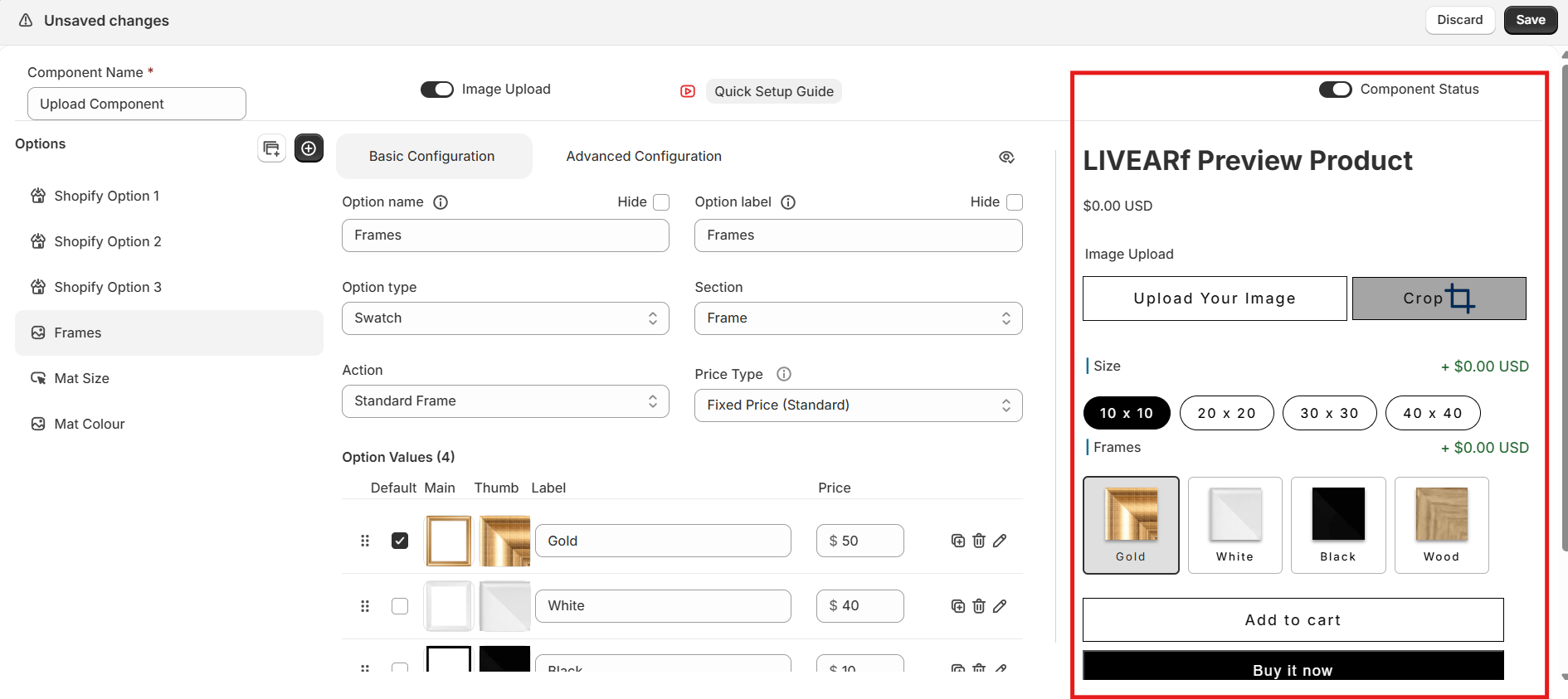 Before clicking Save, check:
* Option types display correctly — swatches, rectangles, dropdowns all render as expected
* Prices calculate correctly for each combination
* Conditional rules trigger — options show, hide, and strikeout correctly
* The live artwork preview updates with each selection
* Default values are set for each option
Click **Save** in the top-right corner when everything looks correct.
Saved successfully? Your component is ready to link to products.
***
## Linking to Products
Turn **Component Status ON** and save. The Link button only appears after the component is enabled.
Click **Link** in the top-right corner of the configuration screen.
| Option | What it does |
| ------------------------------------------- | ---------------------------------------------- |
| **Selected Collections** | All products in chosen Shopify collections |
| **Selected Products** | Only individually chosen products |
| **All Products (LIVEVUE Template Enabled)** | Every product already using a LIVEVUE template |
Click **Link** to confirm.
Go to **LIVEARf → Components**. Your component shows the number of linked products with a status of **Active**.
***
## What's Next?
Let customers upload their own photos and visualise them with your frames.
Create 2D and 3D frame visuals from your own frame strip images.
Before clicking Save, check:
* Option types display correctly — swatches, rectangles, dropdowns all render as expected
* Prices calculate correctly for each combination
* Conditional rules trigger — options show, hide, and strikeout correctly
* The live artwork preview updates with each selection
* Default values are set for each option
Click **Save** in the top-right corner when everything looks correct.
Saved successfully? Your component is ready to link to products.
***
## Linking to Products
Turn **Component Status ON** and save. The Link button only appears after the component is enabled.
Click **Link** in the top-right corner of the configuration screen.
| Option | What it does |
| ------------------------------------------- | ---------------------------------------------- |
| **Selected Collections** | All products in chosen Shopify collections |
| **Selected Products** | Only individually chosen products |
| **All Products (LIVEVUE Template Enabled)** | Every product already using a LIVEVUE template |
Click **Link** to confirm.
Go to **LIVEARf → Components**. Your component shows the number of linked products with a status of **Active**.
***
## What's Next?
Let customers upload their own photos and visualise them with your frames.
Create 2D and 3D frame visuals from your own frame strip images.